Contract Signature Page Best Practices for 2026
Contract Signature Page Best Practices for 2026
Contract Signature Page Best Practices for 2026
Contract Signature Page Best Practices for 2026

A contract signature page should make signing obvious, fast, and defensible. That means clear fields, a sensible signing order, and a format that matches the document in front of you. When a contract signature page is designed well, signers know exactly what to do, and the executed agreement stands as a clean, auditable record.
Too often, the signature page is treated as an afterthought: a block copied from the last agreement and pasted at the bottom. But every point of confusion on that page, a grayed-out button or an unclear field, turns into delays and email back-and-forth. This guide gives you a practical framework for formatting and placing signatures so documents get executed faster.
Key takeaways
A signature page is an interface: clear fields and a logical signing order get contracts executed faster.
Use a preset signature block at the bottom for standardized, high-volume agreements. Use inline fields for clause-level actions or third-party paper.
Skip manual date fields. Compliant e-signatures are date-stamped automatically at capture.
Set a signing order with auto-request so each signer is invited only when the previous one signs.
A certificate and full audit trail are what make the executed document defensible.
What is a contract signature page?
A contract signature page is the part of an agreement where parties execute the document. It holds the fields each signer completes, such as name, title, company, initials, and signature. It can be a preset block at the bottom of the contract or inline fields placed beside specific clauses.
How should a signature page be formatted?
A signature page should include only the fields each signer actually needs, clearly labeled and placed where they make sense. In modern e-signature workflows, you generally have two formats to choose from:
A preset signature block anchored at the bottom of the document.
Inline signature fields placed directly in the body, next to specific clauses.
Both are valid. The right choice depends on your document’s structure and how many people are signing. The rest of this post walks through when to use each, which field types to include, and how to keep the page from tripping up your signers.
The signature page is an interface, not a formality
Think of the signature page as something you design, not a block you paste. A recurring support pattern makes this concrete: signers open a document, see a grayed-out sign button, and don’t realize they first have to complete an assigned field, like typing their name. They get stuck, and the deal stalls.
That friction is a design problem. When required fields are obvious and placed logically, signers move through the page without hesitation. When they aren’t, you field confused emails and chase signatures that should have already landed.
The reframe is simple. Treat the page as a small user interface with one job: get the right people to complete the right actions in the right order.
Signature block vs. inline placement
Placement is a genuine choice. Teams are consistently shown two options, and neither is automatically better. Here’s how to decide.
Consideration | Preset signature block | Inline signature fields |
|---|---|---|
Best for | Standardized, high-volume agreements | Documents where parties sign or initial next to specific clauses |
Setup speed | Fastest; provides a signing spot for every signer automatically | Slower; fields are placed manually where needed |
Signer experience | Everyone signs in the same predictable place | Signers act at relevant points in the text |
Common use | NDAs, order forms, repeatable contracts | Multi-party agreements, clause-level acknowledgments |
Third-party paper | Less flexible on fixed layouts | Adapts to an existing PDF layout |
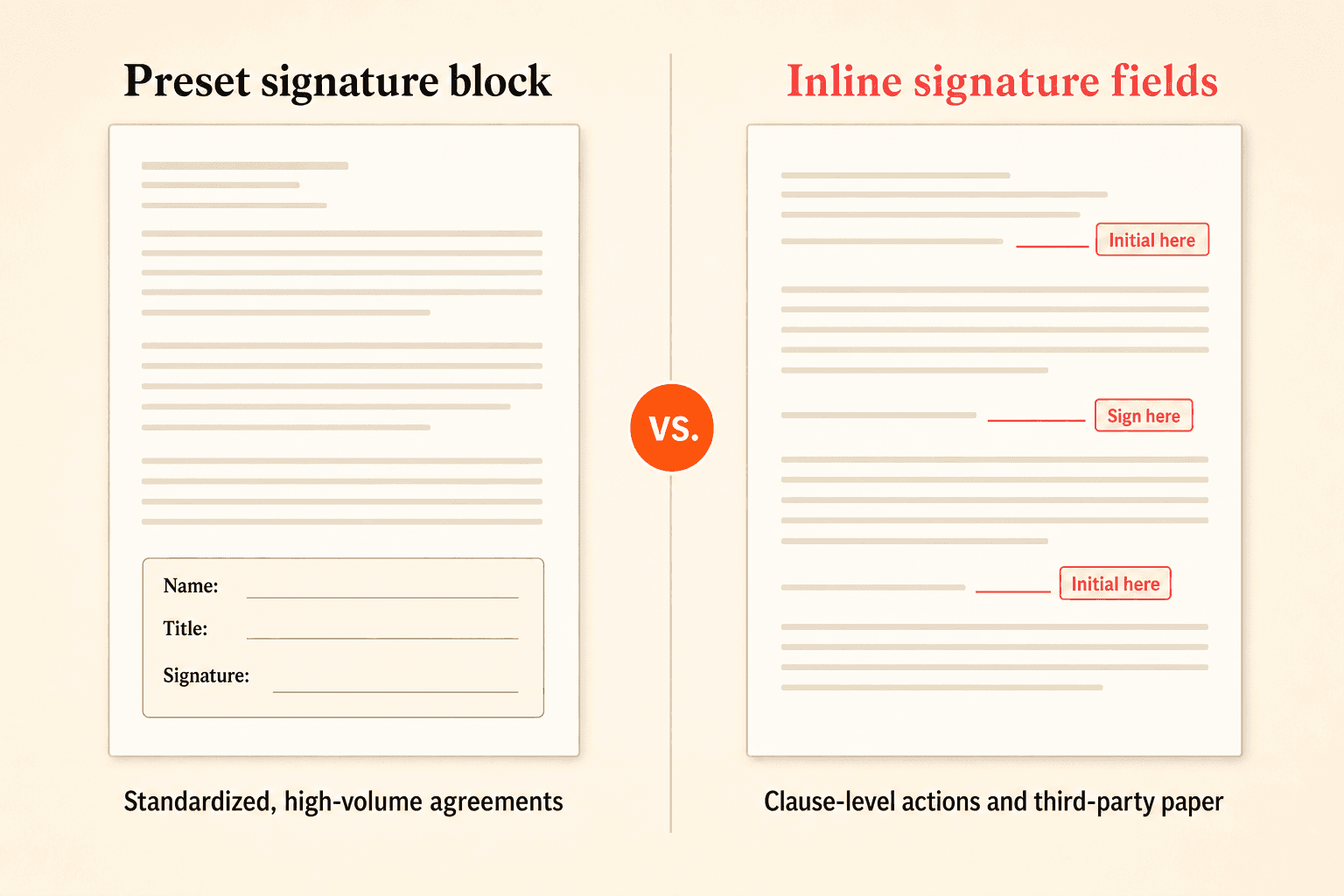
A bottom-of-document block is the fastest way to set up a page when every signer signs in the same place. For teams processing many similar agreements, this is usually the most efficient path.
Inline fields make sense when a specific party must sign or initial beside a specific section. When you work from counterparty paper rather than your own template, inline placement lets you superimpose fields onto the existing layout, because the page has to adapt to the document, not the other way around.
With a field management system, you place text, dropdown, checkbox, and signature fields exactly where they belong, whether that’s a structured block or an inline position in the body. That flexibility is what makes the block-versus-inline decision a real choice rather than a constraint.
Clip transcript: “And then last of all, that preset signature block. I always recommend turning this on because this is kind of like a fail safe. If for some reason you don’t have your field set correctly or something happens in the document, you always have that signature block that will capture the information. And personally, I like to just have the signature block. I don’t do the actual signature fields in the document. I just keep it at the bottom. But if you want to do both here, you could do that as well. And the signature fields that I’m referring to are fields that you can drag and drop into the document. So you can put in someone’s name, initials, title, company, signature. That can all go in here. Or you could just leave that open for the signature block itself.”
Pick the right signature field types
Signature fields come in several types, and choosing the right combination is part of a clean page. Common options include:
Name
Initials
Title
Company
Signature
Include what the agreement genuinely requires and leave off the rest. Fewer fields means fewer places for a signer to get stuck. Signers can type, draw, or upload their signature, and they don’t need an account to do it: they open a link and sign.
Stop over-engineering date fields
Many teams add a manual date field to every signature block out of habit. In a modern workflow, that’s usually unnecessary.
Signatures collected through a compliant e-signature process are automatically date-stamped at the moment they’re captured. A separate date field just adds clutter and one more thing for a signer to complete. Removing it is a small change that makes the page cleaner and faster.
Signing order is part of the page design
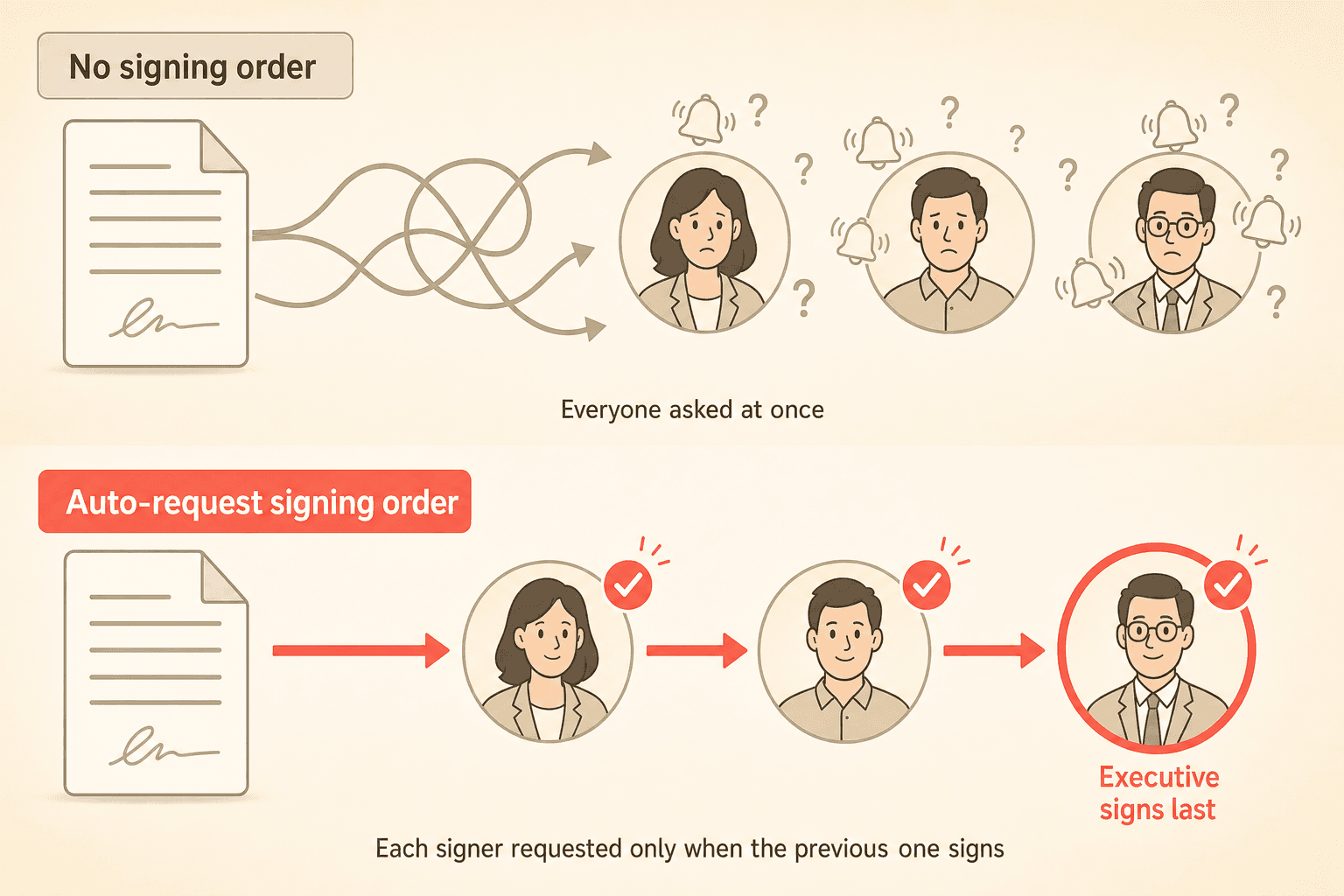
For documents with several signers, in some cases five to 10 or more, layout is only half the job. Without a defined order, everyone gets a signature request at once, and you end up with a flood of simultaneous emails and confusion about who’s next.
A structured signing order fixes this. Auto-request behavior advances to the next signer once the prior one signs, turning a chaotic multi-party page into a clean sequential flow.
Signature requirement tracking helps here too. It monitors how many signatures have been collected against how many are required, so you can spot an agreement that’s only partially executed before it becomes a problem. For teams sending many agreements at once, bulk signature requests handle high-volume signing without setting up each document by hand.
Clip transcript: “We also have a simple order form that only requires one signature from the outside party. So you can choose how many signers you want. You can also do signing order. So if you want the other side to sign first before you sign, of course, you can set up that signing order. We do have auto request signature, which I always recommend having on. What that means, as soon as one person signs it, it’ll automatically send the request to the next person who is set up as the signer. One place where that really comes in handy is you might have executives where they need to sign all your documents in the end, but you don’t want them added to the document or invited to the document until the other party signs it. And so what you’ll do is you’ll put them in there as a signer. You won’t invite them yet, and then you’ll set up that auto request signature. So that way, as soon as the other person signs, then they’ll get the request to come in and sign it.”
Want to see auto-request signing order and signature tracking on your own agreements? Book a 15-minute demo.
Distinguish “sign” from “acknowledge”
Not every party needs to formally sign. Some only need to confirm they’ve reviewed a document. This distinction surfaces often, and getting it wrong invites disputes about what a signer actually agreed to.
Because a preset block’s language is fixed, teams that need acknowledgment rather than a formal signature should add clarifying language in the document body. State plainly what the action means. If a party is confirming review, say so on the page, so no one later argues they meant to sign a binding commitment.
If your process routes documents for internal review before signing, keep approval and signature separate. You can read more about that distinction in our approval workflow guide.
Electronic signature validity in 2026
A well-formatted page only matters if the signature holds up. E-signatures collected through a compliant workflow carry the same authentication and audit-trail backing as any major e-signature tool, and they’re broadly accepted wherever electronic signature is valid.
The practical best practice: make sure your signature page is backed by a certificate and a full audit trail. Digital signature certificate management supports authenticity and legal validity behind each signature. Signature snapshots capture point-in-time records throughout the process, giving you a complete signing history.
With that backing in place, the executed document is defensible regardless of whether the signer typed, drew, or uploaded their signature. For a fuller explanation of how electronic signing works, see our electronic signature guide.
Signature page checklist
Use this before you send:
Include only the fields each signer needs (name, initials, title, company, signature).
Choose block or inline placement based on the document, not habit.
Skip manual date fields; signatures are date-stamped automatically.
Set a signing order when more than one party is involved.
Confirm every required field is clearly labeled so no one hits a grayed-out button.
Add clarifying language when a party is acknowledging rather than signing.
Verify the page is backed by a certificate and audit trail.
Track collected versus required signatures before considering the document done.
A quick decision framework
Start with two questions. First, does every signer sign in the same place? If yes, a preset block at the bottom is fastest. Second, must specific parties act next to specific clauses, or are you working from a fixed third-party PDF? If yes, place fields inline.
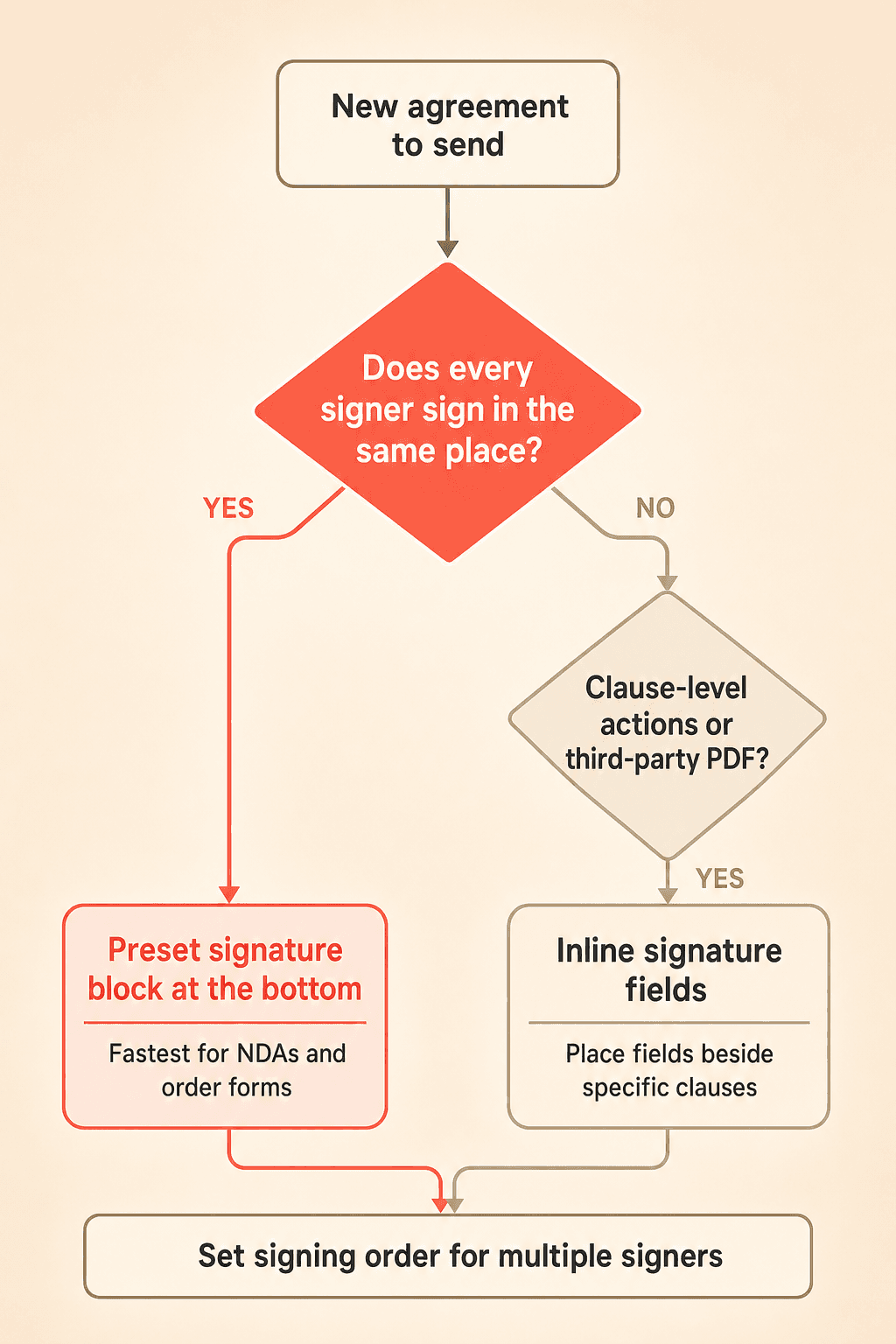
For repeatable documents like NDAs and order forms, lean on preset blocks and bulk requests. For multi-party agreements with clause-level actions, use inline fields and a defined signing order. When you build from your own templates, set placement once and reuse it. See our contract templates guide for setting that up.
Ready to design signature pages that get executed faster? See how Concord handles signatures and audit trails.
A contract signature page should make signing obvious, fast, and defensible. That means clear fields, a sensible signing order, and a format that matches the document in front of you. When a contract signature page is designed well, signers know exactly what to do, and the executed agreement stands as a clean, auditable record.
Too often, the signature page is treated as an afterthought: a block copied from the last agreement and pasted at the bottom. But every point of confusion on that page, a grayed-out button or an unclear field, turns into delays and email back-and-forth. This guide gives you a practical framework for formatting and placing signatures so documents get executed faster.
Key takeaways
A signature page is an interface: clear fields and a logical signing order get contracts executed faster.
Use a preset signature block at the bottom for standardized, high-volume agreements. Use inline fields for clause-level actions or third-party paper.
Skip manual date fields. Compliant e-signatures are date-stamped automatically at capture.
Set a signing order with auto-request so each signer is invited only when the previous one signs.
A certificate and full audit trail are what make the executed document defensible.
What is a contract signature page?
A contract signature page is the part of an agreement where parties execute the document. It holds the fields each signer completes, such as name, title, company, initials, and signature. It can be a preset block at the bottom of the contract or inline fields placed beside specific clauses.
How should a signature page be formatted?
A signature page should include only the fields each signer actually needs, clearly labeled and placed where they make sense. In modern e-signature workflows, you generally have two formats to choose from:
A preset signature block anchored at the bottom of the document.
Inline signature fields placed directly in the body, next to specific clauses.
Both are valid. The right choice depends on your document’s structure and how many people are signing. The rest of this post walks through when to use each, which field types to include, and how to keep the page from tripping up your signers.
The signature page is an interface, not a formality
Think of the signature page as something you design, not a block you paste. A recurring support pattern makes this concrete: signers open a document, see a grayed-out sign button, and don’t realize they first have to complete an assigned field, like typing their name. They get stuck, and the deal stalls.
That friction is a design problem. When required fields are obvious and placed logically, signers move through the page without hesitation. When they aren’t, you field confused emails and chase signatures that should have already landed.
The reframe is simple. Treat the page as a small user interface with one job: get the right people to complete the right actions in the right order.
Signature block vs. inline placement
Placement is a genuine choice. Teams are consistently shown two options, and neither is automatically better. Here’s how to decide.
Consideration | Preset signature block | Inline signature fields |
|---|---|---|
Best for | Standardized, high-volume agreements | Documents where parties sign or initial next to specific clauses |
Setup speed | Fastest; provides a signing spot for every signer automatically | Slower; fields are placed manually where needed |
Signer experience | Everyone signs in the same predictable place | Signers act at relevant points in the text |
Common use | NDAs, order forms, repeatable contracts | Multi-party agreements, clause-level acknowledgments |
Third-party paper | Less flexible on fixed layouts | Adapts to an existing PDF layout |
A bottom-of-document block is the fastest way to set up a page when every signer signs in the same place. For teams processing many similar agreements, this is usually the most efficient path.
Inline fields make sense when a specific party must sign or initial beside a specific section. When you work from counterparty paper rather than your own template, inline placement lets you superimpose fields onto the existing layout, because the page has to adapt to the document, not the other way around.
With a field management system, you place text, dropdown, checkbox, and signature fields exactly where they belong, whether that’s a structured block or an inline position in the body. That flexibility is what makes the block-versus-inline decision a real choice rather than a constraint.
Clip transcript: “And then last of all, that preset signature block. I always recommend turning this on because this is kind of like a fail safe. If for some reason you don’t have your field set correctly or something happens in the document, you always have that signature block that will capture the information. And personally, I like to just have the signature block. I don’t do the actual signature fields in the document. I just keep it at the bottom. But if you want to do both here, you could do that as well. And the signature fields that I’m referring to are fields that you can drag and drop into the document. So you can put in someone’s name, initials, title, company, signature. That can all go in here. Or you could just leave that open for the signature block itself.”
Pick the right signature field types
Signature fields come in several types, and choosing the right combination is part of a clean page. Common options include:
Name
Initials
Title
Company
Signature
Include what the agreement genuinely requires and leave off the rest. Fewer fields means fewer places for a signer to get stuck. Signers can type, draw, or upload their signature, and they don’t need an account to do it: they open a link and sign.
Stop over-engineering date fields
Many teams add a manual date field to every signature block out of habit. In a modern workflow, that’s usually unnecessary.
Signatures collected through a compliant e-signature process are automatically date-stamped at the moment they’re captured. A separate date field just adds clutter and one more thing for a signer to complete. Removing it is a small change that makes the page cleaner and faster.
Signing order is part of the page design
For documents with several signers, in some cases five to 10 or more, layout is only half the job. Without a defined order, everyone gets a signature request at once, and you end up with a flood of simultaneous emails and confusion about who’s next.
A structured signing order fixes this. Auto-request behavior advances to the next signer once the prior one signs, turning a chaotic multi-party page into a clean sequential flow.
Signature requirement tracking helps here too. It monitors how many signatures have been collected against how many are required, so you can spot an agreement that’s only partially executed before it becomes a problem. For teams sending many agreements at once, bulk signature requests handle high-volume signing without setting up each document by hand.
Clip transcript: “We also have a simple order form that only requires one signature from the outside party. So you can choose how many signers you want. You can also do signing order. So if you want the other side to sign first before you sign, of course, you can set up that signing order. We do have auto request signature, which I always recommend having on. What that means, as soon as one person signs it, it’ll automatically send the request to the next person who is set up as the signer. One place where that really comes in handy is you might have executives where they need to sign all your documents in the end, but you don’t want them added to the document or invited to the document until the other party signs it. And so what you’ll do is you’ll put them in there as a signer. You won’t invite them yet, and then you’ll set up that auto request signature. So that way, as soon as the other person signs, then they’ll get the request to come in and sign it.”
Want to see auto-request signing order and signature tracking on your own agreements? Book a 15-minute demo.
Distinguish “sign” from “acknowledge”
Not every party needs to formally sign. Some only need to confirm they’ve reviewed a document. This distinction surfaces often, and getting it wrong invites disputes about what a signer actually agreed to.
Because a preset block’s language is fixed, teams that need acknowledgment rather than a formal signature should add clarifying language in the document body. State plainly what the action means. If a party is confirming review, say so on the page, so no one later argues they meant to sign a binding commitment.
If your process routes documents for internal review before signing, keep approval and signature separate. You can read more about that distinction in our approval workflow guide.
Electronic signature validity in 2026
A well-formatted page only matters if the signature holds up. E-signatures collected through a compliant workflow carry the same authentication and audit-trail backing as any major e-signature tool, and they’re broadly accepted wherever electronic signature is valid.
The practical best practice: make sure your signature page is backed by a certificate and a full audit trail. Digital signature certificate management supports authenticity and legal validity behind each signature. Signature snapshots capture point-in-time records throughout the process, giving you a complete signing history.
With that backing in place, the executed document is defensible regardless of whether the signer typed, drew, or uploaded their signature. For a fuller explanation of how electronic signing works, see our electronic signature guide.
Signature page checklist
Use this before you send:
Include only the fields each signer needs (name, initials, title, company, signature).
Choose block or inline placement based on the document, not habit.
Skip manual date fields; signatures are date-stamped automatically.
Set a signing order when more than one party is involved.
Confirm every required field is clearly labeled so no one hits a grayed-out button.
Add clarifying language when a party is acknowledging rather than signing.
Verify the page is backed by a certificate and audit trail.
Track collected versus required signatures before considering the document done.
A quick decision framework
Start with two questions. First, does every signer sign in the same place? If yes, a preset block at the bottom is fastest. Second, must specific parties act next to specific clauses, or are you working from a fixed third-party PDF? If yes, place fields inline.
For repeatable documents like NDAs and order forms, lean on preset blocks and bulk requests. For multi-party agreements with clause-level actions, use inline fields and a defined signing order. When you build from your own templates, set placement once and reuse it. See our contract templates guide for setting that up.
Ready to design signature pages that get executed faster? See how Concord handles signatures and audit trails.
Need to know
Frequently Asked Questions

Take the "management" out
of contract management.
Customer Support
Legal
Compare
Resources
Customer Support
Company
Legal
Compare
Resources
Customer Support
Company
Legal
Compare
© 2025 Concord. All rights reserved.