Contract Review Tracking Audit Trail: A Guide
Contract Review Tracking Audit Trail: A Guide
Contract Review Tracking Audit Trail: A Guide
Contract Review Tracking Audit Trail: A Guide
contract management

You send a contract to Legal for review. Three days later, someone asks where it stands, and you have no confident answer. That gap, the moment you cannot say who has the latest version or what stage it sits in, is exactly what a contract review tracking audit trail closes.
When review runs through email threads and desktop files, the work itself is rarely the problem. The problem is the missing record of where the document is and who touched it last. This guide walks through how audit trails, version history, and status tracking give you a chronological answer to every “where are we?” question.
Key takeaways
Email-based review breaks down because it leaves no single record of where a contract stands or who touched it last.
A tracking system logs every action with a name and a timestamp, from the first draft through signature.
Stage tracking, activity logs, and automatic versioning turn “I think Legal has it” into a factual answer.
The audit trail also shows whether the counterparty has opened the document, so you know if review is stalled on your side or theirs.
What is a contract review tracking audit trail?
A contract review tracking audit trail is a chronological, timestamped record of every action taken on a contract during review. It captures who opened, edited, commented on, or approved the document, and when each event happened, giving you a permanent account of the full review cycle.
Why email-based review breaks down
Most teams start with email. It works fine for a handful of contracts, then it stops working entirely.
Legal ops leaders frequently describe the tipping point the same way: doing everything by email until they can no longer keep track of it. Versions pile up, replies fork into separate threads, and no one is certain which attachment is current.
“You do everything by email until you can no longer keep track of it.”
The root issue is visibility. You cannot manage what you cannot see, and scattered email offers no single source of truth for a contract’s status. A tracking system replaces that guesswork with a durable, timestamped record of every action.
Step 1: Set the review stage
Every review starts by placing the contract at a defined stage. Instead of a document floating somewhere in an inbox, it sits at a named point in the cycle: drafting, internal review, counterparty review, approval, or signature.
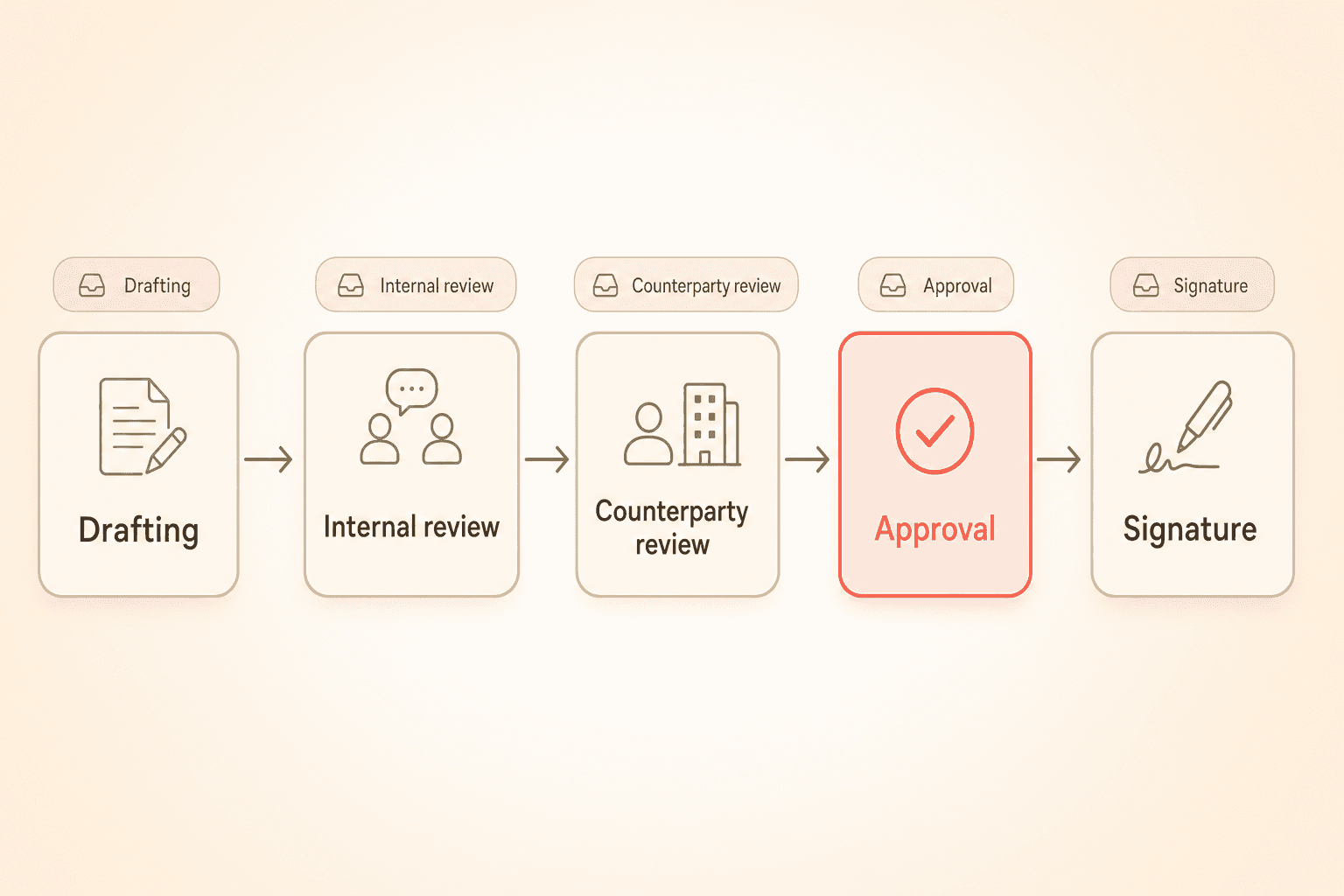
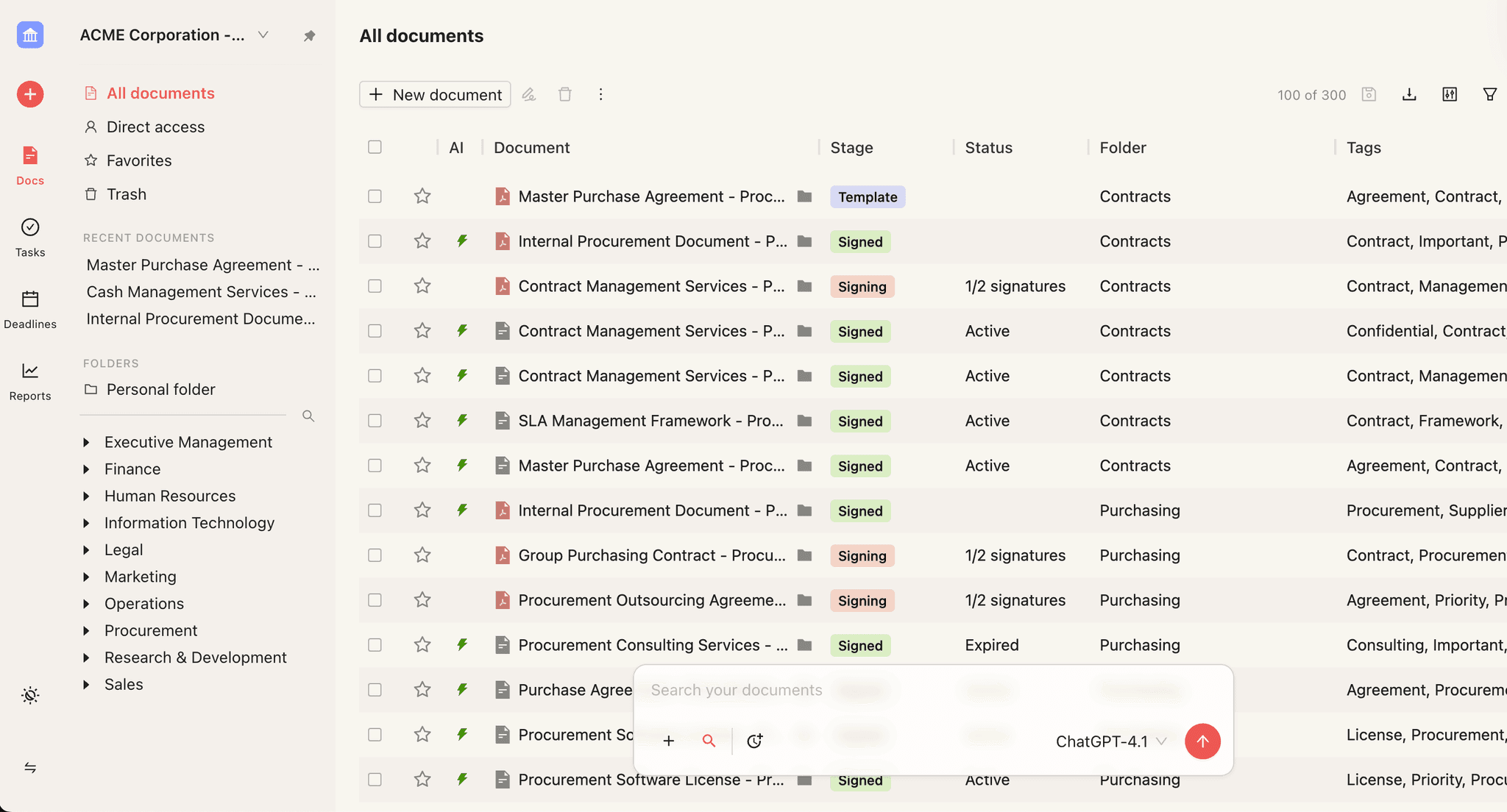
Agreement lifecycle tracking categorizes each document automatically as it moves, so you get clear visibility into what stage it occupies. From an inbox-style view, you can see the stage and status of every contract without opening a single file.
Teams often push back on rigid tools where statuses cannot be changed. The point of stage tracking is control: you decide what stages exist and when a document moves between them.
For a broader picture of how stages fit together, see the contract lifecycle management overview.
Step 2: Track every change
Once review begins, the questions multiply. Who edited that clause? Was it an insertion or a deletion? Was that comment meant for the internal team or the counterparty?
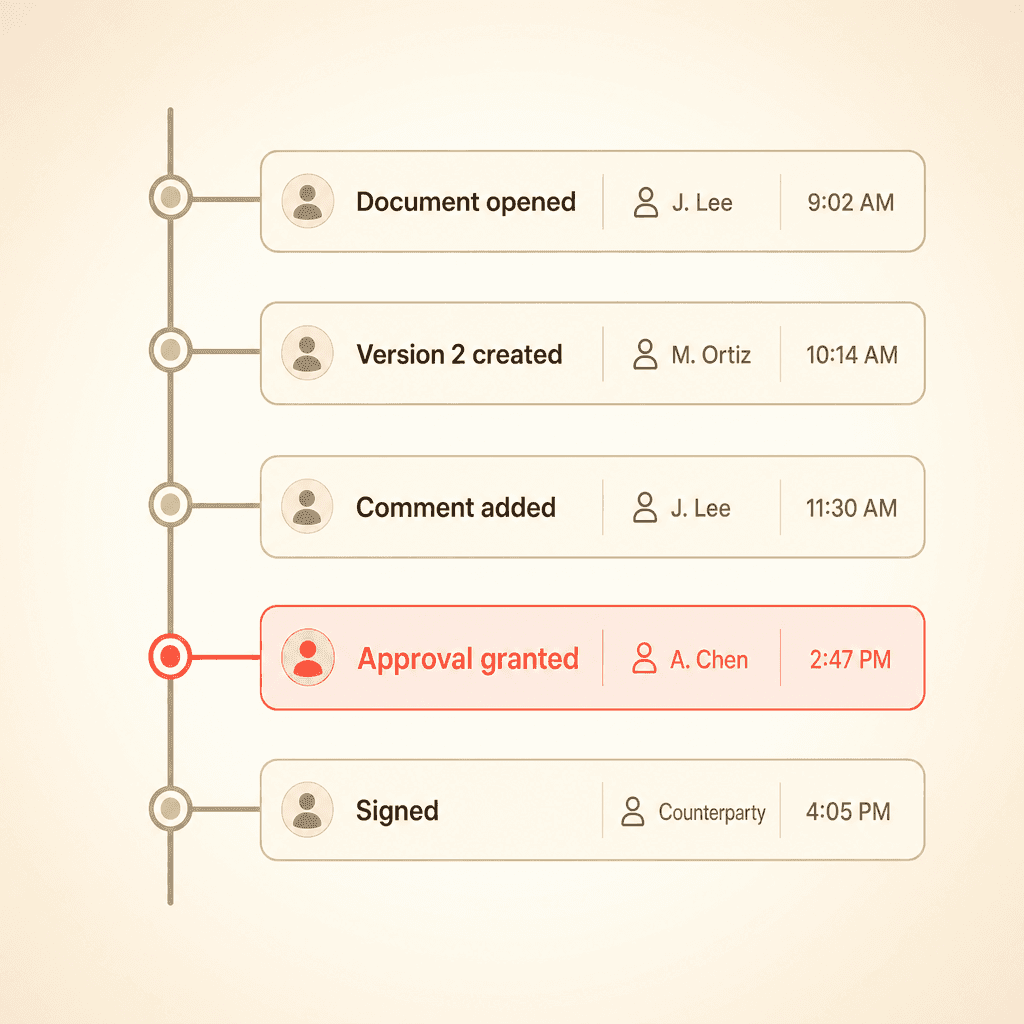
Activity tracking answers all of it. Every meaningful action becomes an attributed entry: a document opened, a version created, a comment posted, an approval granted. You can see who made each change and what type of change it was.
You can also filter track changes by author and by insertion versus deletion. On a heavily negotiated agreement, that filter turns a wall of redlines into a readable summary of who did what.
We have a full audit trail, so you can see what is happening. If you want to check whether the other side actually opened and read the document, you can see that in the audit trail. You can also see who was invited and who created versions. A newer feature lets you separate comments by the person who made them, and mark them resolved or unresolved. You can filter by public versus internal visibility, and filter track changes by who made the comments or changes, whether they were inside or outside the team, so you can see specific changes.
Prospects consistently ask whether comments persist with the document permanently. They do, and that permanence is what makes review auditable rather than a memory exercise.
Keep internal and public separate
Not every comment belongs in the negotiation record. Teams value keeping internal review notes, and even entire internal-only versions, separate from what outside parties see.
That separation means your team can debate a clause candidly without that discussion leaking to the counterparty. The external record stays clean while your internal thinking stays private.
Step 3: Compare versions side by side
Version confusion is the fear that comes up most. Someone starts inside the system, takes the document offline, edits it on a desktop, and forgets to bring it back. The tracked history breaks.
Automatic versioning solves this by capturing every version in one place. When a document is edited or re-uploaded, a new version is recorded, so you always know which one is the latest.
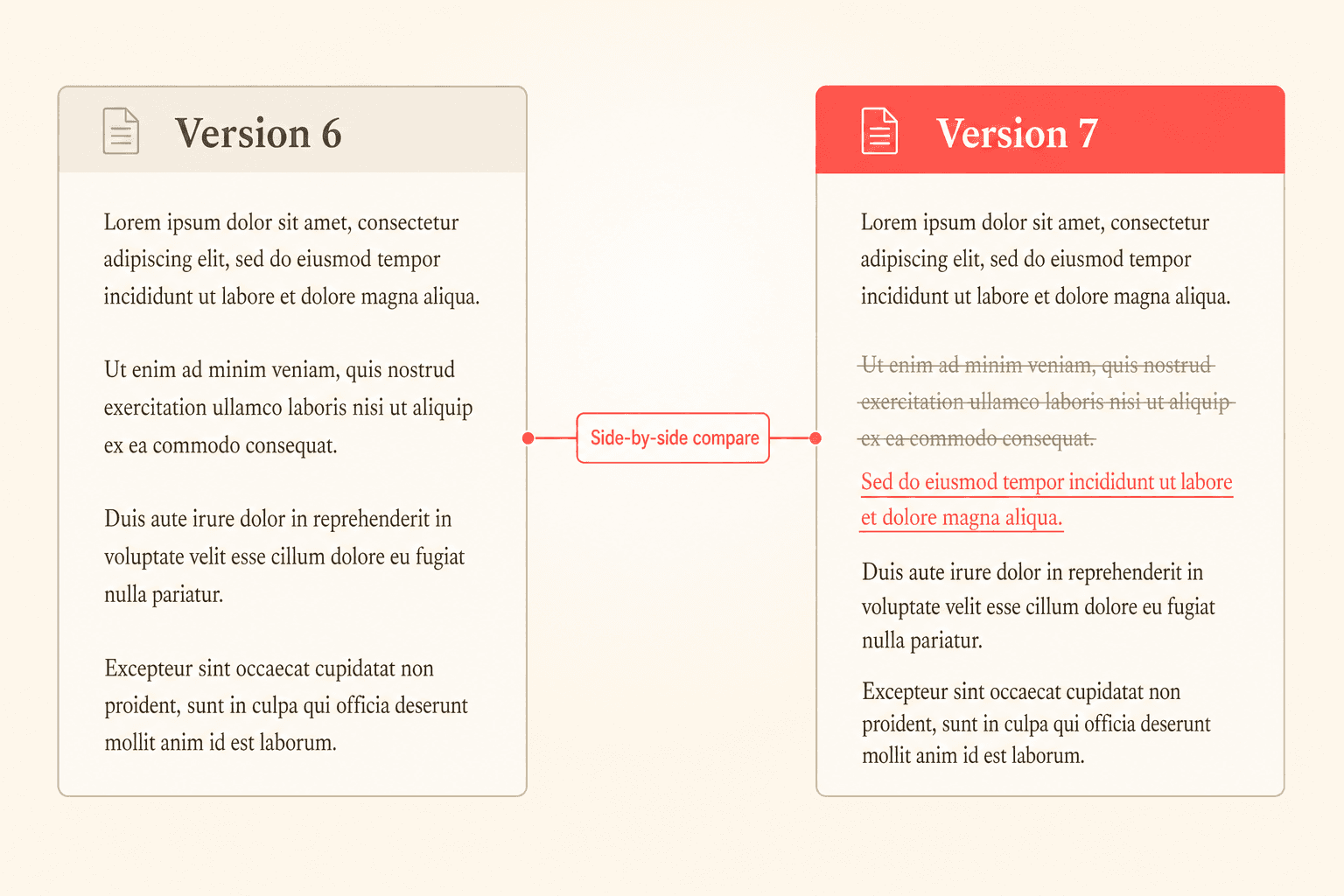
In a long back-and-forth, the number of versions grows fast. Side-by-side comparison lets you put version seven next to version six and see exactly what changed, without reconstructing the negotiation from memory.
The other thing to point out is version history. Go to revisions, then version history, and you can see the previous versions of the document. The first version, internal only, was 0.1. Once it was made public, it became version one, the official external version. You can compare versions right there and see the difference between them. Within version history you can also restore previous versions, so if you get five versions in and need to go back to version two, you can jump back and restore it.
For more on managing redlines through negotiation, read the version control and redlining guide.
Step 4: Review the full audit trail
The audit trail is where every step comes together. It is a chronological timeline of all contract activity, showing who performed what action and when signatures occurred.
This turns “I think Legal has it” into a factual answer. Approval workflow state tracking captures the complete state of your review process at points in time, including rules, conditions, and validator assignments, so you have a reliable record of how a contract moved through approval.
Activity logs are exportable, which matters when compliance or an auditor needs proof of what happened and when. A permanent, queryable timeline replaces the frantic search through old email.
Learn how review steps get formalized in the approval workflows guide.
Want to turn “I think Legal has it” into a timeline you can point to? See how Concord records every review step in one exportable audit trail. Request a demo.
Step 5: Watch engagement signals
Knowing your side acted is only half the picture. You also need to know whether the counterparty has looked at the document.
Teams ask directly whether the audit trail surfaces engagement: whether the other side opened, viewed, or clicked into a contract. That signal tells you whether the ball is in your court or theirs.
Engagement visibility shortens the follow-up loop. Instead of guessing, you know when a document has actually been read, so you can gauge whether it is being worked on or sitting untouched.
Problem-to-feature summary
Review problem | Tracking feature that solves it |
|---|---|
No idea what stage a contract is in | Agreement lifecycle tracking with inbox status view |
Cannot tell who changed what | Activity tracking with author and change-type filters |
Internal notes leaking to counterparty | Internal vs. public comments and versions |
Which version is the latest? | Automatic versioning with side-by-side comparison |
No proof of what happened for audit | Activity timeline with exportable logs |
Not sure if the counterparty has read it | Engagement and open tracking |
Approval steps hard to reconstruct | Approval workflow state tracking |
Putting the steps into practice
The value of these tools is qualitative but real: visibility, accountability, and control over a process that email leaves invisible. When every action carries a name and a timestamp, review stops depending on anyone’s memory.
Accountability follows naturally from attribution. When each comment and change records who made it and when, disputes about what was agreed become questions you can answer by looking at the record.
One central place keeps the whole cycle intact. A document moves cleanly from reviewer to reviewer through defined steps instead of splintering across inboxes.
To see how activity data rolls up across your whole portfolio, explore the contract analytics and reporting dashboard.
You send a contract to Legal for review. Three days later, someone asks where it stands, and you have no confident answer. That gap, the moment you cannot say who has the latest version or what stage it sits in, is exactly what a contract review tracking audit trail closes.
When review runs through email threads and desktop files, the work itself is rarely the problem. The problem is the missing record of where the document is and who touched it last. This guide walks through how audit trails, version history, and status tracking give you a chronological answer to every “where are we?” question.
Key takeaways
Email-based review breaks down because it leaves no single record of where a contract stands or who touched it last.
A tracking system logs every action with a name and a timestamp, from the first draft through signature.
Stage tracking, activity logs, and automatic versioning turn “I think Legal has it” into a factual answer.
The audit trail also shows whether the counterparty has opened the document, so you know if review is stalled on your side or theirs.
What is a contract review tracking audit trail?
A contract review tracking audit trail is a chronological, timestamped record of every action taken on a contract during review. It captures who opened, edited, commented on, or approved the document, and when each event happened, giving you a permanent account of the full review cycle.
Why email-based review breaks down
Most teams start with email. It works fine for a handful of contracts, then it stops working entirely.
Legal ops leaders frequently describe the tipping point the same way: doing everything by email until they can no longer keep track of it. Versions pile up, replies fork into separate threads, and no one is certain which attachment is current.
“You do everything by email until you can no longer keep track of it.”
The root issue is visibility. You cannot manage what you cannot see, and scattered email offers no single source of truth for a contract’s status. A tracking system replaces that guesswork with a durable, timestamped record of every action.
Step 1: Set the review stage
Every review starts by placing the contract at a defined stage. Instead of a document floating somewhere in an inbox, it sits at a named point in the cycle: drafting, internal review, counterparty review, approval, or signature.
Agreement lifecycle tracking categorizes each document automatically as it moves, so you get clear visibility into what stage it occupies. From an inbox-style view, you can see the stage and status of every contract without opening a single file.
Teams often push back on rigid tools where statuses cannot be changed. The point of stage tracking is control: you decide what stages exist and when a document moves between them.
For a broader picture of how stages fit together, see the contract lifecycle management overview.
Step 2: Track every change
Once review begins, the questions multiply. Who edited that clause? Was it an insertion or a deletion? Was that comment meant for the internal team or the counterparty?
Activity tracking answers all of it. Every meaningful action becomes an attributed entry: a document opened, a version created, a comment posted, an approval granted. You can see who made each change and what type of change it was.
You can also filter track changes by author and by insertion versus deletion. On a heavily negotiated agreement, that filter turns a wall of redlines into a readable summary of who did what.
We have a full audit trail, so you can see what is happening. If you want to check whether the other side actually opened and read the document, you can see that in the audit trail. You can also see who was invited and who created versions. A newer feature lets you separate comments by the person who made them, and mark them resolved or unresolved. You can filter by public versus internal visibility, and filter track changes by who made the comments or changes, whether they were inside or outside the team, so you can see specific changes.
Prospects consistently ask whether comments persist with the document permanently. They do, and that permanence is what makes review auditable rather than a memory exercise.
Keep internal and public separate
Not every comment belongs in the negotiation record. Teams value keeping internal review notes, and even entire internal-only versions, separate from what outside parties see.
That separation means your team can debate a clause candidly without that discussion leaking to the counterparty. The external record stays clean while your internal thinking stays private.
Step 3: Compare versions side by side
Version confusion is the fear that comes up most. Someone starts inside the system, takes the document offline, edits it on a desktop, and forgets to bring it back. The tracked history breaks.
Automatic versioning solves this by capturing every version in one place. When a document is edited or re-uploaded, a new version is recorded, so you always know which one is the latest.
In a long back-and-forth, the number of versions grows fast. Side-by-side comparison lets you put version seven next to version six and see exactly what changed, without reconstructing the negotiation from memory.
The other thing to point out is version history. Go to revisions, then version history, and you can see the previous versions of the document. The first version, internal only, was 0.1. Once it was made public, it became version one, the official external version. You can compare versions right there and see the difference between them. Within version history you can also restore previous versions, so if you get five versions in and need to go back to version two, you can jump back and restore it.
For more on managing redlines through negotiation, read the version control and redlining guide.
Step 4: Review the full audit trail
The audit trail is where every step comes together. It is a chronological timeline of all contract activity, showing who performed what action and when signatures occurred.
This turns “I think Legal has it” into a factual answer. Approval workflow state tracking captures the complete state of your review process at points in time, including rules, conditions, and validator assignments, so you have a reliable record of how a contract moved through approval.
Activity logs are exportable, which matters when compliance or an auditor needs proof of what happened and when. A permanent, queryable timeline replaces the frantic search through old email.
Learn how review steps get formalized in the approval workflows guide.
Want to turn “I think Legal has it” into a timeline you can point to? See how Concord records every review step in one exportable audit trail. Request a demo.
Step 5: Watch engagement signals
Knowing your side acted is only half the picture. You also need to know whether the counterparty has looked at the document.
Teams ask directly whether the audit trail surfaces engagement: whether the other side opened, viewed, or clicked into a contract. That signal tells you whether the ball is in your court or theirs.
Engagement visibility shortens the follow-up loop. Instead of guessing, you know when a document has actually been read, so you can gauge whether it is being worked on or sitting untouched.
Problem-to-feature summary
Review problem | Tracking feature that solves it |
|---|---|
No idea what stage a contract is in | Agreement lifecycle tracking with inbox status view |
Cannot tell who changed what | Activity tracking with author and change-type filters |
Internal notes leaking to counterparty | Internal vs. public comments and versions |
Which version is the latest? | Automatic versioning with side-by-side comparison |
No proof of what happened for audit | Activity timeline with exportable logs |
Not sure if the counterparty has read it | Engagement and open tracking |
Approval steps hard to reconstruct | Approval workflow state tracking |
Putting the steps into practice
The value of these tools is qualitative but real: visibility, accountability, and control over a process that email leaves invisible. When every action carries a name and a timestamp, review stops depending on anyone’s memory.
Accountability follows naturally from attribution. When each comment and change records who made it and when, disputes about what was agreed become questions you can answer by looking at the record.
One central place keeps the whole cycle intact. A document moves cleanly from reviewer to reviewer through defined steps instead of splintering across inboxes.
To see how activity data rolls up across your whole portfolio, explore the contract analytics and reporting dashboard.
Need to know
Frequently Asked Questions

Take the "management" out
of contract management.
Customer Support
Legal
Compare
Resources
Customer Support
Company
Legal
Compare
Resources
Customer Support
Company
Legal
Compare
© 2025 Concord. All rights reserved.