How to sync contract deadlines to Outlook and Google Calendar
How to sync contract deadlines to Outlook and Google Calendar
How to sync contract deadlines to Outlook and Google Calendar
How to sync contract deadlines to Outlook and Google Calendar
contract management
Key Takeaways
Contract deadlines fail not because they are untracked, but because they live in a CLM dashboard people don't check daily instead of the calendar they keep open all day.
Calendar sync pushes renewals, expirations, and termination-notice dates into Outlook, Google Calendar, or Apple Calendar through a live iCal feed that updates automatically.
The value of a deadline shows up in the weeks or months of lead time before it, when there is still time to renew, renegotiate, or terminate.
Each saved, filtered view generates its own feed URL, so every person subscribes to only the deadlines relevant to their role.
A shared calendar subscription extends deadline visibility to finance, department heads, and compliance without giving them full platform access.
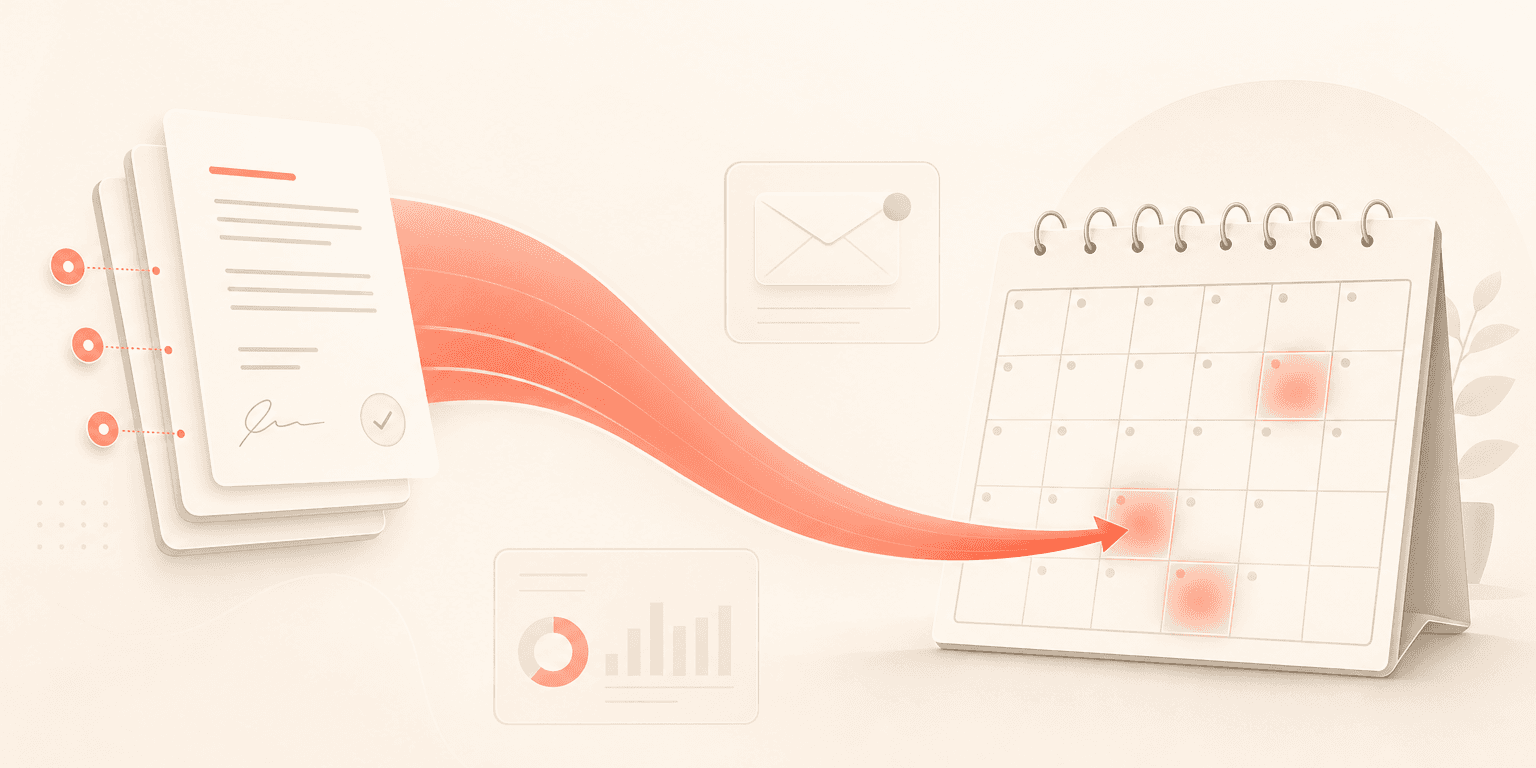
Most teams already track contract deadlines inside their CLM. The problem is that those deadlines never reach the calendar where people actually plan their day. Contract deadline calendar sync fixes this gap by pushing expirations, renewals, and termination-notice dates directly into Outlook, Google Calendar, or Apple iCal, so critical dates sit alongside meetings and task blocks instead of buried in a weekly email digest.
If you manage contract renewals, expiration windows, or termination-notice periods, this walkthrough covers exactly how to surface those dates in the calendar tool you already have open all day.
Why contract deadlines fail (even when they're tracked)
Contract deadlines rarely fail because nobody entered them into a system. They fail because the system holding those dates isn't the system people check reflexively throughout the day. Outlook and Google Calendar are open continuously for most professionals. A renewal date that lives inside a CLM dashboard but not on your calendar is functionally invisible unless you log into the platform as a daily habit.
Weekly email digests sound like a reasonable backup. In practice, teams consistently describe those recurring Monday emails as becoming wallpaper: opened once, skimmed, then deprioritized. Inbox algorithms may even filter them into a promotions or updates tab. The notification technically fires every week, but it functionally reaches no one.
Calendar events behave differently. They occupy visual space on a specific date, trigger native reminders you've already trained yourself to respond to, and appear during planning moments when you're scanning next week or next month. That's the difference between a deadline that's tracked and a deadline that's acted on.
The real cost of a missed deadline is the lost lead time
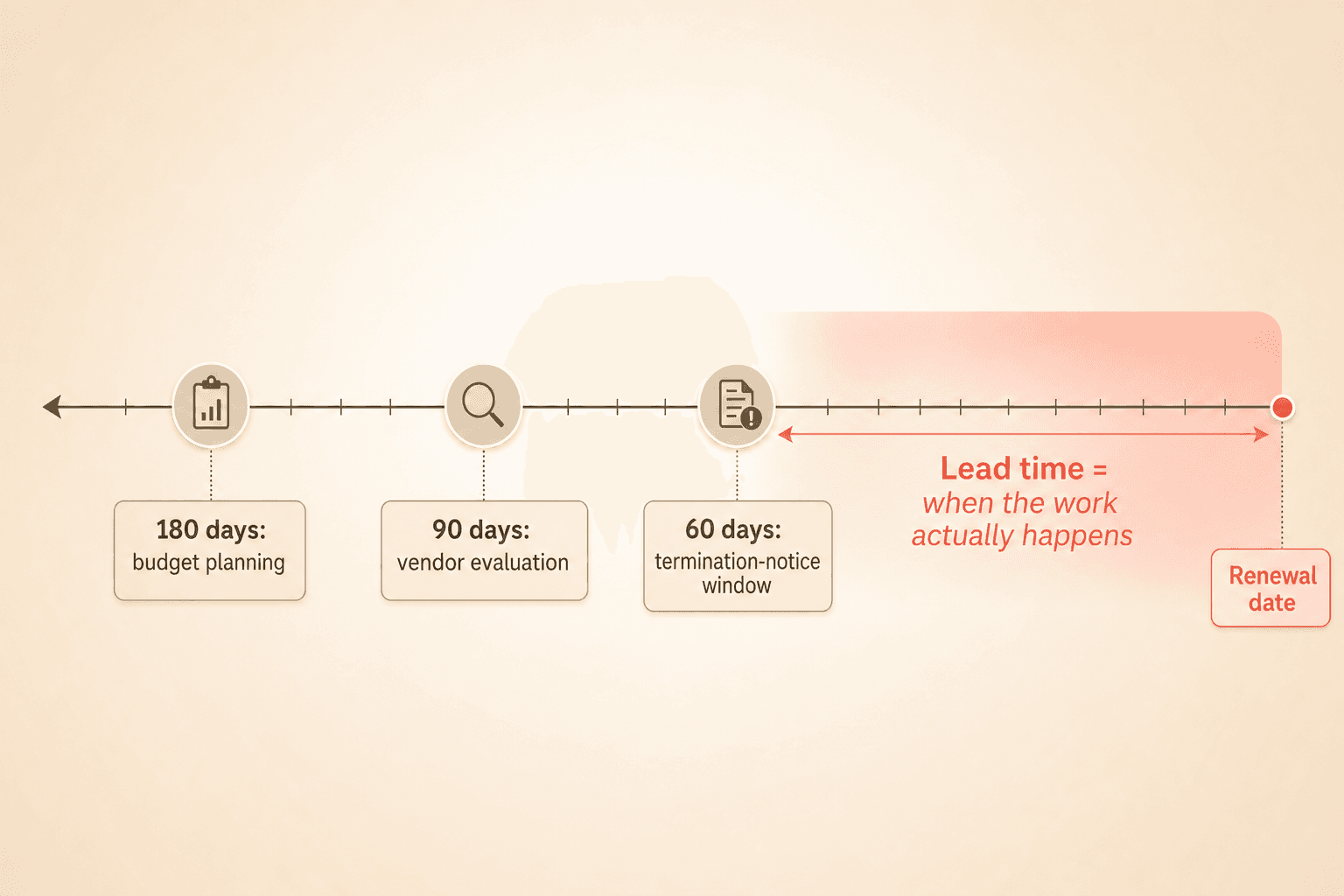
A contract renewal date of September 1 means very little on September 1. The value of deadline visibility shows up in the weeks or months before that date, when your team needs to evaluate whether to renew, renegotiate, or terminate.
Budget discussions, vendor evaluations, stakeholder reviews, and compliance checks all require lead time. Teams report that missed deadlines aren't about forgetting the date itself. They're about failing to start preparatory work 60, 90, or 180 days in advance. Calendar visibility during that planning horizon is what triggers upstream conversations before it's too late.
How Concord's contract deadline calendar sync works
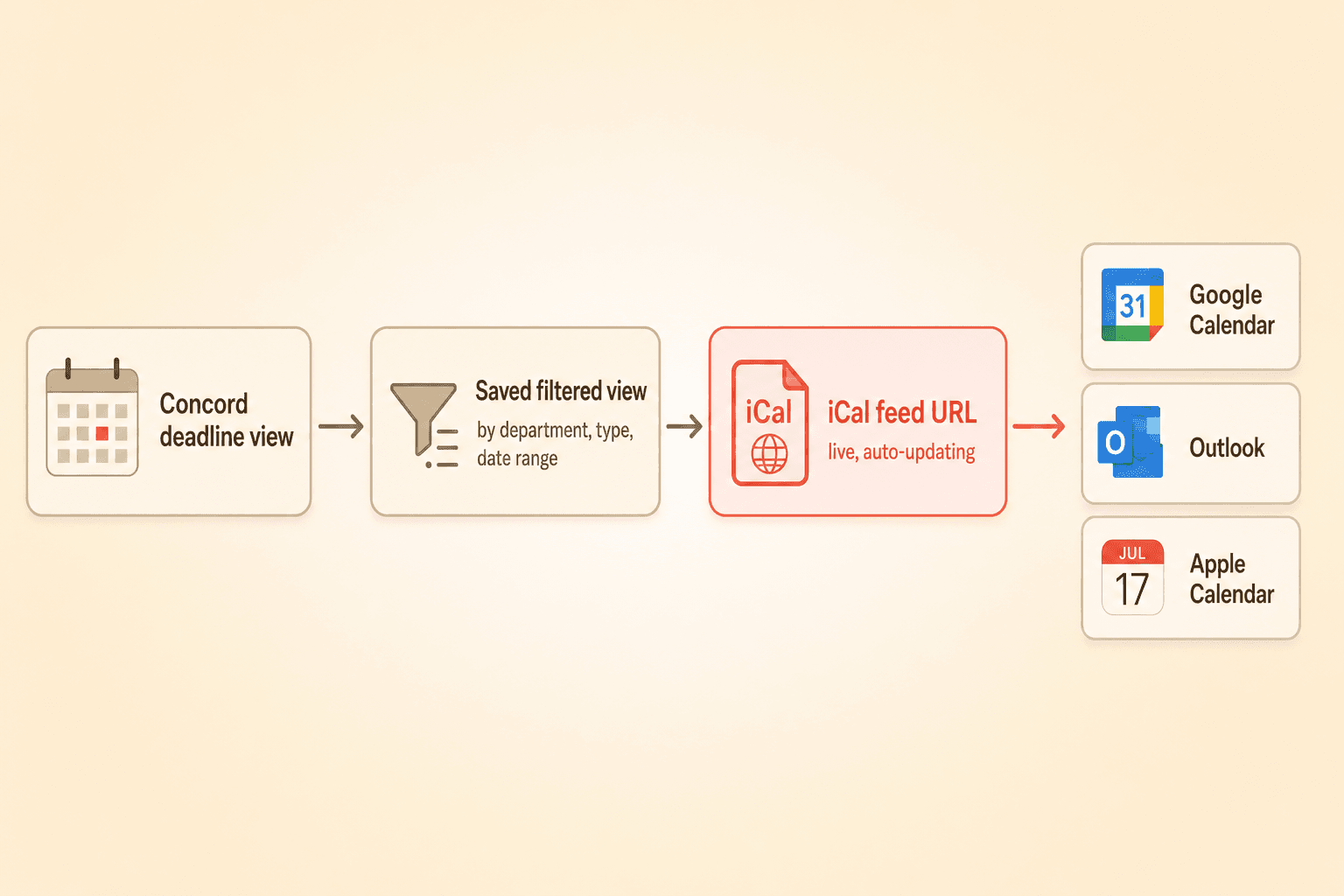
Concord's deadline calendar integration lets you subscribe to filtered deadline views as a live calendar feed. The feed auto-updates as new contracts are uploaded, lifecycle dates change, or custom deadlines are added. No manual exports, no recurring data entry, no refresh steps.
Here's the general flow:
Step 1: Review your deadlines in the in-app calendar
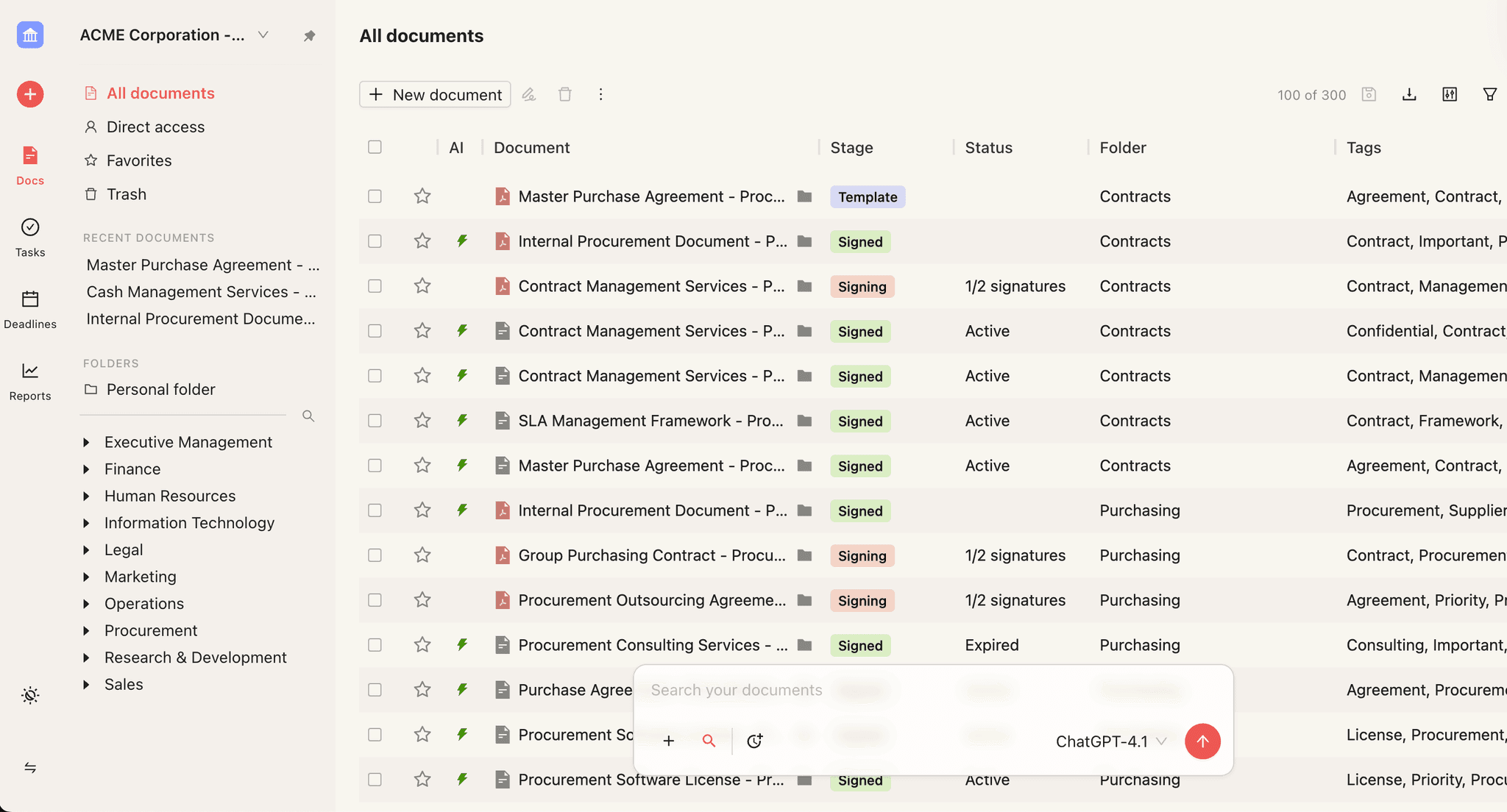
Start inside Concord's deadline calendar view. You can toggle between a calendar format (monthly visual) and a list format (chronological). This view pulls from every tracked deadline type: renewals, expirations, termination-notice windows, and any custom deadlines your team has configured.
Use the detailed day view to drill into a specific date and see every contract event scheduled. This is your "what's due today" daily check before you ever push anything to an external calendar.
Step 2: Create or select a saved deadline view
The power of calendar sync comes from combining it with filtered saved views. You can filter by department, contract type, deadline type, date range, or any other property your team tracks.
For example, a procurement lead might create a saved view showing only vendor contract renewals in the next 120 days. A compliance officer might filter for certificates of insurance and regulatory review windows. Each saved view generates its own calendar feed URL, so every subscriber gets exactly the deadlines relevant to their role.
Step 3: Generate the calendar feed URL
From your saved deadline view, generate the calendar feed URL. This URL follows the standard iCal format, which means it works with virtually any modern calendar application. The feed is live, meaning Concord pushes updates to it automatically as contract lifecycle data changes inside the platform.
Step 4: Subscribe in your calendar application
Calendar app | Where to go | What to do |
|---|---|---|
Google Calendar | "Other calendars" in the left sidebar, then "From URL" | Paste the feed URL and click "Add calendar" |
Outlook (desktop or web) | "Add calendar," then "Subscribe from web" | Paste the feed URL and name the calendar |
Apple Calendar | File, then "New Calendar Subscription" | Paste the feed URL and set your refresh interval |
For Google Calendar: Open Google Calendar, find "Other calendars" in the left sidebar, select "From URL," paste your feed URL, and click "Add calendar." Deadline events will populate on their corresponding dates.
For Outlook (desktop or web): In Outlook, go to "Add calendar," choose "Subscribe from web," paste the feed URL, and name the calendar (something like "Q3 Vendor Renewals" or "IT Contract Expirations"). Outlook will pull the feed and display events inline with your existing schedule.
For Apple Calendar: Open Apple Calendar, go to File > New Calendar Subscription, paste the feed URL, and set your preferred refresh interval. Apple Calendar supports the same iCal standard, so the steps mirror any generic iCal subscription.
Once subscribed, your external calendar will display contract deadline events on the relevant dates. Changes made inside Concord, such as a renewed contract with a new expiration date, propagate to the feed automatically.
Sharing deadline visibility without expanding platform access
One of the most practical benefits of calendar sync is that it extends deadline awareness to people who have no reason to log into a CLM daily. Finance leaders, department heads, executive sponsors, and compliance officers often need visibility into upcoming contract dates but don't need full platform access.
A shared calendar subscription handles this cleanly. You subscribe to the relevant deadline feed, then share that calendar with colleagues through your calendar application's native sharing features. They see the deadlines in their own calendar without requiring a separate login, additional training, or extra cost.
This approach works particularly well for organizations where folder-based access controls already segment contract visibility by department. The calendar feed respects those same permissions, so an IT stakeholder's feed only includes IT contract deadlines, and a procurement lead's feed only shows vendor contracts. Nobody gets overwhelmed with irrelevant dates.
Custom deadlines multiply the value of calendar sync
Standard lifecycle dates (renewal, expiration, termination notice) are the obvious starting point. But teams frequently add custom deadlines that go well beyond those defaults: certificates of insurance due dates, budget-planning milestones, compliance review windows, price-escalation notification periods, and annual performance review triggers.
Every custom deadline you add inside Concord also flows into the calendar feed. This means the sync becomes more valuable the more your team customizes its deadline tracking. A calendar feed that started as "show me renewals" can evolve into a comprehensive timeline of every contractual obligation that requires action.
Why calendar sync beats email alerts
Weekly email digestCalendar syncVisibilityCompetes with hundreds of other emailsOccupies space on a specific date in your calendarRemindersOne email per week, easy to skipNative calendar reminders at intervals you chooseLead timeShows a list of upcoming dates in text formAppears during planning moments when you scan future weeksSharingForward an email (static, immediately outdated)Share a live calendar (auto-updating)PersonalizationOne format for everyoneEach user subscribes to filtered views matching their roleAction triggerRequires opening the email and remembering to actSits next to meetings, prompting preparation in context
The core difference is context. An email is one more item in a crowded inbox. A calendar event is a commitment on a specific day, surrounded by the other commitments you're already planning around.
Getting the most from your contract deadline calendar sync
A few practical tips for teams activating calendar sync for the first time:
Start with one high-stakes view. Rather than syncing every deadline at once, pick the category that causes the most pain when missed. Vendor renewals and termination-notice windows are common starting points.
Set reminder lead times that match your workflow. If your renewal process requires 90 days of preparation, configure your saved view to surface deadlines 90-plus days out. Your calendar reminders then become prompts to start the process, not last-minute warnings.
Name your calendar feeds clearly. When you subscribe in Outlook or Google Calendar, give each feed a descriptive name. "Procurement Renewals Q4" is far more useful than "Concord Feed 3."
Audit your underlying deadline data. Calendar sync is only as powerful as the dates feeding it. If your contracts lack renewal dates or termination-notice periods, the feed will have gaps. AI extraction and manual review both play a role in populating complete lifecycle data.
Key Takeaways
Contract deadlines fail not because they are untracked, but because they live in a CLM dashboard people don't check daily instead of the calendar they keep open all day.
Calendar sync pushes renewals, expirations, and termination-notice dates into Outlook, Google Calendar, or Apple Calendar through a live iCal feed that updates automatically.
The value of a deadline shows up in the weeks or months of lead time before it, when there is still time to renew, renegotiate, or terminate.
Each saved, filtered view generates its own feed URL, so every person subscribes to only the deadlines relevant to their role.
A shared calendar subscription extends deadline visibility to finance, department heads, and compliance without giving them full platform access.
Most teams already track contract deadlines inside their CLM. The problem is that those deadlines never reach the calendar where people actually plan their day. Contract deadline calendar sync fixes this gap by pushing expirations, renewals, and termination-notice dates directly into Outlook, Google Calendar, or Apple iCal, so critical dates sit alongside meetings and task blocks instead of buried in a weekly email digest.
If you manage contract renewals, expiration windows, or termination-notice periods, this walkthrough covers exactly how to surface those dates in the calendar tool you already have open all day.
Why contract deadlines fail (even when they're tracked)
Contract deadlines rarely fail because nobody entered them into a system. They fail because the system holding those dates isn't the system people check reflexively throughout the day. Outlook and Google Calendar are open continuously for most professionals. A renewal date that lives inside a CLM dashboard but not on your calendar is functionally invisible unless you log into the platform as a daily habit.
Weekly email digests sound like a reasonable backup. In practice, teams consistently describe those recurring Monday emails as becoming wallpaper: opened once, skimmed, then deprioritized. Inbox algorithms may even filter them into a promotions or updates tab. The notification technically fires every week, but it functionally reaches no one.
Calendar events behave differently. They occupy visual space on a specific date, trigger native reminders you've already trained yourself to respond to, and appear during planning moments when you're scanning next week or next month. That's the difference between a deadline that's tracked and a deadline that's acted on.
The real cost of a missed deadline is the lost lead time
A contract renewal date of September 1 means very little on September 1. The value of deadline visibility shows up in the weeks or months before that date, when your team needs to evaluate whether to renew, renegotiate, or terminate.
Budget discussions, vendor evaluations, stakeholder reviews, and compliance checks all require lead time. Teams report that missed deadlines aren't about forgetting the date itself. They're about failing to start preparatory work 60, 90, or 180 days in advance. Calendar visibility during that planning horizon is what triggers upstream conversations before it's too late.
How Concord's contract deadline calendar sync works
Concord's deadline calendar integration lets you subscribe to filtered deadline views as a live calendar feed. The feed auto-updates as new contracts are uploaded, lifecycle dates change, or custom deadlines are added. No manual exports, no recurring data entry, no refresh steps.
Here's the general flow:
Step 1: Review your deadlines in the in-app calendar
Start inside Concord's deadline calendar view. You can toggle between a calendar format (monthly visual) and a list format (chronological). This view pulls from every tracked deadline type: renewals, expirations, termination-notice windows, and any custom deadlines your team has configured.
Use the detailed day view to drill into a specific date and see every contract event scheduled. This is your "what's due today" daily check before you ever push anything to an external calendar.
Step 2: Create or select a saved deadline view
The power of calendar sync comes from combining it with filtered saved views. You can filter by department, contract type, deadline type, date range, or any other property your team tracks.
For example, a procurement lead might create a saved view showing only vendor contract renewals in the next 120 days. A compliance officer might filter for certificates of insurance and regulatory review windows. Each saved view generates its own calendar feed URL, so every subscriber gets exactly the deadlines relevant to their role.
Step 3: Generate the calendar feed URL
From your saved deadline view, generate the calendar feed URL. This URL follows the standard iCal format, which means it works with virtually any modern calendar application. The feed is live, meaning Concord pushes updates to it automatically as contract lifecycle data changes inside the platform.
Step 4: Subscribe in your calendar application
Calendar app | Where to go | What to do |
|---|---|---|
Google Calendar | "Other calendars" in the left sidebar, then "From URL" | Paste the feed URL and click "Add calendar" |
Outlook (desktop or web) | "Add calendar," then "Subscribe from web" | Paste the feed URL and name the calendar |
Apple Calendar | File, then "New Calendar Subscription" | Paste the feed URL and set your refresh interval |
For Google Calendar: Open Google Calendar, find "Other calendars" in the left sidebar, select "From URL," paste your feed URL, and click "Add calendar." Deadline events will populate on their corresponding dates.
For Outlook (desktop or web): In Outlook, go to "Add calendar," choose "Subscribe from web," paste the feed URL, and name the calendar (something like "Q3 Vendor Renewals" or "IT Contract Expirations"). Outlook will pull the feed and display events inline with your existing schedule.
For Apple Calendar: Open Apple Calendar, go to File > New Calendar Subscription, paste the feed URL, and set your preferred refresh interval. Apple Calendar supports the same iCal standard, so the steps mirror any generic iCal subscription.
Once subscribed, your external calendar will display contract deadline events on the relevant dates. Changes made inside Concord, such as a renewed contract with a new expiration date, propagate to the feed automatically.
Sharing deadline visibility without expanding platform access
One of the most practical benefits of calendar sync is that it extends deadline awareness to people who have no reason to log into a CLM daily. Finance leaders, department heads, executive sponsors, and compliance officers often need visibility into upcoming contract dates but don't need full platform access.
A shared calendar subscription handles this cleanly. You subscribe to the relevant deadline feed, then share that calendar with colleagues through your calendar application's native sharing features. They see the deadlines in their own calendar without requiring a separate login, additional training, or extra cost.
This approach works particularly well for organizations where folder-based access controls already segment contract visibility by department. The calendar feed respects those same permissions, so an IT stakeholder's feed only includes IT contract deadlines, and a procurement lead's feed only shows vendor contracts. Nobody gets overwhelmed with irrelevant dates.
Custom deadlines multiply the value of calendar sync
Standard lifecycle dates (renewal, expiration, termination notice) are the obvious starting point. But teams frequently add custom deadlines that go well beyond those defaults: certificates of insurance due dates, budget-planning milestones, compliance review windows, price-escalation notification periods, and annual performance review triggers.
Every custom deadline you add inside Concord also flows into the calendar feed. This means the sync becomes more valuable the more your team customizes its deadline tracking. A calendar feed that started as "show me renewals" can evolve into a comprehensive timeline of every contractual obligation that requires action.
Why calendar sync beats email alerts
Weekly email digestCalendar syncVisibilityCompetes with hundreds of other emailsOccupies space on a specific date in your calendarRemindersOne email per week, easy to skipNative calendar reminders at intervals you chooseLead timeShows a list of upcoming dates in text formAppears during planning moments when you scan future weeksSharingForward an email (static, immediately outdated)Share a live calendar (auto-updating)PersonalizationOne format for everyoneEach user subscribes to filtered views matching their roleAction triggerRequires opening the email and remembering to actSits next to meetings, prompting preparation in context
The core difference is context. An email is one more item in a crowded inbox. A calendar event is a commitment on a specific day, surrounded by the other commitments you're already planning around.
Getting the most from your contract deadline calendar sync
A few practical tips for teams activating calendar sync for the first time:
Start with one high-stakes view. Rather than syncing every deadline at once, pick the category that causes the most pain when missed. Vendor renewals and termination-notice windows are common starting points.
Set reminder lead times that match your workflow. If your renewal process requires 90 days of preparation, configure your saved view to surface deadlines 90-plus days out. Your calendar reminders then become prompts to start the process, not last-minute warnings.
Name your calendar feeds clearly. When you subscribe in Outlook or Google Calendar, give each feed a descriptive name. "Procurement Renewals Q4" is far more useful than "Concord Feed 3."
Audit your underlying deadline data. Calendar sync is only as powerful as the dates feeding it. If your contracts lack renewal dates or termination-notice periods, the feed will have gaps. AI extraction and manual review both play a role in populating complete lifecycle data.
Need to know
Frequently Asked Questions

Take the "management" out
of contract management.
Customer Support
Legal
Compare
Resources
Customer Support
Company
Legal
Compare
Resources
Customer Support
Company
Legal
Compare
© 2025 Concord. All rights reserved.