How to Set Up Deadline Alerts and Notifications in Concord
How to Set Up Deadline Alerts and Notifications in Concord
How to Set Up Deadline Alerts and Notifications in Concord
How to Set Up Deadline Alerts and Notifications in Concord
contract management

The single most expensive thing a contract team can miss is a date. A renewal that auto-renews because nobody saw it coming. A termination notice missed by three days. An insurance certificate that lapses on an active job site. Concord's deadline system is built to make that essentially impossible — and most of it runs on data the AI extracts the moment a contract lands in your library. This post walks through how deadlines get built from contract lifecycle data, how to add custom deadlines for anything else you need to track, and how the notifications actually reach you.
How Concord builds deadlines from your contract lifecycle
Every contract in Concord — whether you signed it through the platform or uploaded one already signed — has a lifecycle. If you have the AI turned on, which at this point most customers do, Concord populates that lifecycle automatically: agreement category, document type, parties, and the dates that actually matter for tracking.
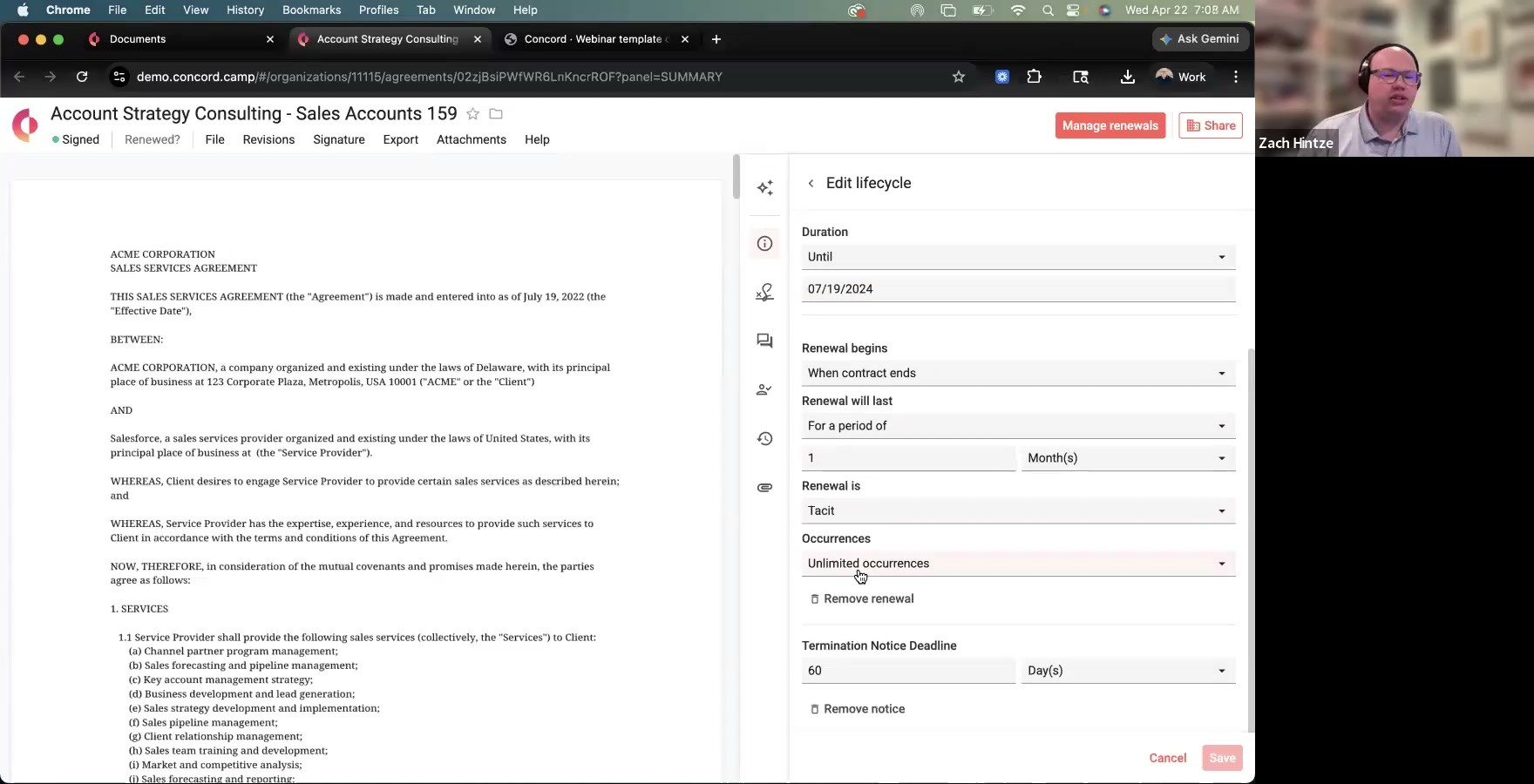
Four pieces of lifecycle data drive the deadline system:
Signature date. When the contract was signed.
Effective date. When the contract actually starts — which may differ from signature (you might sign today but want it effective on the first of next month).
Duration. How long the contract runs. Concord supports an evergreen option for permanent contracts, an "until a specific date" option, or a fixed period like six months or two years. Contracts with no dates at all can be set as unknown instead of forced into a fake number.
Renewal. Whether the contract renews, when (on contract end, on a specific date, or not at all), and what the renewal itself looks like — a period of time, a specific date, or a permanent renewal. Renewals can also be flagged as tacit (optional) or set with limited vs. unlimited occurrences.
The piece most teams overlook is the termination notice deadline. A lot of contracts include language like "you must give 60 days notice before the end of the term." That's a separate deadline from the contract's end date — and it's often the one that costs you money when it's missed. Concord has a dedicated field for it on every lifecycle, and the AI populates it when the language is present in the document.
Every field can be overridden by hand at any point. If the AI misses something or the situation changes, click in and update — no need to re-process the document.
Past-end-date contracts: renewed, terminated, or auto-accepted
When a contract reaches its end date and Concord doesn't yet know what happened to it, a few new options appear on the lifecycle.
Auto-accept future renewals. Tells Concord that this contract just keeps renewing on schedule — no prompt every cycle.
Set as renewed. Lets you record the renewal manually: start date, end date, duration, termination notice for the new term, and whether the next renewal should be automatic.
Set as terminated. Closes out the contract with a termination date (which you can backdate). The agreement stops appearing as active.
This is the small bit of housekeeping that keeps the deadline list honest. A contract that's actually finished shouldn't be generating renewal reminders.
Custom terms: anything else you need to track
Lifecycle dates aren't the only deadlines that matter. Concord lets you add custom terms to a contract for anything else — and there's no cap on how many. Each one feeds into the same notification system.
The most common use is a certificate of insurance deadline. Insurance certificates almost always have different expiry dates than the contracts they back, so it doesn't help to only track the contract itself. In Concord you add a custom term, give it a title and description, set a date, and optionally attach the certificate document right on the contract record.
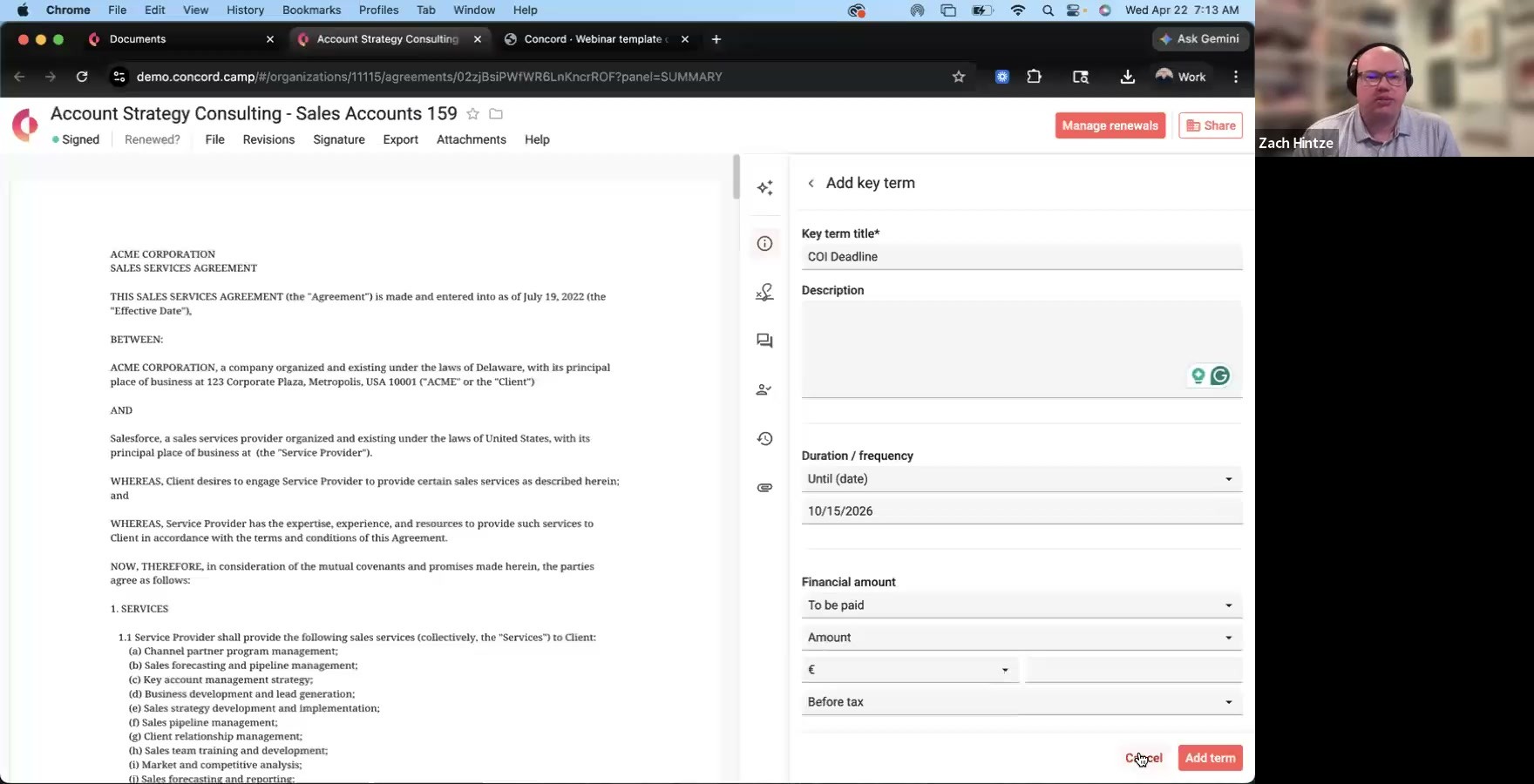
Construction firms and property managers lean on this heavily — they tend to carry stacks of certificates of insurance across active jobs, each with a different lapse date, and missing one can stop work on a site.
The other heavy use is payment tracking. Custom terms support a duration (one-off or recurring), a financial amount, and a direction (to be paid vs. to be collected). A quarterly $5,000 vendor payment becomes a recurring deadline that fires every three months between the start and end of the contract. The same workflow covers receivables — invoices, milestone payments, anything you'd otherwise be tracking in a spreadsheet.
A single contract can carry the lifecycle deadline plus as many custom deadlines as it needs — COI, quarterly payment, project milestone, renewal trigger, anything date-driven. They all flow into the same alerts.
The weekly deadline email
Every Monday, Concord sends each user a single email summarizing the upcoming deadlines they're tied to. The email groups items by type — termination notice deadlines, renewal dates, key term expirations, and so on — so you can scan the categories that actually need action this week.
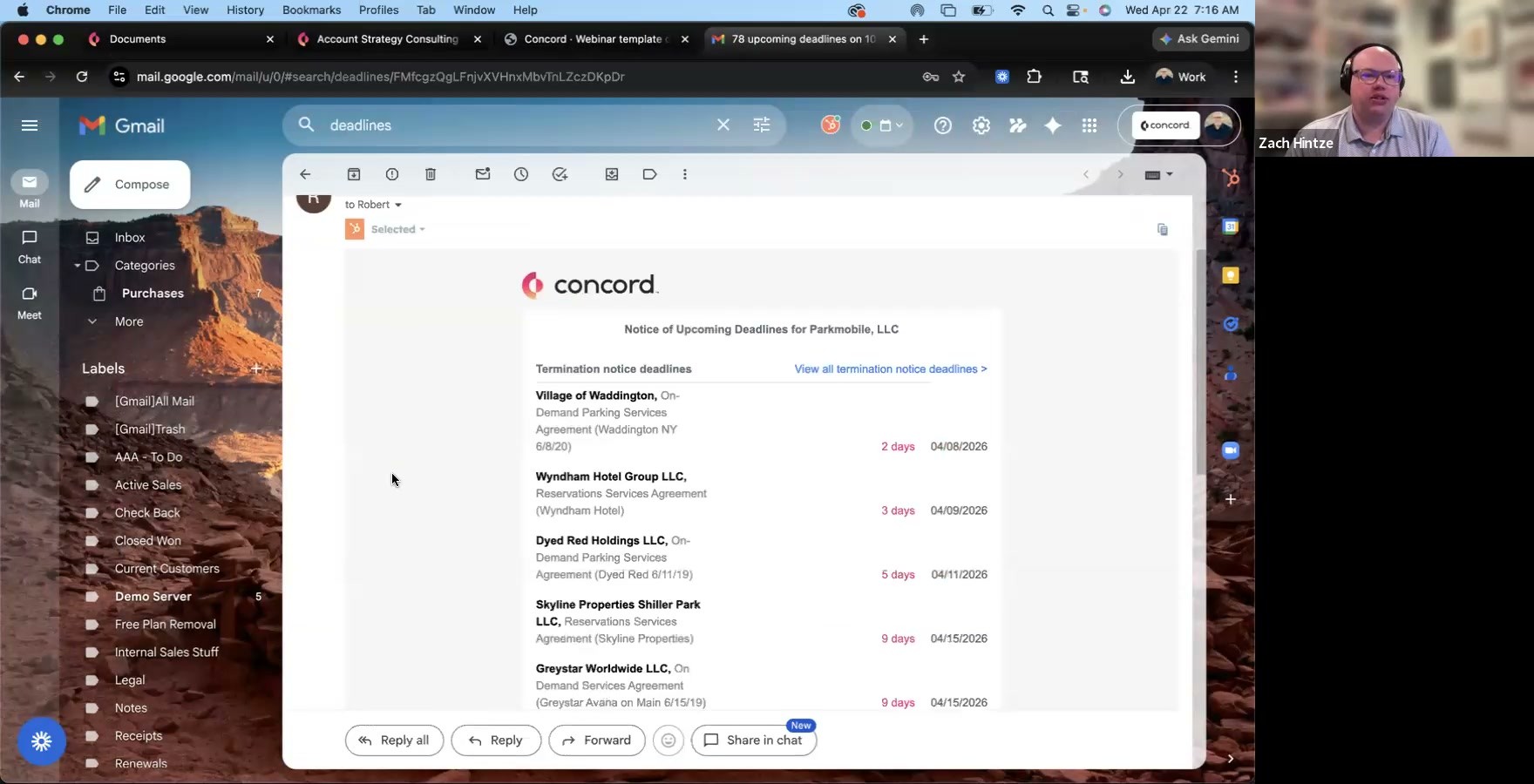
Every line in the email is a link straight into the deadline report in Concord, so clicking through gets you to the actual document in one step.
Tuning when notifications fire
The window for which deadlines show up on the weekly email is a per-user setting. Open Settings → Notifications → Deadline reminders and adjust the "include deadlines set to occur within the next X days" field.
The default is 120 days, which gives most teams enough lead time to plan a renewal conversation or send a termination notice. Customers who want a tighter signal often drop it to 90 or 60 days; teams managing long-cycle vendor renewals sometimes push it further out. The toggle directly above is also where individual users can shut the weekly email off entirely — useful for stakeholders who get added to a lot of contracts but don't actually own renewals.
Contracts set to automatically renew are excluded from the email, since there's nothing for the user to act on.
The deadline report and calendar view
Inside Concord, the Deadlines section in the left nav holds the full report — every upcoming deadline across every contract you have access to, with the document name, key term title, parties, due date, deadline type, and total value visible at a glance.
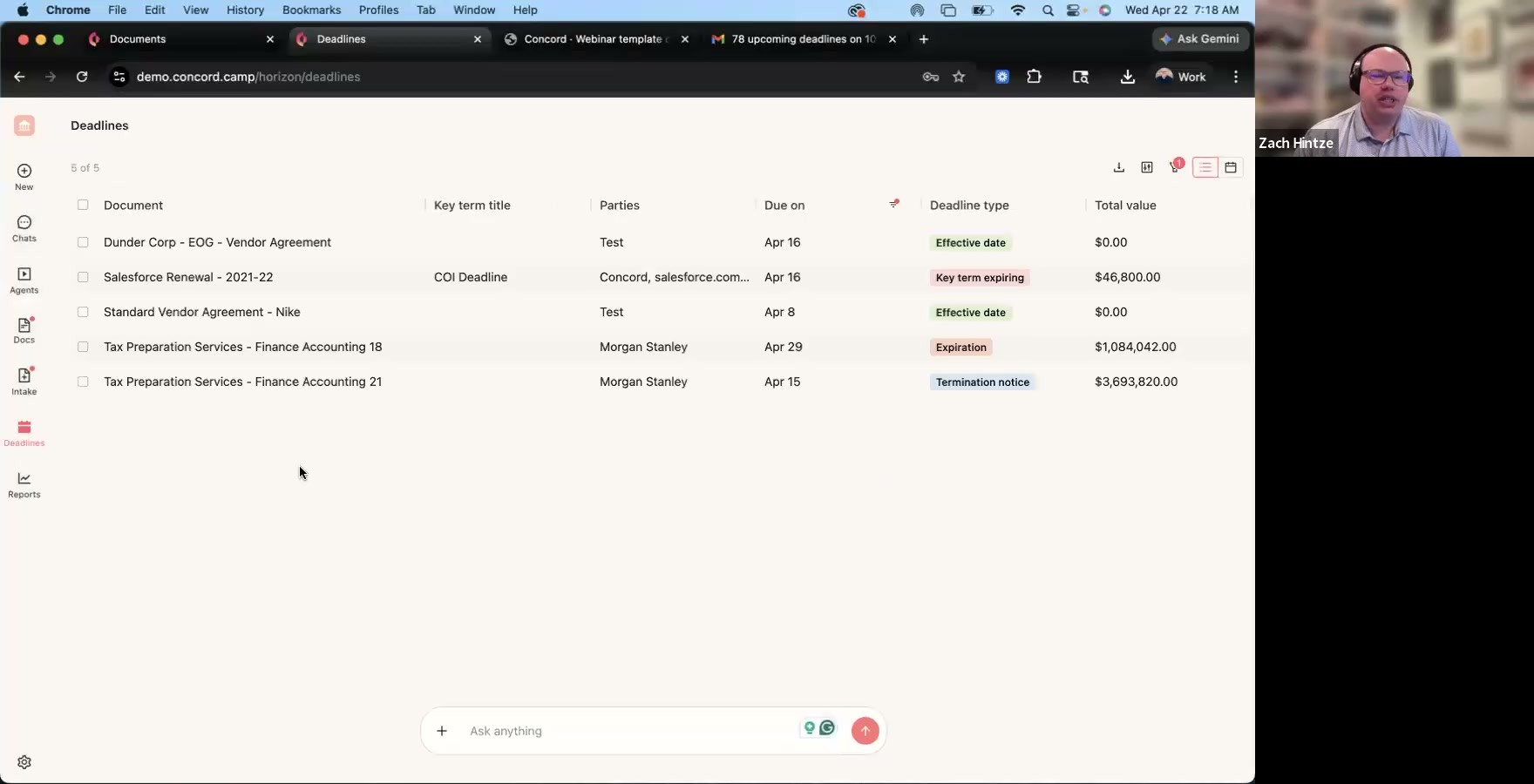
Switching to the calendar view drops the same data onto a month grid, with each deadline anchored to its date.
The calendar can also be synced into a personal calendar — Google, Outlook, or any calendar that supports subscription URLs — so the upcoming deadlines show up alongside meetings, instead of living in a separate tool people have to remember to open.
Typical use cases
Workflow | What drives the deadlines | How people act on them |
|---|---|---|
Vendor renewal management | AI-extracted contract end date + termination notice deadline | Weekly email scan; report filter by deadline type = renewal or termination notice |
Certificate of insurance tracking | Custom terms with COI expiry dates | Calendar view; report filter by key term title contains "COI" |
Recurring payments (AR/AP) | Custom term with duration = recurring + financial amount | Weekly email line items; calendar sync to a finance team's shared calendar |
Project milestones | Custom terms with one-off due dates | Calendar view; ownership assigned per contract |
Compliance and audit deadlines | Custom terms + key term title conventions | Report filter + bulk export for audit prep |
Frequently asked questions
Does the AI set up deadlines automatically?
Yes. With AI turned on, Concord extracts the lifecycle dates — signature, effective date, duration, renewal terms, termination notice — directly from the contract text the moment it's uploaded or signed. From there, the deadline notifications generate themselves. You only have to step in if you want to override a field or add custom terms the AI wouldn't know about, like a certificate of insurance that lives outside the contract.
What if the AI misses a renewal clause?
It happens occasionally, especially on contracts with non-standard language. You can override any field manually on the lifecycle panel, and the deadlines update accordingly. It's also worth submitting a ticket to support when the AI misses something — the team uses those reports to improve extraction over time.
Can I turn off the weekly email for specific people?
Yes. The weekly email is on by default per user, but anyone can disable it from Settings → Notifications. This is the common fix for stakeholders who get added to a lot of contracts and don't want the email volume — turn it off for them and they'll still have access to the deadline report inside Concord.
How far in advance do deadlines appear in the email?
The default window is 120 days, set per user in Notifications preferences. Most teams shorten it to 60 or 90 days for less inbox noise; teams managing long-cycle renewals (enterprise SaaS, multi-year vendor contracts) sometimes extend it. Whatever you pick, it applies across all your deadline types.
Can deadlines show up in my Google or Outlook calendar?
Yes. The calendar view inside Concord supports calendar sync, which pushes upcoming deadlines into any external calendar via a subscription URL. This is the typical setup for users who don't want to log into Concord every morning to check what's coming up.
How many custom deadlines can a single contract have?
There's no cap. A contract can carry the lifecycle deadlines plus as many custom terms as you need — COI expiry, quarterly payment, milestone, renewal notice, anything else date-driven. Each custom term flows into the same email digest, the same report, and the same calendar view.
The single most expensive thing a contract team can miss is a date. A renewal that auto-renews because nobody saw it coming. A termination notice missed by three days. An insurance certificate that lapses on an active job site. Concord's deadline system is built to make that essentially impossible — and most of it runs on data the AI extracts the moment a contract lands in your library. This post walks through how deadlines get built from contract lifecycle data, how to add custom deadlines for anything else you need to track, and how the notifications actually reach you.
How Concord builds deadlines from your contract lifecycle
Every contract in Concord — whether you signed it through the platform or uploaded one already signed — has a lifecycle. If you have the AI turned on, which at this point most customers do, Concord populates that lifecycle automatically: agreement category, document type, parties, and the dates that actually matter for tracking.
Four pieces of lifecycle data drive the deadline system:
Signature date. When the contract was signed.
Effective date. When the contract actually starts — which may differ from signature (you might sign today but want it effective on the first of next month).
Duration. How long the contract runs. Concord supports an evergreen option for permanent contracts, an "until a specific date" option, or a fixed period like six months or two years. Contracts with no dates at all can be set as unknown instead of forced into a fake number.
Renewal. Whether the contract renews, when (on contract end, on a specific date, or not at all), and what the renewal itself looks like — a period of time, a specific date, or a permanent renewal. Renewals can also be flagged as tacit (optional) or set with limited vs. unlimited occurrences.
The piece most teams overlook is the termination notice deadline. A lot of contracts include language like "you must give 60 days notice before the end of the term." That's a separate deadline from the contract's end date — and it's often the one that costs you money when it's missed. Concord has a dedicated field for it on every lifecycle, and the AI populates it when the language is present in the document.
Every field can be overridden by hand at any point. If the AI misses something or the situation changes, click in and update — no need to re-process the document.
Past-end-date contracts: renewed, terminated, or auto-accepted
When a contract reaches its end date and Concord doesn't yet know what happened to it, a few new options appear on the lifecycle.
Auto-accept future renewals. Tells Concord that this contract just keeps renewing on schedule — no prompt every cycle.
Set as renewed. Lets you record the renewal manually: start date, end date, duration, termination notice for the new term, and whether the next renewal should be automatic.
Set as terminated. Closes out the contract with a termination date (which you can backdate). The agreement stops appearing as active.
This is the small bit of housekeeping that keeps the deadline list honest. A contract that's actually finished shouldn't be generating renewal reminders.
Custom terms: anything else you need to track
Lifecycle dates aren't the only deadlines that matter. Concord lets you add custom terms to a contract for anything else — and there's no cap on how many. Each one feeds into the same notification system.
The most common use is a certificate of insurance deadline. Insurance certificates almost always have different expiry dates than the contracts they back, so it doesn't help to only track the contract itself. In Concord you add a custom term, give it a title and description, set a date, and optionally attach the certificate document right on the contract record.
Construction firms and property managers lean on this heavily — they tend to carry stacks of certificates of insurance across active jobs, each with a different lapse date, and missing one can stop work on a site.
The other heavy use is payment tracking. Custom terms support a duration (one-off or recurring), a financial amount, and a direction (to be paid vs. to be collected). A quarterly $5,000 vendor payment becomes a recurring deadline that fires every three months between the start and end of the contract. The same workflow covers receivables — invoices, milestone payments, anything you'd otherwise be tracking in a spreadsheet.
A single contract can carry the lifecycle deadline plus as many custom deadlines as it needs — COI, quarterly payment, project milestone, renewal trigger, anything date-driven. They all flow into the same alerts.
The weekly deadline email
Every Monday, Concord sends each user a single email summarizing the upcoming deadlines they're tied to. The email groups items by type — termination notice deadlines, renewal dates, key term expirations, and so on — so you can scan the categories that actually need action this week.
Every line in the email is a link straight into the deadline report in Concord, so clicking through gets you to the actual document in one step.
Tuning when notifications fire
The window for which deadlines show up on the weekly email is a per-user setting. Open Settings → Notifications → Deadline reminders and adjust the "include deadlines set to occur within the next X days" field.
The default is 120 days, which gives most teams enough lead time to plan a renewal conversation or send a termination notice. Customers who want a tighter signal often drop it to 90 or 60 days; teams managing long-cycle vendor renewals sometimes push it further out. The toggle directly above is also where individual users can shut the weekly email off entirely — useful for stakeholders who get added to a lot of contracts but don't actually own renewals.
Contracts set to automatically renew are excluded from the email, since there's nothing for the user to act on.
The deadline report and calendar view
Inside Concord, the Deadlines section in the left nav holds the full report — every upcoming deadline across every contract you have access to, with the document name, key term title, parties, due date, deadline type, and total value visible at a glance.
Switching to the calendar view drops the same data onto a month grid, with each deadline anchored to its date.
The calendar can also be synced into a personal calendar — Google, Outlook, or any calendar that supports subscription URLs — so the upcoming deadlines show up alongside meetings, instead of living in a separate tool people have to remember to open.
Typical use cases
Workflow | What drives the deadlines | How people act on them |
|---|---|---|
Vendor renewal management | AI-extracted contract end date + termination notice deadline | Weekly email scan; report filter by deadline type = renewal or termination notice |
Certificate of insurance tracking | Custom terms with COI expiry dates | Calendar view; report filter by key term title contains "COI" |
Recurring payments (AR/AP) | Custom term with duration = recurring + financial amount | Weekly email line items; calendar sync to a finance team's shared calendar |
Project milestones | Custom terms with one-off due dates | Calendar view; ownership assigned per contract |
Compliance and audit deadlines | Custom terms + key term title conventions | Report filter + bulk export for audit prep |
Frequently asked questions
Does the AI set up deadlines automatically?
Yes. With AI turned on, Concord extracts the lifecycle dates — signature, effective date, duration, renewal terms, termination notice — directly from the contract text the moment it's uploaded or signed. From there, the deadline notifications generate themselves. You only have to step in if you want to override a field or add custom terms the AI wouldn't know about, like a certificate of insurance that lives outside the contract.
What if the AI misses a renewal clause?
It happens occasionally, especially on contracts with non-standard language. You can override any field manually on the lifecycle panel, and the deadlines update accordingly. It's also worth submitting a ticket to support when the AI misses something — the team uses those reports to improve extraction over time.
Can I turn off the weekly email for specific people?
Yes. The weekly email is on by default per user, but anyone can disable it from Settings → Notifications. This is the common fix for stakeholders who get added to a lot of contracts and don't want the email volume — turn it off for them and they'll still have access to the deadline report inside Concord.
How far in advance do deadlines appear in the email?
The default window is 120 days, set per user in Notifications preferences. Most teams shorten it to 60 or 90 days for less inbox noise; teams managing long-cycle renewals (enterprise SaaS, multi-year vendor contracts) sometimes extend it. Whatever you pick, it applies across all your deadline types.
Can deadlines show up in my Google or Outlook calendar?
Yes. The calendar view inside Concord supports calendar sync, which pushes upcoming deadlines into any external calendar via a subscription URL. This is the typical setup for users who don't want to log into Concord every morning to check what's coming up.
How many custom deadlines can a single contract have?
There's no cap. A contract can carry the lifecycle deadlines plus as many custom terms as you need — COI expiry, quarterly payment, milestone, renewal notice, anything else date-driven. Each custom term flows into the same email digest, the same report, and the same calendar view.

Take the "management" out
of contract management.
Customer Support
Legal
Compare
Resources
Customer Support
Company
Legal
Compare
Resources
Customer Support
Company
Legal
Compare
© 2025 Concord. All rights reserved.