How to set up contract folder structures for multi-department access
How to set up contract folder structures for multi-department access
How to set up contract folder structures for multi-department access
How to set up contract folder structures for multi-department access
contract management
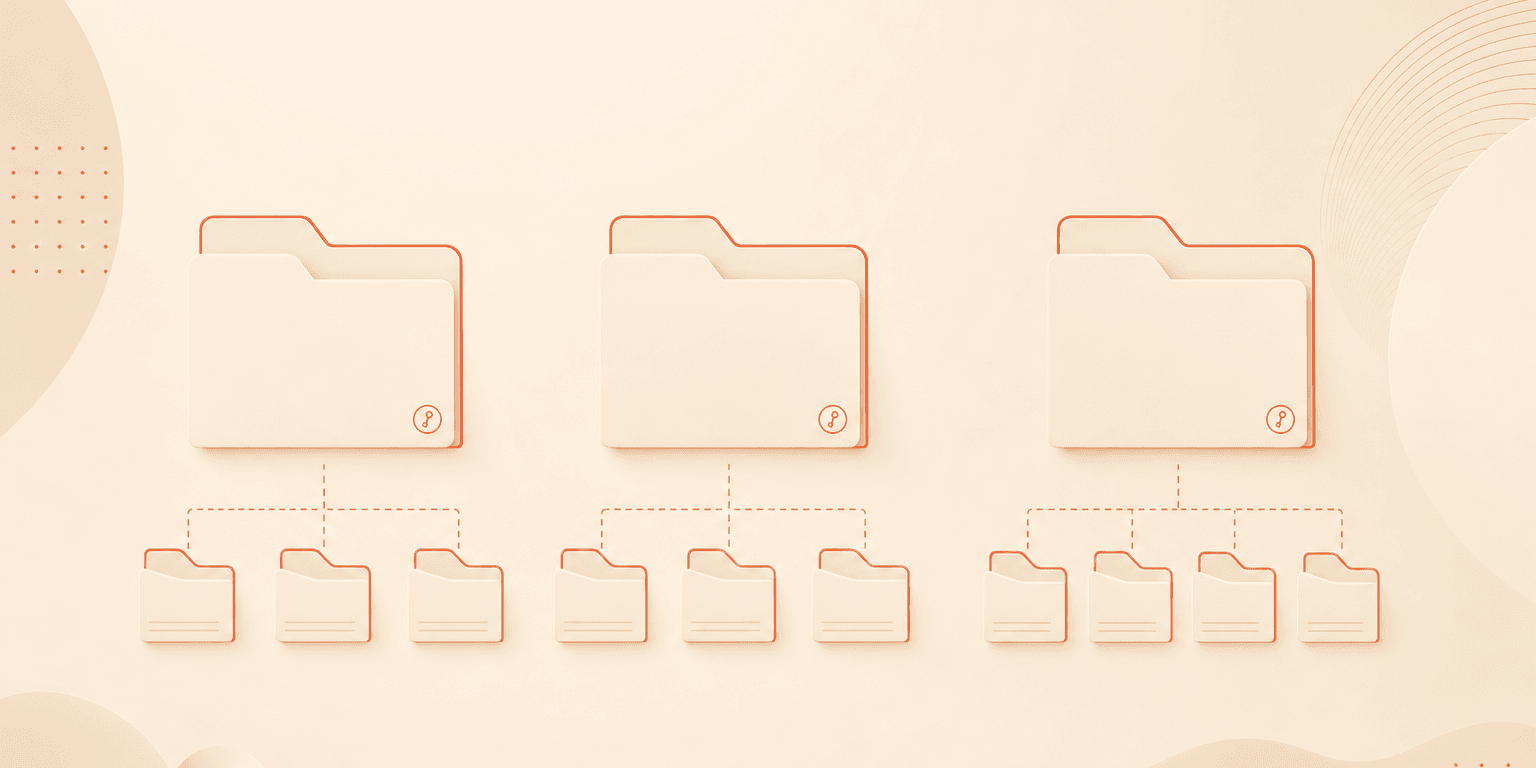
Your contract folder organization strategy will make or break how Legal, Finance, Procurement, and Operations teams interact with your contract repository. Most teams approach folder design as a filing exercise, arranging documents into neat categories the way you might organize a physical file cabinet. That instinct is understandable, but it misses the most important function folders serve in a contract lifecycle management platform: controlling who sees what.
A well-designed folder structure balances two competing priorities. It keeps documents organized and discoverable for the people who need them, while restricting access from those who don't. The best approach starts with access control logic, layers in one to two levels of subfolders, and offloads granular categorization to metadata and custom properties rather than creating hundreds of folders.
This guide walks you through a practical framework for building that structure.
The two jobs every folder does: organization and access control
Most people think of folders as an organizational tool. You create a folder, give it a descriptive name, and drop related documents inside. That's one job.
The second job is less obvious but more consequential: folders define permission boundaries. In Concord, folder-level access controls determine which teams and individuals can view, edit, or manage the documents inside. When you share a folder with the Finance team, every member of that team gains access to its contents. When you don't share it, those documents remain invisible to them, even in search results.
This dual function means your folder architecture isn't just about tidiness. It's the scaffolding that supports your entire access control strategy. A structure designed purely for categorization often creates permission headaches down the line. A structure designed around access boundaries tends to serve both purposes well.
Start with access boundaries, not taxonomy
The most common mistake teams make during implementation is designing folders around what feels logically clean rather than around who needs access to what. A client-based hierarchy (one folder per client or vendor) might look elegant, but it forces you to grant Finance access to dozens of individual client folders just so they can reach the contracts they need.
Instead, start by mapping out your access requirements. Ask these questions:
Which departments need their own private document space?
Which contract types span multiple departments?
Who should have broad visibility, and who should only see a narrow slice?
Legal teams typically need visibility across most or all contracts. Finance needs access to vendor agreements, procurement contracts, and anything with financial obligations. Sales should see their own agreements but not HR employment contracts. Operations teams need SLAs, service agreements, and vendor contracts relevant to their workflows.
When you design folders around these access patterns first, the organizational logic follows naturally. Department-level top folders create clean permission boundaries, and you can refine from there.
The two-level rule: how deep should your contract folder structure go?
Every additional level of nesting creates friction. Users have to click deeper to file documents and dig further to find them. Administrators face more permission decisions at each level. Teams that build three or four levels deep during initial setup frequently report frustration within the first few months, with documents landing in wrong subfolders and users unable to remember where to look.
The practical ceiling for most organizations is two levels:
Level one: department folders. These define your primary access boundaries. Common top-level folders include Legal, HR, Finance, Sales, Procurement, and Operations.
Level two: subfolders by document type or business unit. Within each department folder, create subfolders that reflect the most common groupings that department uses. For example:
Legal: NDAs, Master Agreements, Amendments, Vendor Contracts
Finance: Procurement Contracts, Lease Agreements, Insurance Policies
Sales: Order Forms, Subscription Agreements, Statements of Work
HR: Employment Agreements, Contractor Agreements, Benefits Contracts
Operations: SLAs, Service Agreements, Facility Contracts
This structure gives you meaningful organization without the cognitive overhead of deep nesting. Everything beyond these two levels should be handled by metadata.
When to use metadata instead of more folders
Because a document can only live in one folder, organizations that rely on folders as their sole organizational mechanism will always hit a wall. Consider a vendor agreement that Procurement, Finance, and Legal all need to reference. Creating copies in three folders breaks version control. Choosing one folder locks other teams out unless you grant individual document-level access for every single contract.
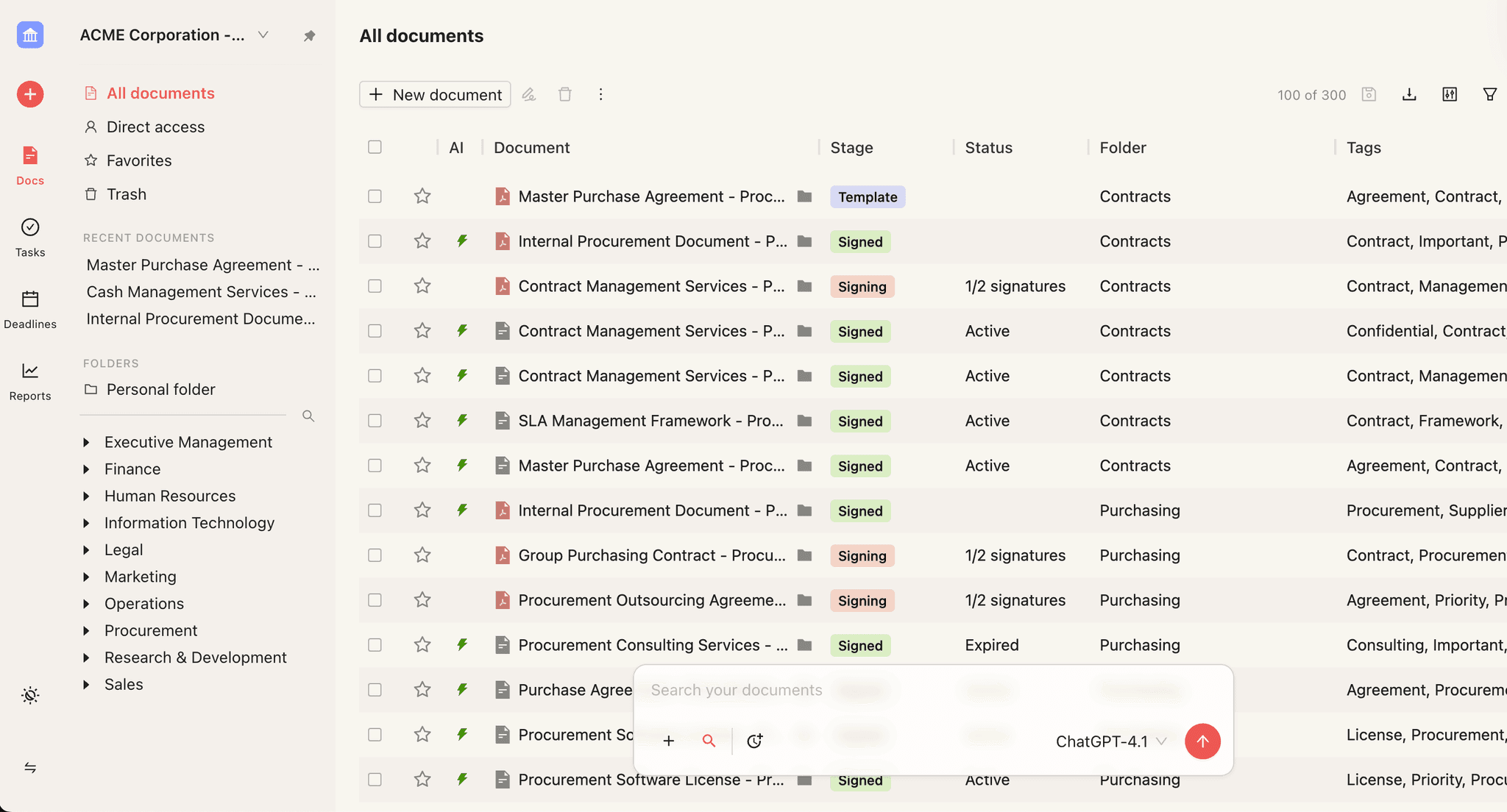
Custom properties in Concord solve this cleanly. You can add metadata fields like department, vendor name, contract value, jurisdiction, and renewal status to any document. Any authorized user can then filter and search by these properties regardless of which folder the document sits in.
Think of it this way: folders answer the question "who should see this?" Custom properties answer the question "how do I find and report on this?" Trying to make folders answer both questions is what leads to folder sprawl.
A few properties that consistently prove useful across multi-department teams:
Department (dropdown): Legal, Finance, Procurement, Sales, HR, Ops
Contract type (dropdown): NDA, MSA, SOW, Order Form, Amendment
Vendor/client name (free text or dropdown)
Contract value (number field)
Jurisdiction (dropdown)
Renewal date (date field)
With these properties in place, a Finance team member can filter the entire repository to surface only contracts above a certain dollar threshold, even if those contracts sit in the Sales or Procurement folder. You get the reporting flexibility of a complex folder tree without the administrative burden.
Setting up permission templates by team
Assigning folder access one user at a time creates administrative debt that compounds with every new hire, role change, or department transfer. Concord's team-based access controls let you create user groups (Finance Team, Legal Team, Sales Team) and assign folder permissions at the group level.
When a new Finance analyst joins, you add them to the Finance Team group. They immediately inherit access to every folder that group can see. When someone transfers to a different department, you move them to the appropriate group and their permissions update accordingly.
Concord also supports subfolder-specific permissions. A department head might need access to all subfolders within their department, while an individual contributor only needs access to one subfolder. Parent folder permissions automatically flow down to subfolders, but you can also grant access to a subfolder alone without exposing the parent folder's other contents. For more on how roles and permissions work, see Concord's guide to user access management.
Concord offers unlimited free viewer seats, which lowers the barrier for granting cross-department read access. Stakeholders who need to reference contracts but don't need editing rights can be added as viewers without affecting your licensing costs.
Getting the structure right before you onboard users
Teams that add users before establishing a folder structure consistently describe the same problem. Documents end up in personal folders, a generic "Completed" folder, or nowhere at all, recreating the disorganized state they were trying to escape.
Establish your department folders, subfolder conventions, naming standards, and permission templates before training new users. When you use Concord's bulk upload capabilities during implementation, folder assignment happens at the time of upload. Having your structure in place beforehand prevents organizational debt from day one.
If you're restructuring an existing repository rather than starting fresh, begin by creating your department-level folders. Then filter existing documents by metadata or document type and move them in batches. Resist the urge to reorganize everything at once. Prioritize the highest-volume or most-accessed contract types first, and clean up lower-priority documents over time.
How Concord makes multi-department contract folder organization work
Concord's folder system was built with multi-department access in mind. Here's how the platform's capabilities map to the framework outlined above:
Folder-level access controls let you share specific folders with teams or individuals, creating the permission boundaries that keep department documents appropriately siloed. Learn more in Concord's guide to folder permissions.
Subfolder permission inheritance means granting access to a parent folder automatically extends to its subfolders. You can also grant subfolder-only access for more granular control.
Custom document properties give you dropdown lists, free text fields, date fields, and more. These properties power filtering, search, and reporting without requiring additional folders.
Permission-gated search and AI tools mean that users can only surface documents from folders they have access to. Your access boundaries hold even when users search across the repository or interact with Concord's AI features.
Team-based roles let you manage permissions at the group level. Combined with role types (viewer, editor, admin, and custom roles), you get fine-grained control without per-user configuration.
FAQ
Q: Can a contract exist in more than one folder at the same time? A: No. In Concord, each document lives in a single folder. To make a document accessible to multiple departments, place it in the folder of the primary owner and use custom properties to tag it for other teams. You can also grant individual or team-level access to specific documents regardless of folder placement.
Q: What happens to subfolder permissions when I change access on a parent folder? A: Subfolder permissions inherit from the parent folder by default. If you grant the Finance Team access to the Finance parent folder, they automatically gain access to all subfolders within it. You can also grant access to a specific subfolder without giving access to the broader parent folder contents.
Q: How should teams migrating from shared drives or SharePoint approach the transition? A: Start by creating your department-level folders and defining permission groups before migrating any documents. Use Concord's bulk upload process to assign documents to the correct folders during migration. Prioritize your highest-volume contract types first and address the remaining documents in phases.
Ready to set up a contract folder structure that works for every department? Start your free trial with Concord and see how folder permissions, custom properties, and team-based access controls come together.
Your contract folder organization strategy will make or break how Legal, Finance, Procurement, and Operations teams interact with your contract repository. Most teams approach folder design as a filing exercise, arranging documents into neat categories the way you might organize a physical file cabinet. That instinct is understandable, but it misses the most important function folders serve in a contract lifecycle management platform: controlling who sees what.
A well-designed folder structure balances two competing priorities. It keeps documents organized and discoverable for the people who need them, while restricting access from those who don't. The best approach starts with access control logic, layers in one to two levels of subfolders, and offloads granular categorization to metadata and custom properties rather than creating hundreds of folders.
This guide walks you through a practical framework for building that structure.
The two jobs every folder does: organization and access control
Most people think of folders as an organizational tool. You create a folder, give it a descriptive name, and drop related documents inside. That's one job.
The second job is less obvious but more consequential: folders define permission boundaries. In Concord, folder-level access controls determine which teams and individuals can view, edit, or manage the documents inside. When you share a folder with the Finance team, every member of that team gains access to its contents. When you don't share it, those documents remain invisible to them, even in search results.
This dual function means your folder architecture isn't just about tidiness. It's the scaffolding that supports your entire access control strategy. A structure designed purely for categorization often creates permission headaches down the line. A structure designed around access boundaries tends to serve both purposes well.
Start with access boundaries, not taxonomy
The most common mistake teams make during implementation is designing folders around what feels logically clean rather than around who needs access to what. A client-based hierarchy (one folder per client or vendor) might look elegant, but it forces you to grant Finance access to dozens of individual client folders just so they can reach the contracts they need.
Instead, start by mapping out your access requirements. Ask these questions:
Which departments need their own private document space?
Which contract types span multiple departments?
Who should have broad visibility, and who should only see a narrow slice?
Legal teams typically need visibility across most or all contracts. Finance needs access to vendor agreements, procurement contracts, and anything with financial obligations. Sales should see their own agreements but not HR employment contracts. Operations teams need SLAs, service agreements, and vendor contracts relevant to their workflows.
When you design folders around these access patterns first, the organizational logic follows naturally. Department-level top folders create clean permission boundaries, and you can refine from there.
The two-level rule: how deep should your contract folder structure go?
Every additional level of nesting creates friction. Users have to click deeper to file documents and dig further to find them. Administrators face more permission decisions at each level. Teams that build three or four levels deep during initial setup frequently report frustration within the first few months, with documents landing in wrong subfolders and users unable to remember where to look.
The practical ceiling for most organizations is two levels:
Level one: department folders. These define your primary access boundaries. Common top-level folders include Legal, HR, Finance, Sales, Procurement, and Operations.
Level two: subfolders by document type or business unit. Within each department folder, create subfolders that reflect the most common groupings that department uses. For example:
Legal: NDAs, Master Agreements, Amendments, Vendor Contracts
Finance: Procurement Contracts, Lease Agreements, Insurance Policies
Sales: Order Forms, Subscription Agreements, Statements of Work
HR: Employment Agreements, Contractor Agreements, Benefits Contracts
Operations: SLAs, Service Agreements, Facility Contracts
This structure gives you meaningful organization without the cognitive overhead of deep nesting. Everything beyond these two levels should be handled by metadata.
When to use metadata instead of more folders
Because a document can only live in one folder, organizations that rely on folders as their sole organizational mechanism will always hit a wall. Consider a vendor agreement that Procurement, Finance, and Legal all need to reference. Creating copies in three folders breaks version control. Choosing one folder locks other teams out unless you grant individual document-level access for every single contract.
Custom properties in Concord solve this cleanly. You can add metadata fields like department, vendor name, contract value, jurisdiction, and renewal status to any document. Any authorized user can then filter and search by these properties regardless of which folder the document sits in.
Think of it this way: folders answer the question "who should see this?" Custom properties answer the question "how do I find and report on this?" Trying to make folders answer both questions is what leads to folder sprawl.
A few properties that consistently prove useful across multi-department teams:
Department (dropdown): Legal, Finance, Procurement, Sales, HR, Ops
Contract type (dropdown): NDA, MSA, SOW, Order Form, Amendment
Vendor/client name (free text or dropdown)
Contract value (number field)
Jurisdiction (dropdown)
Renewal date (date field)
With these properties in place, a Finance team member can filter the entire repository to surface only contracts above a certain dollar threshold, even if those contracts sit in the Sales or Procurement folder. You get the reporting flexibility of a complex folder tree without the administrative burden.
Setting up permission templates by team
Assigning folder access one user at a time creates administrative debt that compounds with every new hire, role change, or department transfer. Concord's team-based access controls let you create user groups (Finance Team, Legal Team, Sales Team) and assign folder permissions at the group level.
When a new Finance analyst joins, you add them to the Finance Team group. They immediately inherit access to every folder that group can see. When someone transfers to a different department, you move them to the appropriate group and their permissions update accordingly.
Concord also supports subfolder-specific permissions. A department head might need access to all subfolders within their department, while an individual contributor only needs access to one subfolder. Parent folder permissions automatically flow down to subfolders, but you can also grant access to a subfolder alone without exposing the parent folder's other contents. For more on how roles and permissions work, see Concord's guide to user access management.
Concord offers unlimited free viewer seats, which lowers the barrier for granting cross-department read access. Stakeholders who need to reference contracts but don't need editing rights can be added as viewers without affecting your licensing costs.
Getting the structure right before you onboard users
Teams that add users before establishing a folder structure consistently describe the same problem. Documents end up in personal folders, a generic "Completed" folder, or nowhere at all, recreating the disorganized state they were trying to escape.
Establish your department folders, subfolder conventions, naming standards, and permission templates before training new users. When you use Concord's bulk upload capabilities during implementation, folder assignment happens at the time of upload. Having your structure in place beforehand prevents organizational debt from day one.
If you're restructuring an existing repository rather than starting fresh, begin by creating your department-level folders. Then filter existing documents by metadata or document type and move them in batches. Resist the urge to reorganize everything at once. Prioritize the highest-volume or most-accessed contract types first, and clean up lower-priority documents over time.
How Concord makes multi-department contract folder organization work
Concord's folder system was built with multi-department access in mind. Here's how the platform's capabilities map to the framework outlined above:
Folder-level access controls let you share specific folders with teams or individuals, creating the permission boundaries that keep department documents appropriately siloed. Learn more in Concord's guide to folder permissions.
Subfolder permission inheritance means granting access to a parent folder automatically extends to its subfolders. You can also grant subfolder-only access for more granular control.
Custom document properties give you dropdown lists, free text fields, date fields, and more. These properties power filtering, search, and reporting without requiring additional folders.
Permission-gated search and AI tools mean that users can only surface documents from folders they have access to. Your access boundaries hold even when users search across the repository or interact with Concord's AI features.
Team-based roles let you manage permissions at the group level. Combined with role types (viewer, editor, admin, and custom roles), you get fine-grained control without per-user configuration.
FAQ
Q: Can a contract exist in more than one folder at the same time? A: No. In Concord, each document lives in a single folder. To make a document accessible to multiple departments, place it in the folder of the primary owner and use custom properties to tag it for other teams. You can also grant individual or team-level access to specific documents regardless of folder placement.
Q: What happens to subfolder permissions when I change access on a parent folder? A: Subfolder permissions inherit from the parent folder by default. If you grant the Finance Team access to the Finance parent folder, they automatically gain access to all subfolders within it. You can also grant access to a specific subfolder without giving access to the broader parent folder contents.
Q: How should teams migrating from shared drives or SharePoint approach the transition? A: Start by creating your department-level folders and defining permission groups before migrating any documents. Use Concord's bulk upload process to assign documents to the correct folders during migration. Prioritize your highest-volume contract types first and address the remaining documents in phases.
Ready to set up a contract folder structure that works for every department? Start your free trial with Concord and see how folder permissions, custom properties, and team-based access controls come together.

Take the "management" out
of contract management.
Customer Support
Legal
Compare
Resources
Customer Support
Company
Legal
Compare
Resources
Customer Support
Company
Legal
Compare
© 2025 Concord. All rights reserved.