Contract access control: A practical guide for teams
Contract access control: A practical guide for teams
Contract access control: A practical guide for teams
Contract access control: A practical guide for teams
contract management

Setting up contract access control is one of the first things you should tackle when rolling out a CLM platform. As your organization grows from a handful of agreements to hundreds or thousands, the question shifts from “can everyone find the contract?” to “should everyone see this contract?” Without a clear permission structure, you face two failure modes: over-sharing sensitive terms to unauthorized users, or creating bottlenecks where only one person can access a critical document.
Key takeaways
Organize access around teams like legal, sales, and procurement so permissions travel with the role, not the individual.
Apply the principle of least privilege through roles. A viewer, an editor, an approver, and an admin each get only the actions their function requires.
In Concord, document access is granted through folders, and subfolders inherit the access of their parent folder.
Draft-stage sharing is limited today. Use a dedicated drafts team or shared folder plus a clear handoff protocol as a workaround.
Audit your permission table quarterly, and more often when you are hiring quickly or restructuring.
What is contract access control?
Contract access control is the system of teams, roles, and document permissions that decides who can view, edit, approve, or sign each agreement. It applies the principle of least privilege, giving each person only the access their function requires, and it adjusts as a contract moves through draft, negotiation, and execution.
Why contract access control matters as teams grow
Contract access control matters because, as your repository grows, the risk shifts from people not finding contracts to the wrong people seeing them. Administrators commonly report frustration with all-or-nothing permission models where users either get full access or no access, with no middle ground. That frustration compounds when contracts span multiple departments, each with different sensitivity levels for pricing, IP, and negotiation terms.
Organizations that delay setting up structured permissions often end up with a flat contract repository where everyone sees everything. That becomes a compliance risk fast, especially in regulated industries or when preparing for audits.
The goal is straightforward: give each person exactly the access they need, at the right stage of the contract lifecycle, without creating administrative overhead that bogs down your team.
Core concepts: Teams, roles, and document permissions
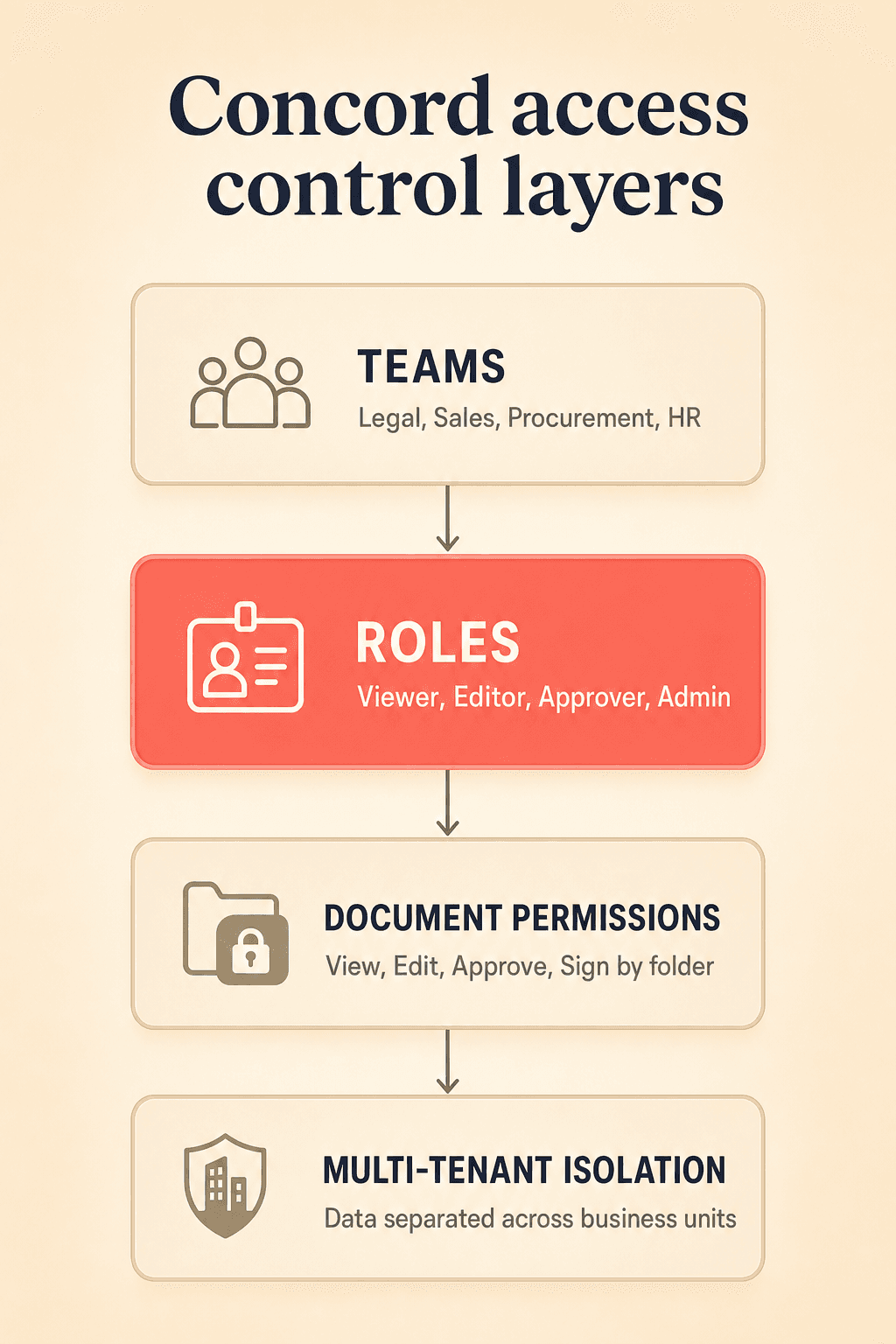
Concord’s access control architecture rests on three building blocks.
Teams mirror how your organization actually works. Contracts rarely belong to a single person. They belong to a function like legal, procurement, sales, or HR. By organizing access around teams rather than individuals, permissions travel with the role. When someone moves to a different team or leaves, their access updates reflect the organizational change without manual, per-document cleanup.
Roles define what actions a person can take. Rather than assigning permissions on a document-by-document basis, roles let you create permission templates once and apply them consistently. A “Sales Contract Viewer” role looks very different from a “Legal Approver” role, and that distinction should be built into your permission architecture from day one.
Document permissions control access at the individual agreement level, and they can shift based on where a document sits in its lifecycle (draft, in negotiation, executed). This is where your team-level and role-level permissions interact with the specific state of each contract.
Setting up role-based access control for your contract team
Here is a step-by-step approach to configuring teams and roles in Concord.
Step 1: Map your organizational structure
Before touching any settings, list every department or function that touches contracts. Common groupings include legal, sales, procurement, HR, finance, and executive leadership. Each of these becomes a team in Concord.
Step 2: Create teams and add members
Within Concord’s team management settings, create a team for each group you identified. Add the relevant users to each team. A single user can belong to multiple teams if their responsibilities span departments.
Step 3: Define roles with granular permissions
Concord’s role management system lets you toggle specific actions per role: view, edit, approve, sign, and delete. Think about the principle of least privilege. Each role should grant only the permissions needed for that function.
For example, you might create these roles:
Contract Viewer: Can view executed contracts but cannot edit, approve, or sign.
Contract Editor: Can view and edit drafts, but cannot approve or sign.
Legal Approver: Can view, edit, and approve, but only designated signers can execute.
Admin: Full permissions across all actions, including user management and role configuration.
Role | View | Edit | Approve | Sign |
|---|---|---|---|---|
Contract Viewer | Yes | No | No | No |
Contract Editor | Yes | Yes | No | No |
Legal Approver | Yes | Yes | Yes | No |
Admin | Yes | Yes | Yes | Yes |
From the webinar — standard and custom roles in Concord:
You then also have your roles, where you decide what each person can do. We have the viewer, the collaborator, the creator, and a creator team manager. The team manager can do all the standard things plus manage users, so you can let someone add or remove users and move them between teams without giving them full access. Administrator has access to everything. On top of that, we have custom roles. If you have a team or role that does not fall under one of these, you can create something custom, like a compliance officer role, and choose specifically what that user can or cannot do in the system.
Step 4: Assign roles to team members
Once your roles exist, assign them to users within each team. The role-based permissions management interface provides a comprehensive table view where you can audit permission assignments at a glance, toggling specific actions on or off per role.
Step 5: Test with a sample contract
Create a test agreement and walk through the full lifecycle. Verify that your viewer cannot edit, your editor cannot approve, and your approver cannot sign. Catching misconfigurations early prevents headaches later.
Folder organization strategies for contract access control
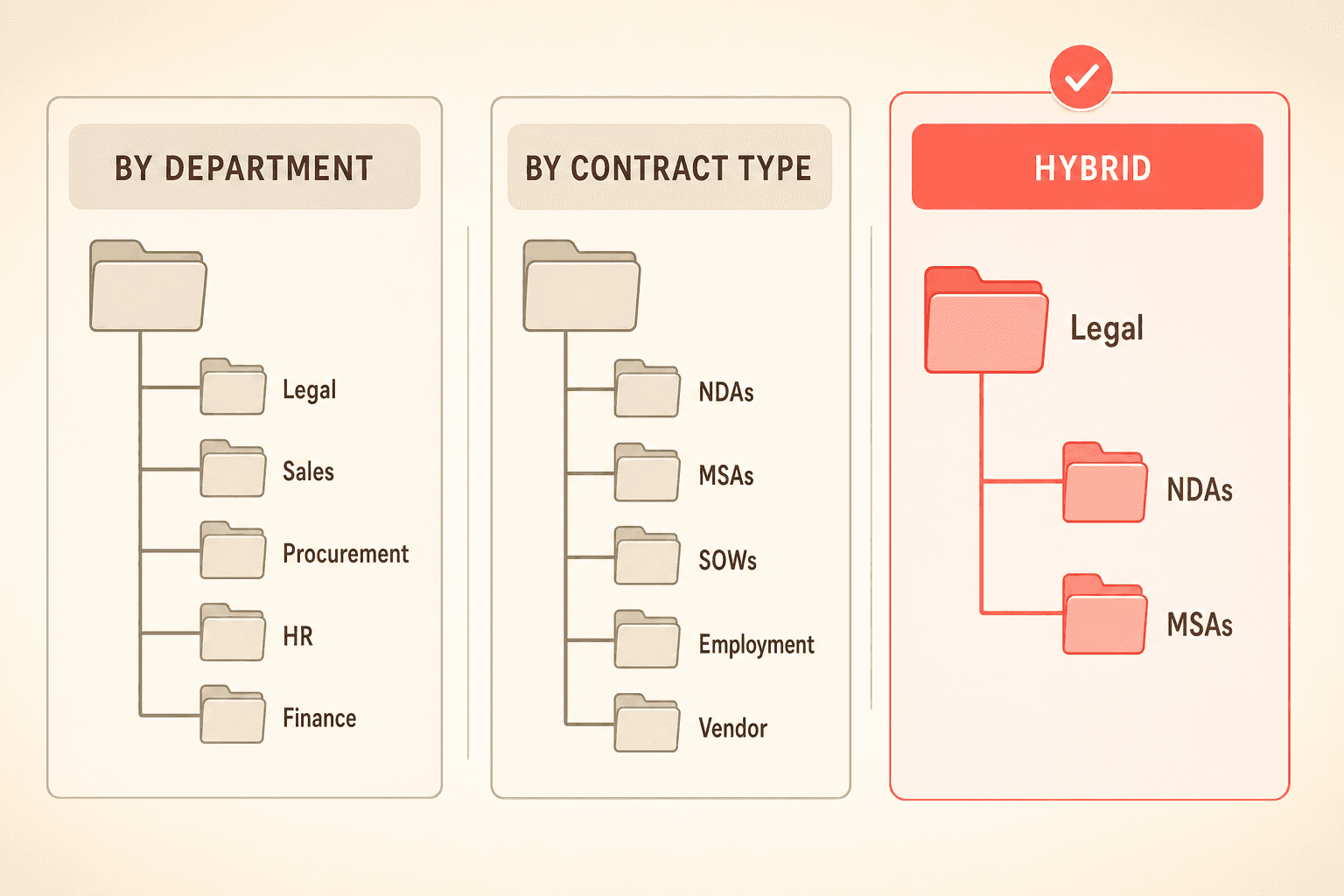
Teams that pair role-based access control with a clear folder taxonomy report faster onboarding and fewer “where is this contract?” support requests. Here are three common folder structures that work well.
By department: Legal, Sales, Procurement, HR, Finance. This mirrors your team structure and makes permission mapping intuitive.
By contract type: NDAs, Master Service Agreements, SOWs, Employment Agreements, Vendor Contracts. This works well when multiple departments handle the same contract types.
Hybrid approach: Top-level folders by department, with subfolders by contract type. This gives you organizational clarity and granular control.
The key is consistency. Choose a structure, document it, and stick with it. Your folder organization should make it obvious which team has access to which contracts without requiring anyone to check individual permission settings.
From the webinar — granting document access through folders:
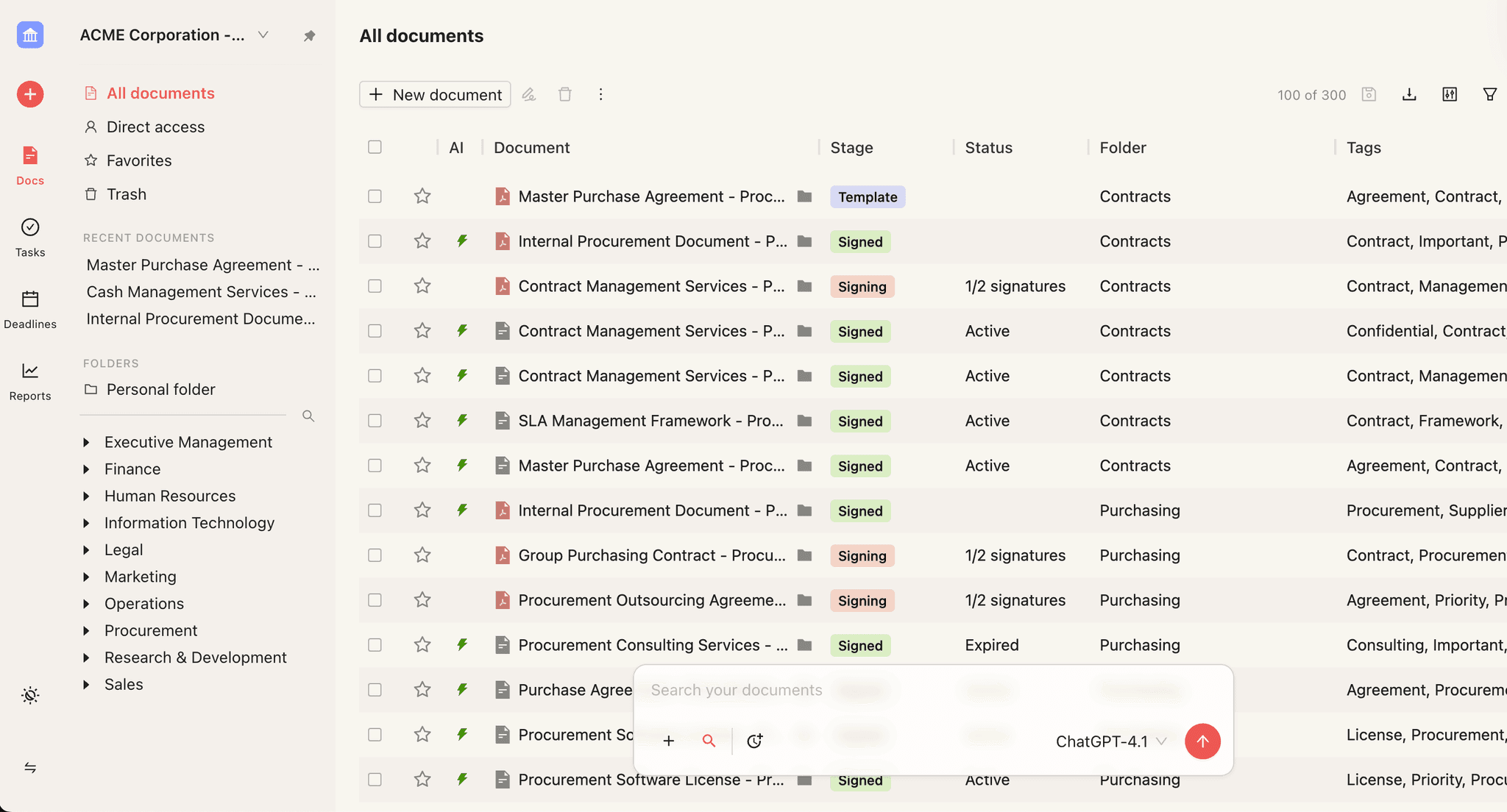
The way we give permission to documents in Concord is through folders. A common question is whether you can separate everything so certain people only access certain documents. The answer is yes, and you do that through folder permissions. Notifications, such as when deadlines are expiring, are also driven by folder access. You build out your folder structure with main folders and subfolders, then add your different teams into those folders. You select a folder, click share, and choose who has access. If a folder is set to everyone but you only want the executive and finance teams, you set it up that way.
The draft-stage sharing gap: What it is and how to work around it
Draft-stage documents in Concord have more limited sharing options than contracts in negotiation or execution, so early collaboration needs a deliberate workaround. Here is where transparency matters more than polish. Concord’s document permissions management varies by document state. Contracts in negotiation or execution stages have well-defined sharing and permission controls. However, draft-stage documents, those early-stage agreements that haven’t entered formal review, have more limited sharing options.
This is a real friction point. Teams frequently note that early-stage documents need to be shared informally before formal workflow routing kicks in. A sales rep drafting a contract might need input from a colleague before sending it to legal for review, and rigid systems create unnecessary friction at this stage.
Practical workarounds you can use today
Create a “Drafts” team with broader access. Set up a designated team for early-stage collaboration with permissions that allow viewing and editing. Once a document moves into formal review, tighten the permissions by reassigning it to the appropriate department team.
Use a shared drafts folder. Create a folder specifically for work-in-progress contracts. Grant your drafts team access to this folder, and establish a clear process for moving documents out of it once they enter the approval workflow.
Establish a handoff protocol. Document a simple two-step process: (1) collaborate in the drafts space, (2) move to the formal workflow once the document is ready for review. This keeps early collaboration flexible while maintaining controlled access for later stages.
These workarounds are not perfect substitutes for native draft-stage sharing. But they keep your team productive without sacrificing the permission controls that matter most during negotiation and execution.
See how teams, roles, and folder permissions work on your own contracts. Request a Concord demo and walk through a live access-control setup.
Multi-tenant data isolation
For organizations with multiple business units, subsidiaries, or external counterparty relationships, Concord enforces data separation at the platform level. This means one business unit’s contracts are invisible to another unless explicit cross-team access is granted.
This layer sits beneath your role-based access controls. Even if a user somehow had the right role permissions, multi-tenant isolation prevents them from accessing data outside their organizational boundary. For companies managing contracts across legal entities, this is a critical security feature.
Keeping permissions current when teams change
Legal ops leaders often describe the pain of onboarding and offboarding team members mid-contract cycle. When someone joins or leaves a team, their access needs to update across all active documents immediately.
Concord’s shared collaboration update scheduler addresses this directly. When you add or remove a team member, sharing permissions update automatically across relevant contracts. This prevents “orphaned access,” where a departed employee retains access to sensitive agreements, or “access gaps,” where a new hire cannot see the contracts they need on day one.
Best practices checklist for contract management team permissions
Use this checklist when setting up or auditing your contract access control configuration:
Map every department that touches contracts before creating teams
Apply the principle of least privilege when defining roles
Create distinct roles for viewing, editing, approving, and signing
Pair your folder structure with your team structure for intuitive access
Set up a dedicated drafts team or folder for early-stage collaboration
Document your handoff protocol from draft to formal review
Audit the permissions table quarterly to catch permission drift
Test your configuration with a sample contract before going live
Remove departed users promptly and verify automatic permission updates
Ready to set up contract access control for your organization? Request a Concord demo to see how teams, roles, and permissions work in practice.
Setting up contract access control is one of the first things you should tackle when rolling out a CLM platform. As your organization grows from a handful of agreements to hundreds or thousands, the question shifts from “can everyone find the contract?” to “should everyone see this contract?” Without a clear permission structure, you face two failure modes: over-sharing sensitive terms to unauthorized users, or creating bottlenecks where only one person can access a critical document.
Key takeaways
Organize access around teams like legal, sales, and procurement so permissions travel with the role, not the individual.
Apply the principle of least privilege through roles. A viewer, an editor, an approver, and an admin each get only the actions their function requires.
In Concord, document access is granted through folders, and subfolders inherit the access of their parent folder.
Draft-stage sharing is limited today. Use a dedicated drafts team or shared folder plus a clear handoff protocol as a workaround.
Audit your permission table quarterly, and more often when you are hiring quickly or restructuring.
What is contract access control?
Contract access control is the system of teams, roles, and document permissions that decides who can view, edit, approve, or sign each agreement. It applies the principle of least privilege, giving each person only the access their function requires, and it adjusts as a contract moves through draft, negotiation, and execution.
Why contract access control matters as teams grow
Contract access control matters because, as your repository grows, the risk shifts from people not finding contracts to the wrong people seeing them. Administrators commonly report frustration with all-or-nothing permission models where users either get full access or no access, with no middle ground. That frustration compounds when contracts span multiple departments, each with different sensitivity levels for pricing, IP, and negotiation terms.
Organizations that delay setting up structured permissions often end up with a flat contract repository where everyone sees everything. That becomes a compliance risk fast, especially in regulated industries or when preparing for audits.
The goal is straightforward: give each person exactly the access they need, at the right stage of the contract lifecycle, without creating administrative overhead that bogs down your team.
Core concepts: Teams, roles, and document permissions
Concord’s access control architecture rests on three building blocks.
Teams mirror how your organization actually works. Contracts rarely belong to a single person. They belong to a function like legal, procurement, sales, or HR. By organizing access around teams rather than individuals, permissions travel with the role. When someone moves to a different team or leaves, their access updates reflect the organizational change without manual, per-document cleanup.
Roles define what actions a person can take. Rather than assigning permissions on a document-by-document basis, roles let you create permission templates once and apply them consistently. A “Sales Contract Viewer” role looks very different from a “Legal Approver” role, and that distinction should be built into your permission architecture from day one.
Document permissions control access at the individual agreement level, and they can shift based on where a document sits in its lifecycle (draft, in negotiation, executed). This is where your team-level and role-level permissions interact with the specific state of each contract.
Setting up role-based access control for your contract team
Here is a step-by-step approach to configuring teams and roles in Concord.
Step 1: Map your organizational structure
Before touching any settings, list every department or function that touches contracts. Common groupings include legal, sales, procurement, HR, finance, and executive leadership. Each of these becomes a team in Concord.
Step 2: Create teams and add members
Within Concord’s team management settings, create a team for each group you identified. Add the relevant users to each team. A single user can belong to multiple teams if their responsibilities span departments.
Step 3: Define roles with granular permissions
Concord’s role management system lets you toggle specific actions per role: view, edit, approve, sign, and delete. Think about the principle of least privilege. Each role should grant only the permissions needed for that function.
For example, you might create these roles:
Contract Viewer: Can view executed contracts but cannot edit, approve, or sign.
Contract Editor: Can view and edit drafts, but cannot approve or sign.
Legal Approver: Can view, edit, and approve, but only designated signers can execute.
Admin: Full permissions across all actions, including user management and role configuration.
Role | View | Edit | Approve | Sign |
|---|---|---|---|---|
Contract Viewer | Yes | No | No | No |
Contract Editor | Yes | Yes | No | No |
Legal Approver | Yes | Yes | Yes | No |
Admin | Yes | Yes | Yes | Yes |
From the webinar — standard and custom roles in Concord:
You then also have your roles, where you decide what each person can do. We have the viewer, the collaborator, the creator, and a creator team manager. The team manager can do all the standard things plus manage users, so you can let someone add or remove users and move them between teams without giving them full access. Administrator has access to everything. On top of that, we have custom roles. If you have a team or role that does not fall under one of these, you can create something custom, like a compliance officer role, and choose specifically what that user can or cannot do in the system.
Step 4: Assign roles to team members
Once your roles exist, assign them to users within each team. The role-based permissions management interface provides a comprehensive table view where you can audit permission assignments at a glance, toggling specific actions on or off per role.
Step 5: Test with a sample contract
Create a test agreement and walk through the full lifecycle. Verify that your viewer cannot edit, your editor cannot approve, and your approver cannot sign. Catching misconfigurations early prevents headaches later.
Folder organization strategies for contract access control
Teams that pair role-based access control with a clear folder taxonomy report faster onboarding and fewer “where is this contract?” support requests. Here are three common folder structures that work well.
By department: Legal, Sales, Procurement, HR, Finance. This mirrors your team structure and makes permission mapping intuitive.
By contract type: NDAs, Master Service Agreements, SOWs, Employment Agreements, Vendor Contracts. This works well when multiple departments handle the same contract types.
Hybrid approach: Top-level folders by department, with subfolders by contract type. This gives you organizational clarity and granular control.
The key is consistency. Choose a structure, document it, and stick with it. Your folder organization should make it obvious which team has access to which contracts without requiring anyone to check individual permission settings.
From the webinar — granting document access through folders:
The way we give permission to documents in Concord is through folders. A common question is whether you can separate everything so certain people only access certain documents. The answer is yes, and you do that through folder permissions. Notifications, such as when deadlines are expiring, are also driven by folder access. You build out your folder structure with main folders and subfolders, then add your different teams into those folders. You select a folder, click share, and choose who has access. If a folder is set to everyone but you only want the executive and finance teams, you set it up that way.
The draft-stage sharing gap: What it is and how to work around it
Draft-stage documents in Concord have more limited sharing options than contracts in negotiation or execution, so early collaboration needs a deliberate workaround. Here is where transparency matters more than polish. Concord’s document permissions management varies by document state. Contracts in negotiation or execution stages have well-defined sharing and permission controls. However, draft-stage documents, those early-stage agreements that haven’t entered formal review, have more limited sharing options.
This is a real friction point. Teams frequently note that early-stage documents need to be shared informally before formal workflow routing kicks in. A sales rep drafting a contract might need input from a colleague before sending it to legal for review, and rigid systems create unnecessary friction at this stage.
Practical workarounds you can use today
Create a “Drafts” team with broader access. Set up a designated team for early-stage collaboration with permissions that allow viewing and editing. Once a document moves into formal review, tighten the permissions by reassigning it to the appropriate department team.
Use a shared drafts folder. Create a folder specifically for work-in-progress contracts. Grant your drafts team access to this folder, and establish a clear process for moving documents out of it once they enter the approval workflow.
Establish a handoff protocol. Document a simple two-step process: (1) collaborate in the drafts space, (2) move to the formal workflow once the document is ready for review. This keeps early collaboration flexible while maintaining controlled access for later stages.
These workarounds are not perfect substitutes for native draft-stage sharing. But they keep your team productive without sacrificing the permission controls that matter most during negotiation and execution.
See how teams, roles, and folder permissions work on your own contracts. Request a Concord demo and walk through a live access-control setup.
Multi-tenant data isolation
For organizations with multiple business units, subsidiaries, or external counterparty relationships, Concord enforces data separation at the platform level. This means one business unit’s contracts are invisible to another unless explicit cross-team access is granted.
This layer sits beneath your role-based access controls. Even if a user somehow had the right role permissions, multi-tenant isolation prevents them from accessing data outside their organizational boundary. For companies managing contracts across legal entities, this is a critical security feature.
Keeping permissions current when teams change
Legal ops leaders often describe the pain of onboarding and offboarding team members mid-contract cycle. When someone joins or leaves a team, their access needs to update across all active documents immediately.
Concord’s shared collaboration update scheduler addresses this directly. When you add or remove a team member, sharing permissions update automatically across relevant contracts. This prevents “orphaned access,” where a departed employee retains access to sensitive agreements, or “access gaps,” where a new hire cannot see the contracts they need on day one.
Best practices checklist for contract management team permissions
Use this checklist when setting up or auditing your contract access control configuration:
Map every department that touches contracts before creating teams
Apply the principle of least privilege when defining roles
Create distinct roles for viewing, editing, approving, and signing
Pair your folder structure with your team structure for intuitive access
Set up a dedicated drafts team or folder for early-stage collaboration
Document your handoff protocol from draft to formal review
Audit the permissions table quarterly to catch permission drift
Test your configuration with a sample contract before going live
Remove departed users promptly and verify automatic permission updates
Ready to set up contract access control for your organization? Request a Concord demo to see how teams, roles, and permissions work in practice.
Need to know
Frequently Asked Questions

Take the "management" out
of contract management.
Customer Support
Legal
Compare
Resources
Customer Support
Company
Legal
Compare
Resources
Customer Support
Company
Legal
Compare
© 2025 Concord. All rights reserved.