Understanding Fields in Concord: How to Organize Your Contract Data
Understanding Fields in Concord: How to Organize Your Contract Data
Understanding Fields in Concord: How to Organize Your Contract Data
Understanding Fields in Concord: How to Organize Your Contract Data
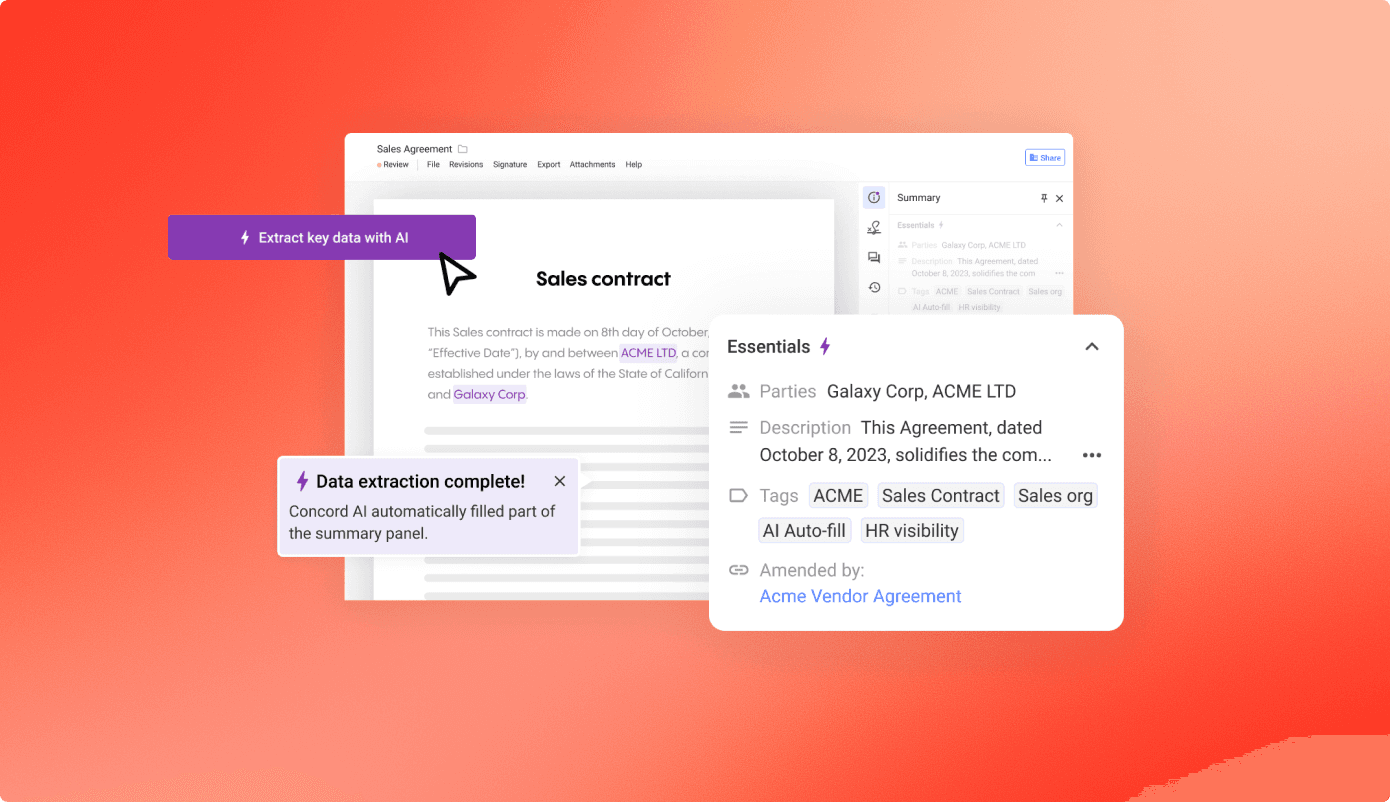
Your contracts contain valuable information. Dates, parties, payment terms, renewal deadlines. The challenge is making that information easy to find, report on, and act on.
That’s where fields come in.
Concord offers several types of fields to help you capture and organize contract metadata. Each serves a different purpose, and knowing when to use which one can make a real difference in how efficiently you manage your agreements.
In this guide, we’ll walk through every field type in Concord, explain what each one does best, and share practical tips from our team.
The Document Summary Panel
When you open any contract in Concord, you’ll see a summary panel on the right side of the screen. This panel displays all the metadata associated with that document.
Quick tip: You can drag this panel to resize it. Many users don’t realize this feature exists, but it’s helpful when you need more space to view your document or want to see more metadata at once.
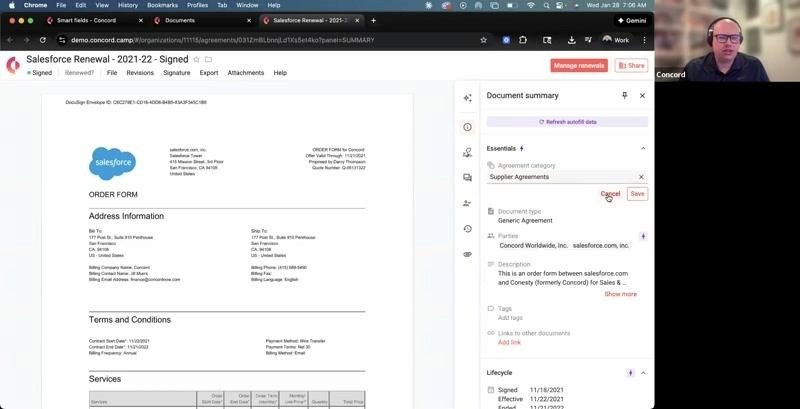
Document Summary Panel
Fields That AI Extracts Automatically
Concord’s AI reads your contracts and pulls out key information without any manual work on your part.
Agreement Category
The AI identifies what type of agreement you’re working with. Is it a supplier agreement? An NDA? An employment contract? The system makes its best guess and categorizes the document accordingly.
If the AI gets it wrong, you can always change the category manually. But in most cases, it saves you the step of having to classify each contract yourself.
Document Type
This field goes beyond contracts. Many Concord customers use the platform to manage board minutes, internal policies, shareholder documents, and other important files that aren’t technically contracts.
The document type field helps you distinguish between these different kinds of documents, which makes filtering and reporting much easier down the line.
Contract Description
The AI generates a brief summary of what the contract covers. Think of it as a quick reference so you don’t have to open and read the full document every time you need to remember what it’s about.
You can edit this description if you want to add your own notes or clarify something the AI missed.
Managing Your Parties
The parties field identifies who the contract is between. The AI extracts party names automatically from the document text.
Over time, you might notice duplicates creeping in. One contract lists “Acme Corporation” while another says “Acme Corp” and a third shows “ACME Corporation, Inc.” They’re all the same company, but Concord sees them as three different parties.
The Party Library
This is where you clean things up. In the Party Library, you can merge duplicate parties into a single record. Choose which name you want to keep as the primary, merge the others into it, and all associated documents update automatically.
It’s worth taking a few minutes every quarter to review your Party Library and consolidate any duplicates. Clean party data makes reporting and searching much more reliable.
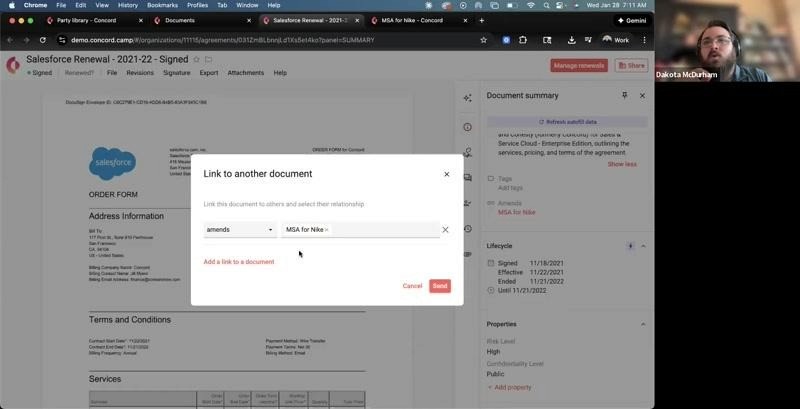
Document Linking
Tags vs. Custom Properties
This is one of the most common questions we hear from customers. Both tags and custom properties let you add metadata to contracts. So when should you use which?
Tags Work Best For Quick Labeling
Tags are simple labels you can apply to documents. They’re great when you want to quickly filter contracts by a certain characteristic, especially when you’re working from templates.
For example, you might tag all NDAs with “Legal” and “Confidential” so anyone can quickly find them later.
Custom Properties Work Best For Structured Data
Custom properties give you more control. You can create dropdown menus with specific options, require certain fields to be filled out, and build reports based on the data.
If you’ve been using Concord for years and have accumulated a lot of tags, it might be worth talking to your customer success manager about migrating some of them to custom properties. The reporting capabilities alone can make a big difference.
Linking Documents Together
Contracts don’t exist in isolation. An MSA leads to amendments. A framework agreement spawns multiple work orders. An original contract gets renewed or superseded.
Document linking lets you show these relationships. When you link two contracts together, you can specify the relationship type: this document amends that one, this one supersedes that one, this one extends that one.
Once linked, you can see the full picture when you open any document in the chain. No more hunting through folders to find related agreements.
One thing to keep in mind: when you link documents, you automatically join both of them. This gets tracked in the audit trail, so be aware of that if you’re managing access carefully.
Lifecycle Data: The Most Important Fields
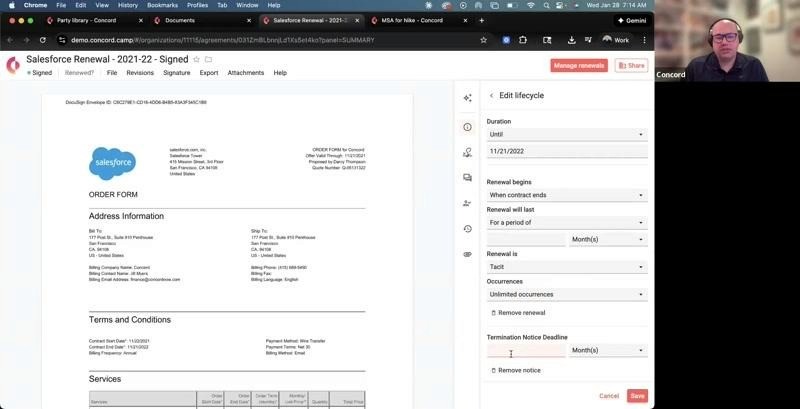
Lifecycle Fields
If you only focus on one section of metadata, make it this one. Lifecycle data drives your deadline alerts and renewal tracking.
The Key Dates
Signature date records when the contract was signed. Effective date marks when the terms actually begin (which isn’t always the same as the signature date). End date shows when the contract expires.
Duration and Renewal Settings
You can set duration as a period of time (two years, for example), until a specific date, or as perpetual/evergreen.
For renewals, you’ll specify when the renewal period begins, how long each renewal lasts, whether it happens automatically (tacit renewal) or requires action, and how many times it can renew.
Early Termination Notice
This one catches a lot of people off guard. Many vendor contracts require you to give notice 60 or 90 days before the renewal date if you want to cancel. Miss that window and you’re locked in for another term.
Enter your notice period here, and Concord calculates the actual deadline for you. If your contract ends December 31 and requires 90 days notice, the system knows your notice deadline is October 2.
Your reminder emails will start before that notice deadline based on your alert settings. So if you have alerts set to begin 120 days before the deadline, you’ll start getting reminders in June.
Custom Properties: Flexible Metadata for Your Needs
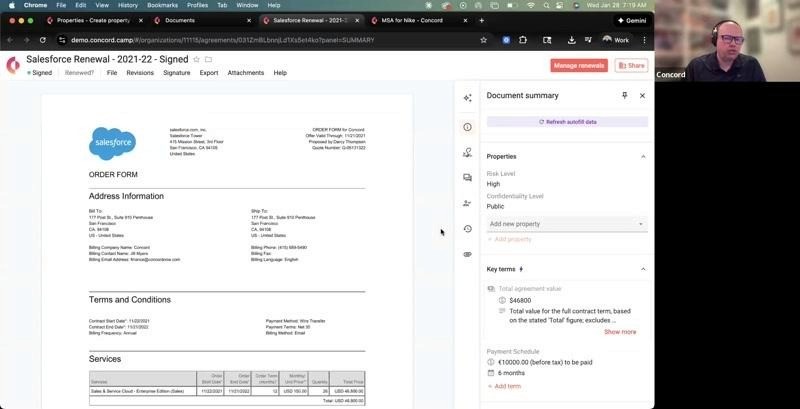
Custom Properties
Custom properties let you track information that matters to your organization but isn’t part of the contract itself.
Risk level is a common example. Your security team might assess each vendor contract and assign it a risk rating. That assessment isn’t written in the contract, but you need to track it somewhere. Custom properties give you that somewhere.
Available Field Types
You have several options when creating custom properties:
Text fields (short or long) work for things like internal reference numbers or notes.
Number fields handle quantities or scores.
Single select creates a dropdown menu where users pick one option. Perfect for things like risk level (High, Medium, Low) or approval status.
Multi select lets users pick multiple options from a list. Useful for tagging applicable regions or departments.
Date fields capture dates that don’t fit in the standard lifecycle section.
Yes/No fields handle simple binary questions. Does this contract require legal review? Is it approved?
Currency fields track financial amounts like budget thresholds.
User fields let you assign a contract owner or responsible party.
Using Templates to Set Up Properties
Here’s where custom properties get really powerful. When you create a template in Concord, you’re not just creating a document template. You’re also creating a metadata template.
You can pre-configure which custom properties appear for contracts created from that template. So when someone creates a new vendor agreement, all the relevant fields are already there waiting to be filled out.
Some customers use this to build intake workflows. They create a template with a blank document but a full set of custom properties. As the contract moves through internal review, team members fill out the risk assessment, compliance review, budget approval, and other fields. By the time the contract is ready to send, all the metadata is already in place.
Coming Soon: Custom AI Extraction
Right now, the AI extracts a preset list of fields. But Concord is working on custom AI extraction, expected to launch in late February. This will let you define which custom properties the AI should look for and extract automatically.
Key Terms: Deadlines, Payments, and Clause Language
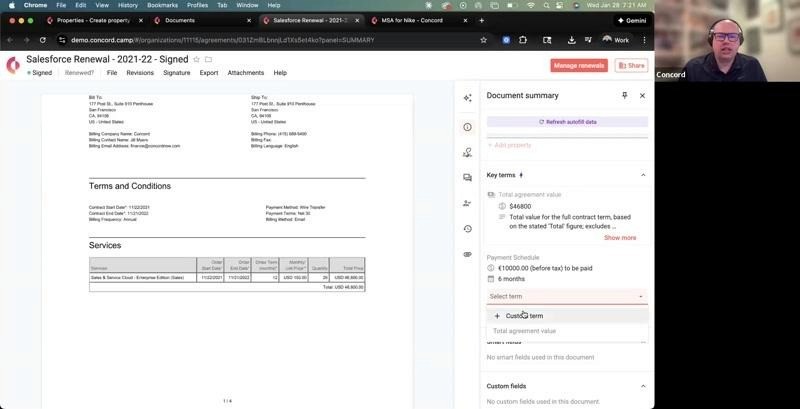
Key Terms
Key terms started as a way to track specific clause language. Over time, they’ve evolved to handle three distinct functions.
Tracking Clause Language
Sometimes you need to remember exactly what a contract says about a particular topic. What’s the limitation of liability? What does the non-compete clause actually say?
Key terms let you copy and paste that specific language so it’s easy to reference without opening the full document.
Creating Additional Deadlines
Your contract lifecycle has its main dates, but what about other deadlines? Certificate of insurance due dates. Compliance review deadlines. Milestone deliverables.
You can create these as key terms, and they’ll show up in your deadline reports and calendar just like the main contract dates.
Tracking Payment Information
Key terms can also track financial obligations. You can record one-time payments, recurring payments (monthly, quarterly, annual), whether you’re paying or receiving, tax handling, and currency.
The system will even remind you when payments are coming due.
When to use key terms vs. custom properties for dates: If you just need a date and a title, a custom property is simpler. If you need to attach additional details like amounts, recurrence schedules, or notes, key terms give you more flexibility.
Smart Fields: Building Better Templates
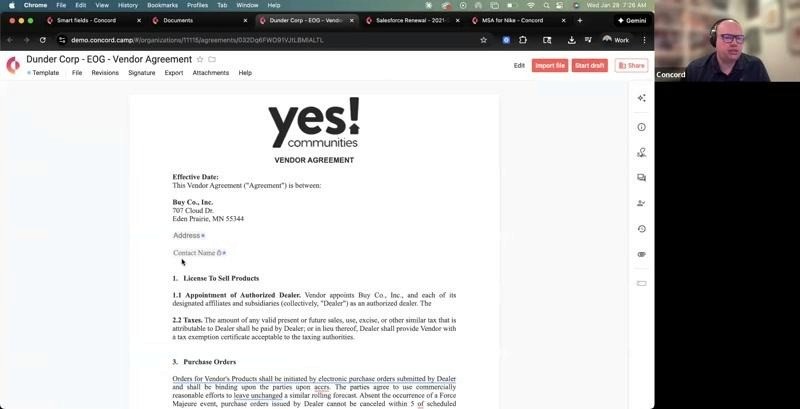
Smart Fields in Templates
Smart fields are placeholders you add to document templates. They get filled in when someone creates a new contract from that template.
Let’s say you have a vendor agreement template. You want the person creating the contract to enter the vendor’s contact name and address. You add smart fields for those values, and they appear as fillable fields during document creation.
Smart fields can be text or numbers. You can mark them as required or optional, and you can control who needs to fill them out.
Once filled in, the data automatically appears in the document summary. So if someone enters “Jane Smith” in the contact name field, that value is captured as metadata you can search and report on.
Custom Fields: A Legacy Feature
You might notice a “custom fields” option in the system. These are one-off fields you can add to individual documents.
We generally don’t recommend using them for new data. They can’t be reused across documents, and they’re harder to report on than custom properties.
Custom fields still exist because some long-time customers have historical data stored in them. But for anything new, you’re better off with custom properties or key terms.
Putting It All Together With Workflows
Once you have clean, consistent metadata across your contracts, you can start automating actions based on that data.
For example, you might create a workflow that says: when the custom property “Requires Compliance Review” is set to “Yes,” automatically move the document to the Compliance Review folder and notify the compliance team.
Workflows deserve their own deep dive, but the key point is this: the effort you put into maintaining good field data pays off in automation capabilities down the road.
We host webinars like this one every week, and each session is different based on live questions from attendees. Check our webinar page for upcoming topics.
Your contracts contain valuable information. Dates, parties, payment terms, renewal deadlines. The challenge is making that information easy to find, report on, and act on.
That’s where fields come in.
Concord offers several types of fields to help you capture and organize contract metadata. Each serves a different purpose, and knowing when to use which one can make a real difference in how efficiently you manage your agreements.
In this guide, we’ll walk through every field type in Concord, explain what each one does best, and share practical tips from our team.
The Document Summary Panel
When you open any contract in Concord, you’ll see a summary panel on the right side of the screen. This panel displays all the metadata associated with that document.
Quick tip: You can drag this panel to resize it. Many users don’t realize this feature exists, but it’s helpful when you need more space to view your document or want to see more metadata at once.
Document Summary Panel
Fields That AI Extracts Automatically
Concord’s AI reads your contracts and pulls out key information without any manual work on your part.
Agreement Category
The AI identifies what type of agreement you’re working with. Is it a supplier agreement? An NDA? An employment contract? The system makes its best guess and categorizes the document accordingly.
If the AI gets it wrong, you can always change the category manually. But in most cases, it saves you the step of having to classify each contract yourself.
Document Type
This field goes beyond contracts. Many Concord customers use the platform to manage board minutes, internal policies, shareholder documents, and other important files that aren’t technically contracts.
The document type field helps you distinguish between these different kinds of documents, which makes filtering and reporting much easier down the line.
Contract Description
The AI generates a brief summary of what the contract covers. Think of it as a quick reference so you don’t have to open and read the full document every time you need to remember what it’s about.
You can edit this description if you want to add your own notes or clarify something the AI missed.
Managing Your Parties
The parties field identifies who the contract is between. The AI extracts party names automatically from the document text.
Over time, you might notice duplicates creeping in. One contract lists “Acme Corporation” while another says “Acme Corp” and a third shows “ACME Corporation, Inc.” They’re all the same company, but Concord sees them as three different parties.
The Party Library
This is where you clean things up. In the Party Library, you can merge duplicate parties into a single record. Choose which name you want to keep as the primary, merge the others into it, and all associated documents update automatically.
It’s worth taking a few minutes every quarter to review your Party Library and consolidate any duplicates. Clean party data makes reporting and searching much more reliable.
Document Linking
Tags vs. Custom Properties
This is one of the most common questions we hear from customers. Both tags and custom properties let you add metadata to contracts. So when should you use which?
Tags Work Best For Quick Labeling
Tags are simple labels you can apply to documents. They’re great when you want to quickly filter contracts by a certain characteristic, especially when you’re working from templates.
For example, you might tag all NDAs with “Legal” and “Confidential” so anyone can quickly find them later.
Custom Properties Work Best For Structured Data
Custom properties give you more control. You can create dropdown menus with specific options, require certain fields to be filled out, and build reports based on the data.
If you’ve been using Concord for years and have accumulated a lot of tags, it might be worth talking to your customer success manager about migrating some of them to custom properties. The reporting capabilities alone can make a big difference.
Linking Documents Together
Contracts don’t exist in isolation. An MSA leads to amendments. A framework agreement spawns multiple work orders. An original contract gets renewed or superseded.
Document linking lets you show these relationships. When you link two contracts together, you can specify the relationship type: this document amends that one, this one supersedes that one, this one extends that one.
Once linked, you can see the full picture when you open any document in the chain. No more hunting through folders to find related agreements.
One thing to keep in mind: when you link documents, you automatically join both of them. This gets tracked in the audit trail, so be aware of that if you’re managing access carefully.
Lifecycle Data: The Most Important Fields
Lifecycle Fields
If you only focus on one section of metadata, make it this one. Lifecycle data drives your deadline alerts and renewal tracking.
The Key Dates
Signature date records when the contract was signed. Effective date marks when the terms actually begin (which isn’t always the same as the signature date). End date shows when the contract expires.
Duration and Renewal Settings
You can set duration as a period of time (two years, for example), until a specific date, or as perpetual/evergreen.
For renewals, you’ll specify when the renewal period begins, how long each renewal lasts, whether it happens automatically (tacit renewal) or requires action, and how many times it can renew.
Early Termination Notice
This one catches a lot of people off guard. Many vendor contracts require you to give notice 60 or 90 days before the renewal date if you want to cancel. Miss that window and you’re locked in for another term.
Enter your notice period here, and Concord calculates the actual deadline for you. If your contract ends December 31 and requires 90 days notice, the system knows your notice deadline is October 2.
Your reminder emails will start before that notice deadline based on your alert settings. So if you have alerts set to begin 120 days before the deadline, you’ll start getting reminders in June.
Custom Properties: Flexible Metadata for Your Needs
Custom Properties
Custom properties let you track information that matters to your organization but isn’t part of the contract itself.
Risk level is a common example. Your security team might assess each vendor contract and assign it a risk rating. That assessment isn’t written in the contract, but you need to track it somewhere. Custom properties give you that somewhere.
Available Field Types
You have several options when creating custom properties:
Text fields (short or long) work for things like internal reference numbers or notes.
Number fields handle quantities or scores.
Single select creates a dropdown menu where users pick one option. Perfect for things like risk level (High, Medium, Low) or approval status.
Multi select lets users pick multiple options from a list. Useful for tagging applicable regions or departments.
Date fields capture dates that don’t fit in the standard lifecycle section.
Yes/No fields handle simple binary questions. Does this contract require legal review? Is it approved?
Currency fields track financial amounts like budget thresholds.
User fields let you assign a contract owner or responsible party.
Using Templates to Set Up Properties
Here’s where custom properties get really powerful. When you create a template in Concord, you’re not just creating a document template. You’re also creating a metadata template.
You can pre-configure which custom properties appear for contracts created from that template. So when someone creates a new vendor agreement, all the relevant fields are already there waiting to be filled out.
Some customers use this to build intake workflows. They create a template with a blank document but a full set of custom properties. As the contract moves through internal review, team members fill out the risk assessment, compliance review, budget approval, and other fields. By the time the contract is ready to send, all the metadata is already in place.
Coming Soon: Custom AI Extraction
Right now, the AI extracts a preset list of fields. But Concord is working on custom AI extraction, expected to launch in late February. This will let you define which custom properties the AI should look for and extract automatically.
Key Terms: Deadlines, Payments, and Clause Language
Key Terms
Key terms started as a way to track specific clause language. Over time, they’ve evolved to handle three distinct functions.
Tracking Clause Language
Sometimes you need to remember exactly what a contract says about a particular topic. What’s the limitation of liability? What does the non-compete clause actually say?
Key terms let you copy and paste that specific language so it’s easy to reference without opening the full document.
Creating Additional Deadlines
Your contract lifecycle has its main dates, but what about other deadlines? Certificate of insurance due dates. Compliance review deadlines. Milestone deliverables.
You can create these as key terms, and they’ll show up in your deadline reports and calendar just like the main contract dates.
Tracking Payment Information
Key terms can also track financial obligations. You can record one-time payments, recurring payments (monthly, quarterly, annual), whether you’re paying or receiving, tax handling, and currency.
The system will even remind you when payments are coming due.
When to use key terms vs. custom properties for dates: If you just need a date and a title, a custom property is simpler. If you need to attach additional details like amounts, recurrence schedules, or notes, key terms give you more flexibility.
Smart Fields: Building Better Templates
Smart Fields in Templates
Smart fields are placeholders you add to document templates. They get filled in when someone creates a new contract from that template.
Let’s say you have a vendor agreement template. You want the person creating the contract to enter the vendor’s contact name and address. You add smart fields for those values, and they appear as fillable fields during document creation.
Smart fields can be text or numbers. You can mark them as required or optional, and you can control who needs to fill them out.
Once filled in, the data automatically appears in the document summary. So if someone enters “Jane Smith” in the contact name field, that value is captured as metadata you can search and report on.
Custom Fields: A Legacy Feature
You might notice a “custom fields” option in the system. These are one-off fields you can add to individual documents.
We generally don’t recommend using them for new data. They can’t be reused across documents, and they’re harder to report on than custom properties.
Custom fields still exist because some long-time customers have historical data stored in them. But for anything new, you’re better off with custom properties or key terms.
Putting It All Together With Workflows
Once you have clean, consistent metadata across your contracts, you can start automating actions based on that data.
For example, you might create a workflow that says: when the custom property “Requires Compliance Review” is set to “Yes,” automatically move the document to the Compliance Review folder and notify the compliance team.
Workflows deserve their own deep dive, but the key point is this: the effort you put into maintaining good field data pays off in automation capabilities down the road.
We host webinars like this one every week, and each session is different based on live questions from attendees. Check our webinar page for upcoming topics.

Take the "management" out
of contract management.
Customer Support
Legal
Compare
Resources
Customer Support
Company
Legal
Compare
Resources
Customer Support
Company
Legal
Compare
© 2025 Concord. All rights reserved.