How to Create, Negotiate and Sign Contracts in Concord
How to Create, Negotiate and Sign Contracts in Concord
How to Create, Negotiate and Sign Contracts in Concord
How to Create, Negotiate and Sign Contracts in Concord
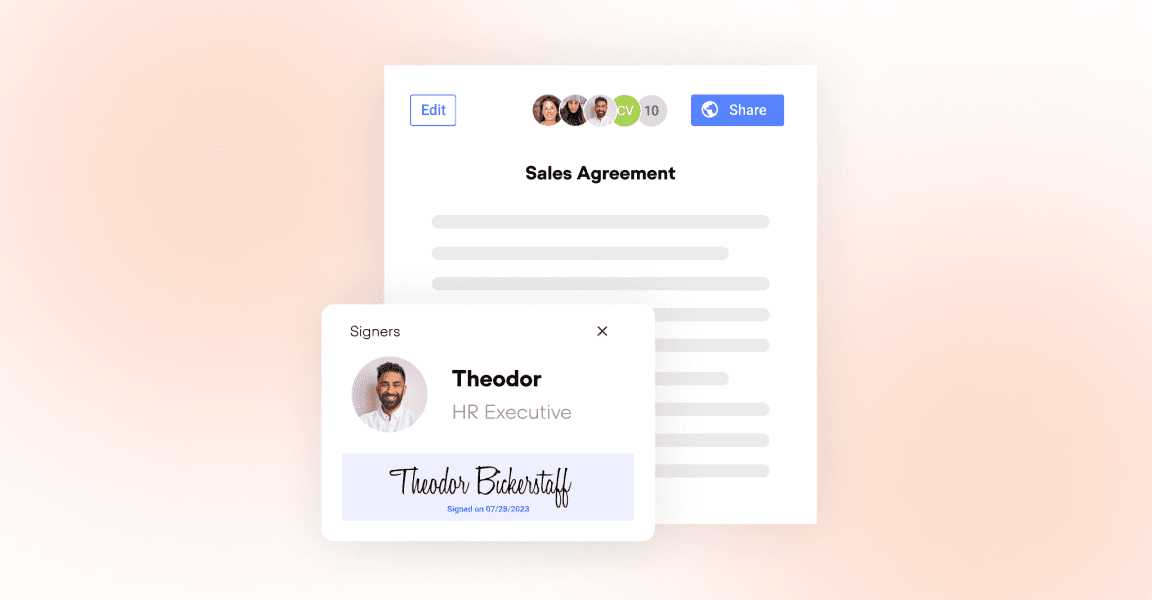
Managing contracts from start to finish can feel overwhelming, especially when multiple teams need to review, approve and sign documents. In this guide, we walk through the complete contract lifecycle in Concord, from template creation to e-signature.
Setting up approval workflows
Before creating your first contract, set up your approval workflows. This saves time because you can apply the same workflow to any template or document.
In Concord Horizon, go to Settings > Approvals. In Classic, click the lightning bolt icon on the left sidebar.
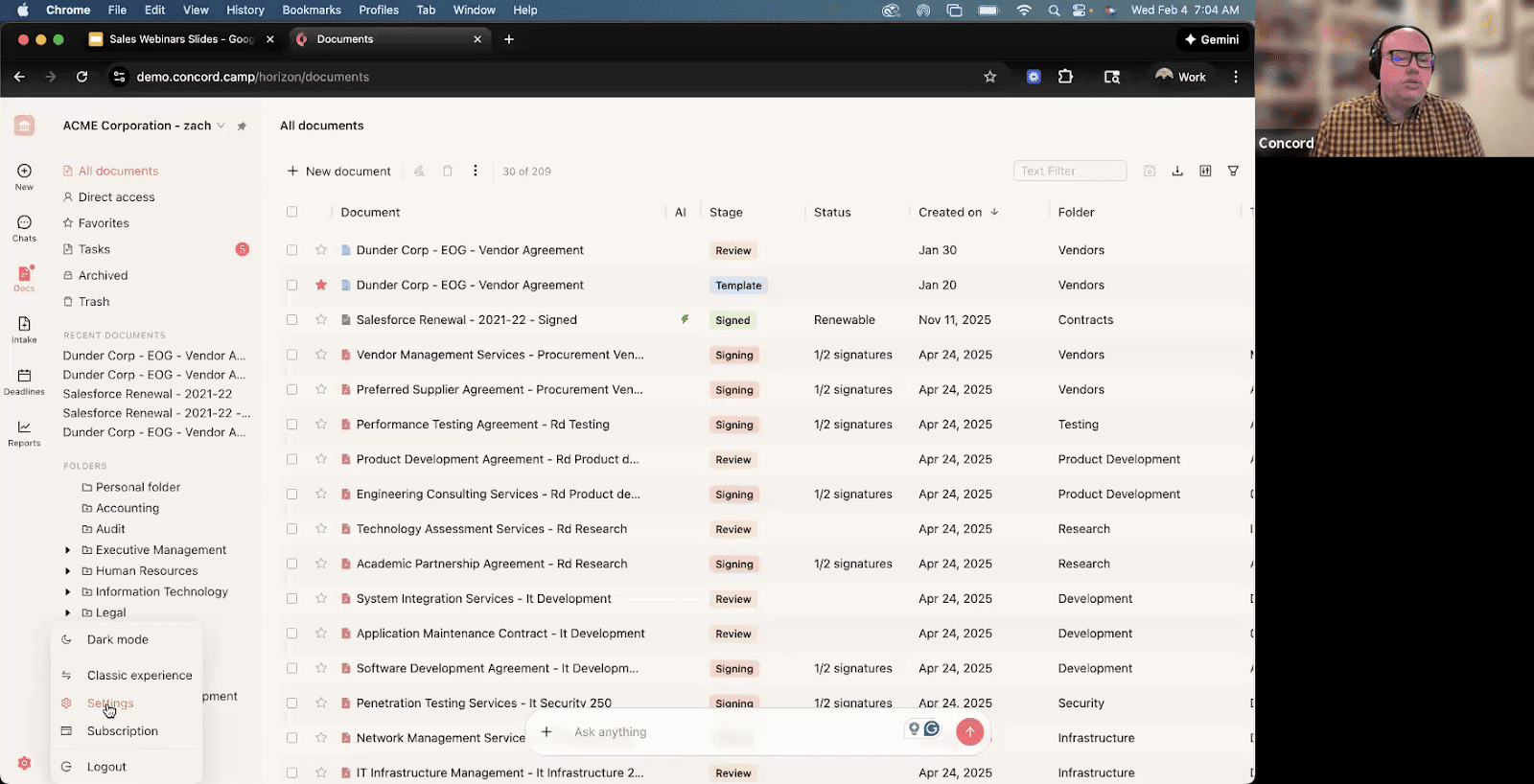
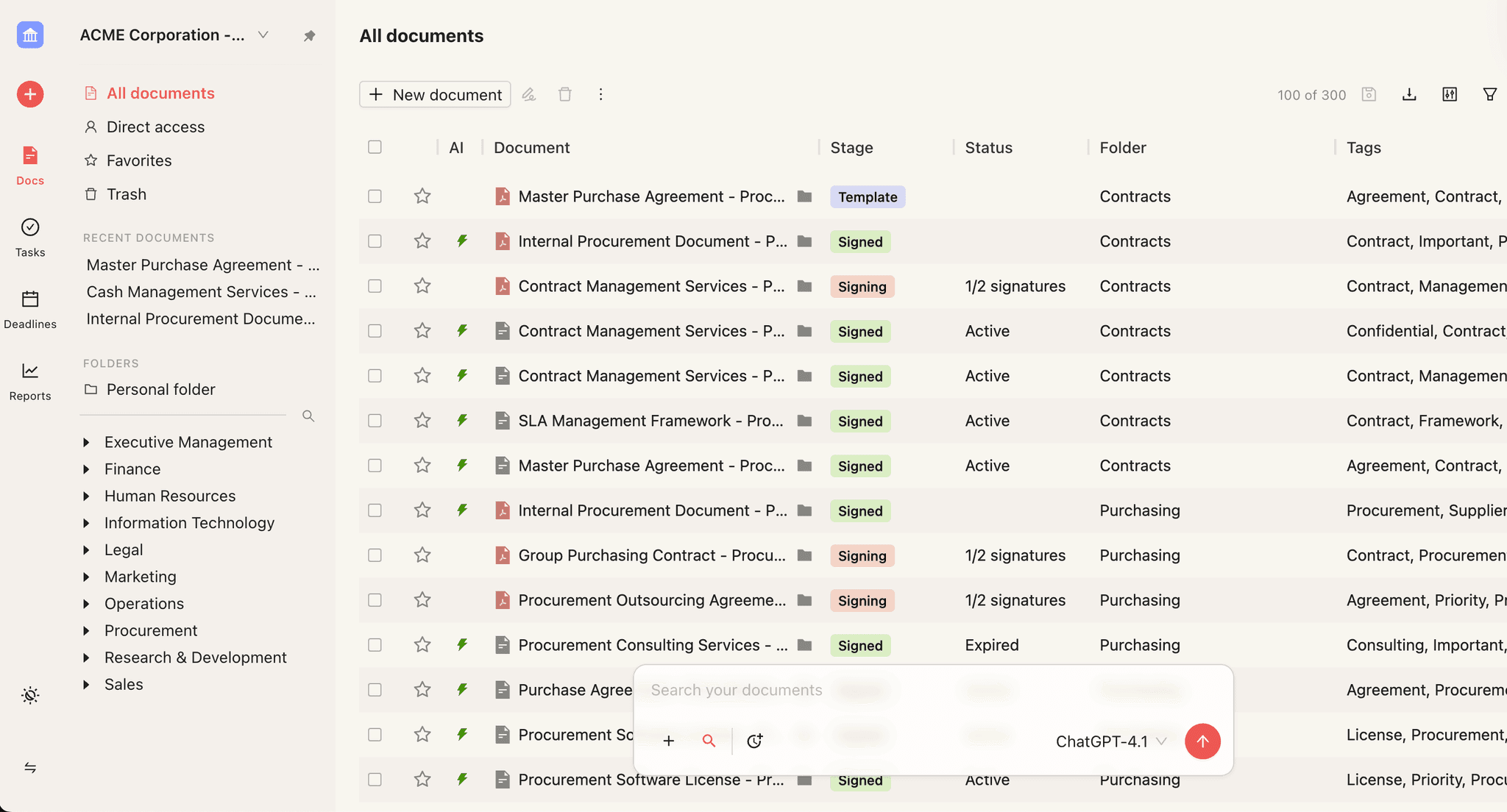
Concord document dashboard
Concord offers flexible approval options:
Single-step approvals: Everyone receives the request at the same time
Multi-step approvals: The document moves to the next step only after the previous step is approved
Anyone vs Everyone: Choose whether one person from a group can approve, or if everyone must approve
For example, if your legal team has five members but only one needs to sign off, select “Anyone” for that step. This prevents bottlenecks while maintaining oversight.
Creating contract templates
Templates are the foundation of efficient contract management. To create a template in Concord:
Click New Document
Drag and drop your Word document into Concord
Convert it to a template
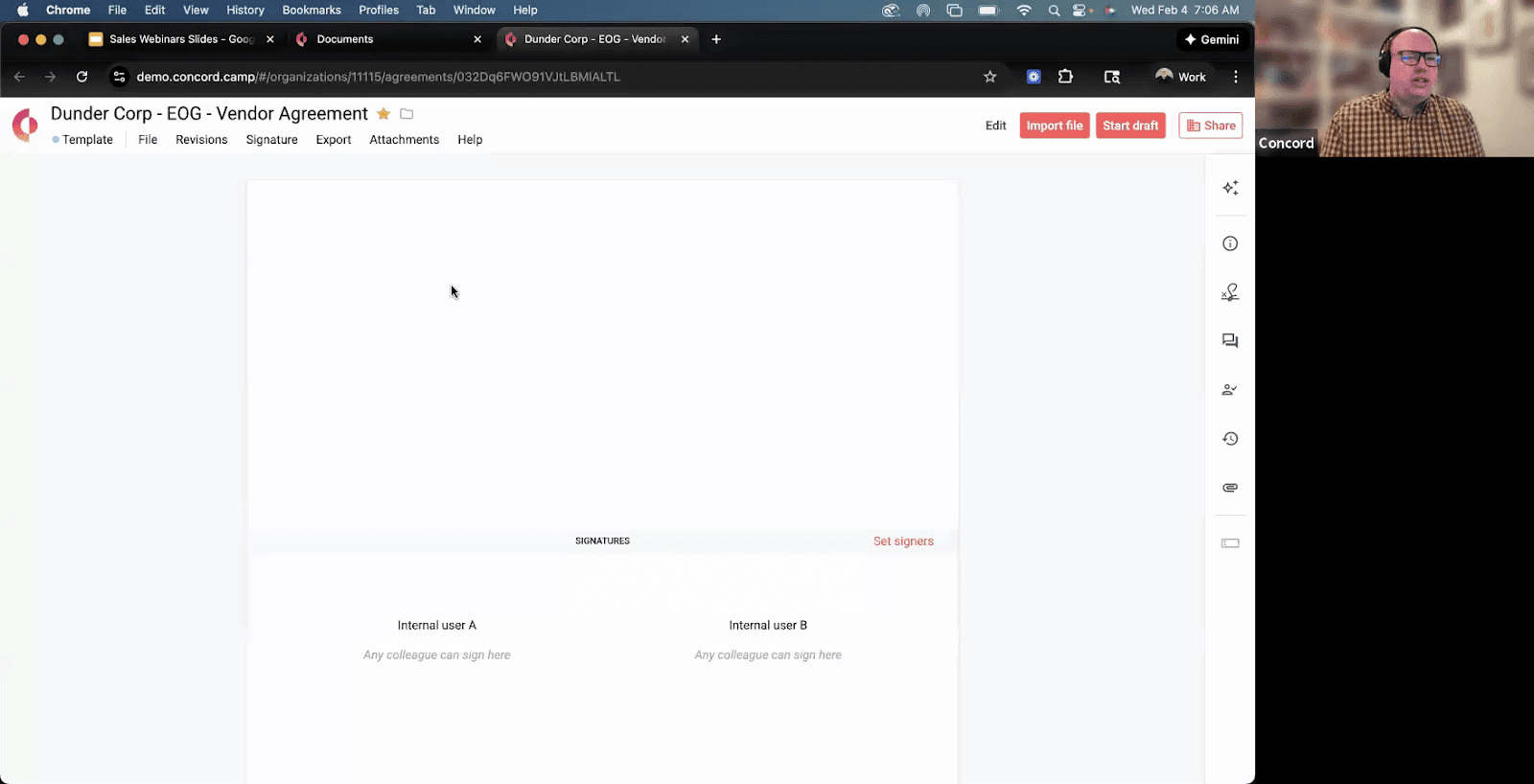
Template creation in Concord
Pro tip: Always upload Word documents rather than PDFs. Word files allow you to make edits and updates directly in Concord.
Adding fillable fields
Once your document is uploaded, insert fillable fields for signatures, dates and custom data.
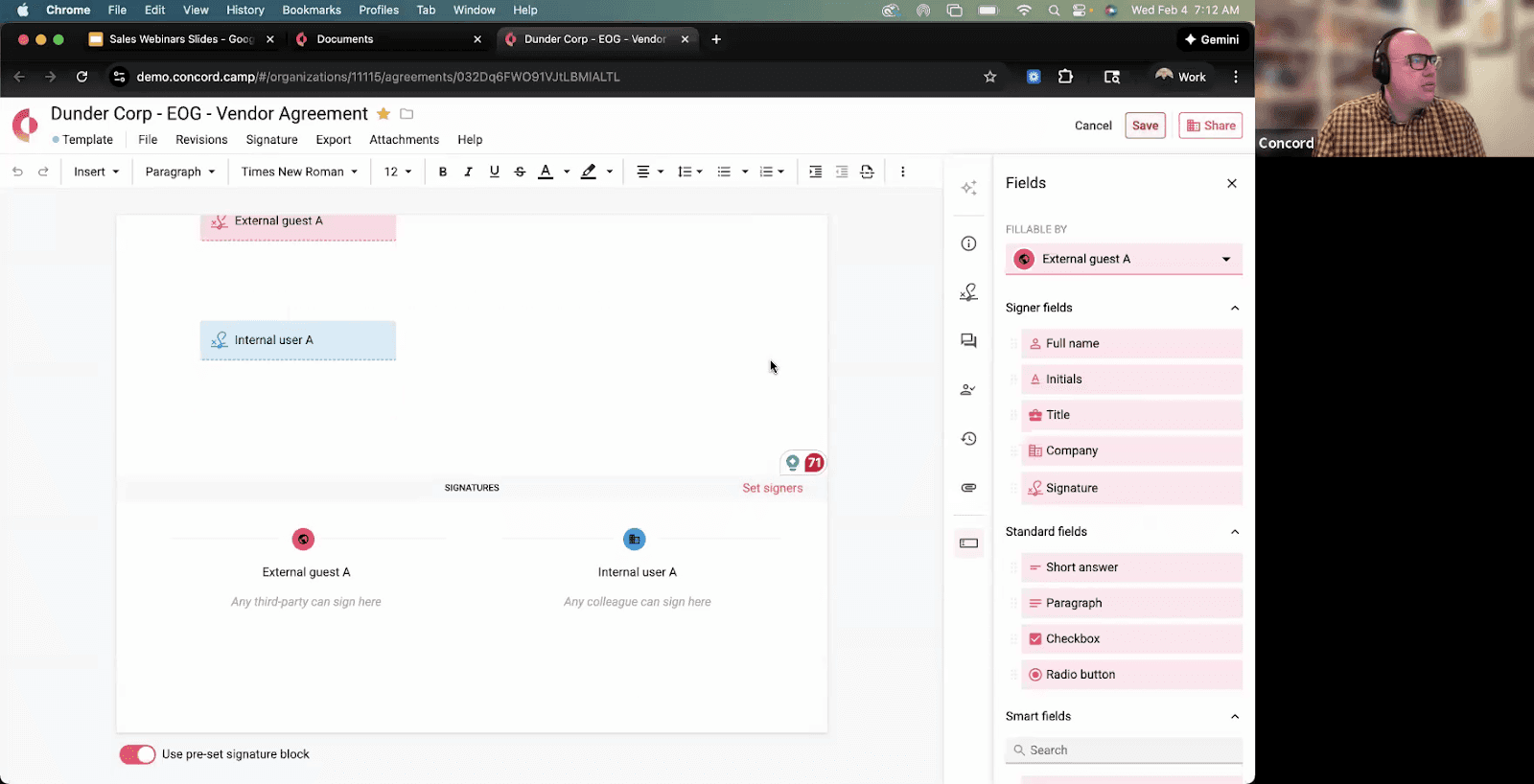
Adding fields to a contract template
Concord offers three types of fields:
Signature fields: Name, initials, title, company, signature
Standard data fields: Date, text, numbers
Smart fields: Custom fields you create for specific data like contract value, jurisdiction or department
For each field, you can: - Mark it as required or optional - Specify who can fill it out (internal, external or specific people)
Configuring e-signature settings
Set up your signers before saving the template. For flexibility, use generic designations like “External Guest” and “Internal User” rather than specific names.
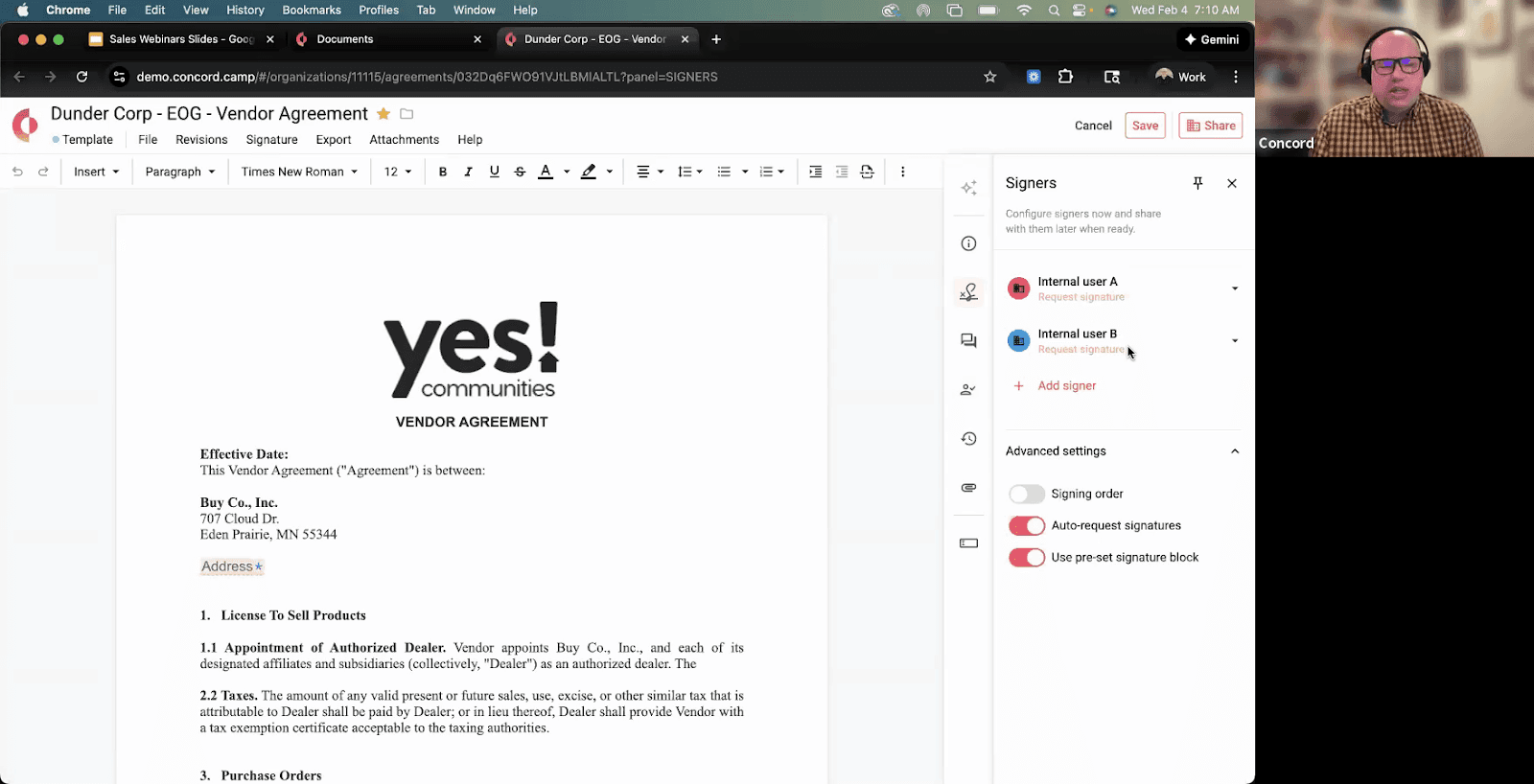
E-signature configuration
Key signature settings:
Signing order: Require the external party to sign before your team
Auto-request signature: Automatically notify the next signer when the previous one completes
Preset signature block: Adds a signature block at the bottom as a failsafe
Pro tip: Enable auto-request signature for executives who need to countersign. They will only receive a notification after the external party signs, keeping their inbox clean.
Sharing documents for review
Once your draft is ready, share it with external parties:
Click Share
Enter the recipient’s email address
Choose their edit rights:
Full editor: Can make redlines and changes
Limited: Can only fill in required fields
Viewer: Can only read the document
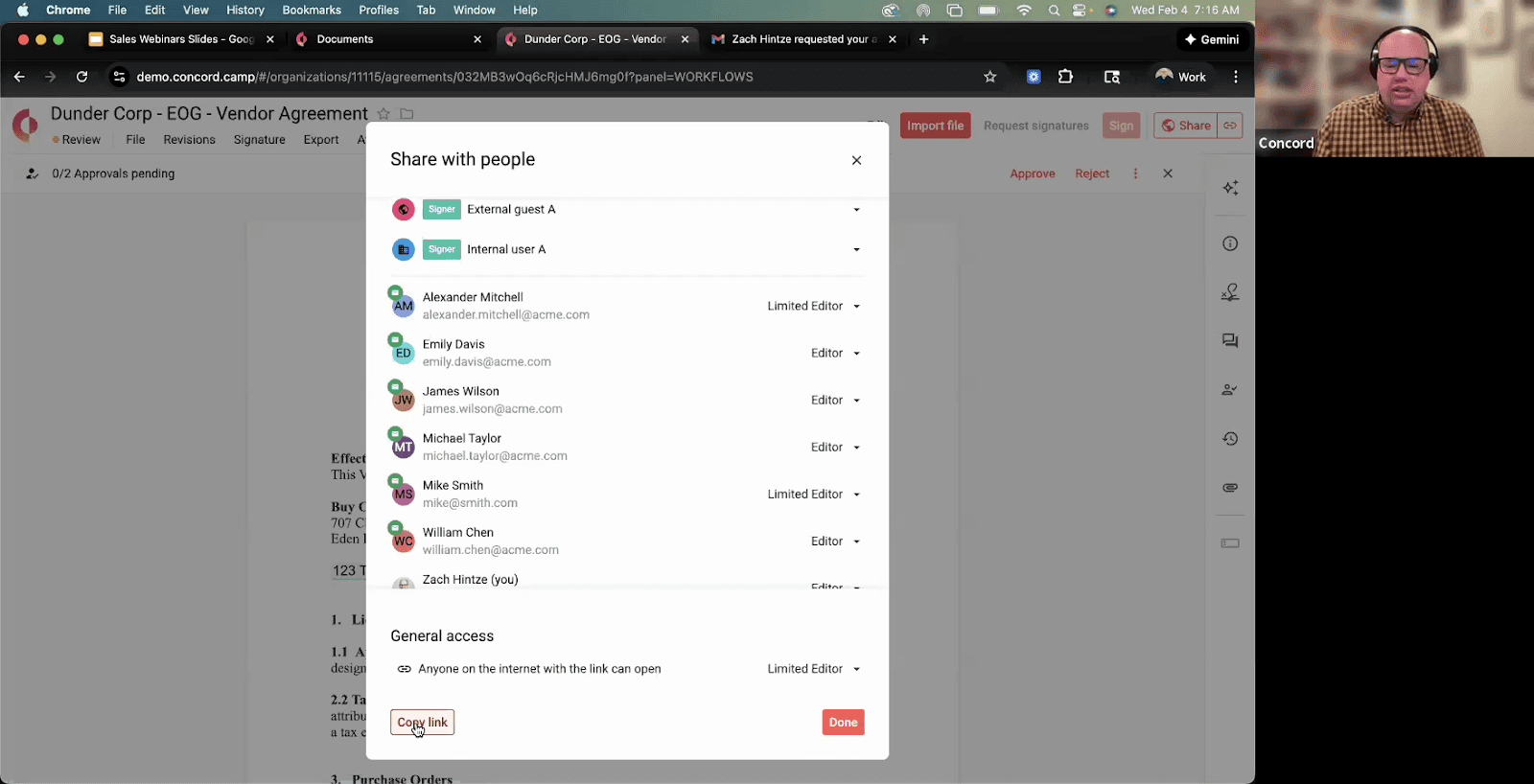
Sharing a contract with edit rights
Best practice: Generate a shareable link in addition to the email invitation. Some recipients have firewalls that block Concord emails. Include the link in your own email as a backup.
Negotiating with track changes
Enable track changes on your template so every draft automatically tracks edits. This creates a complete record of who changed what.
If you're new to contract markups, it helps to understand the difference between redline vs blackline before diving into negotiations.
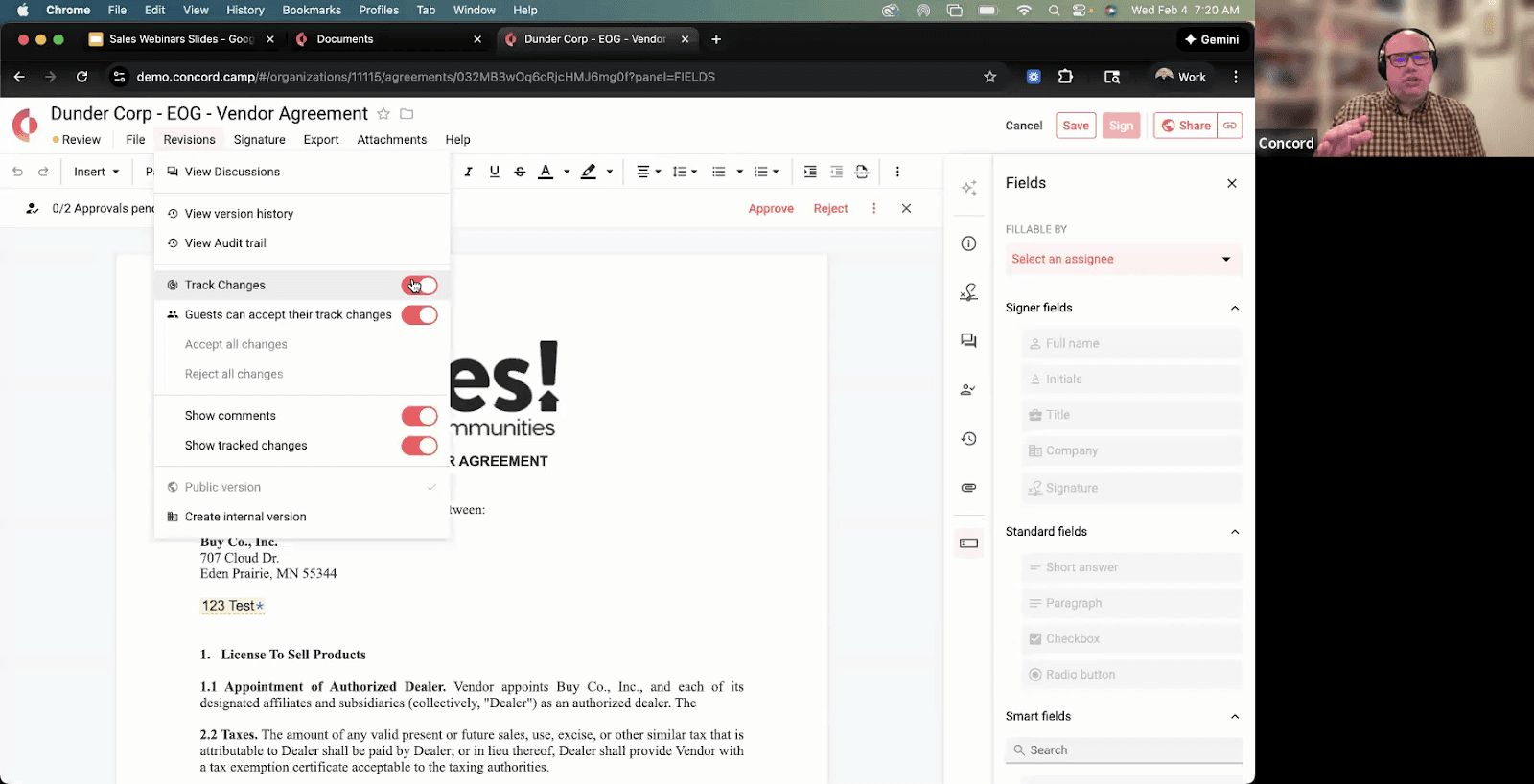
Track changes and comments
Public vs internal comments
Concord distinguishes between:
Public comments: Visible to everyone on the document, including external parties
Internal comments: Only visible to your colleagues
This lets your team discuss strategy privately while maintaining transparent communication with the other party.
Using internal versions
For complex negotiations involving multiple internal stakeholders, create an internal version:
Turn the version internal
Let legal, finance, IT and executives add their markups
When ready, click Publish to push changes back to the external party
The external party will not see the internal back-and-forth, only the final consolidated version.
Version history and comparison
Concord maintains a complete version history. You can:
Compare any two versions side by side
See exactly what changed between versions
Restore a previous version if needed
Export any version to Word
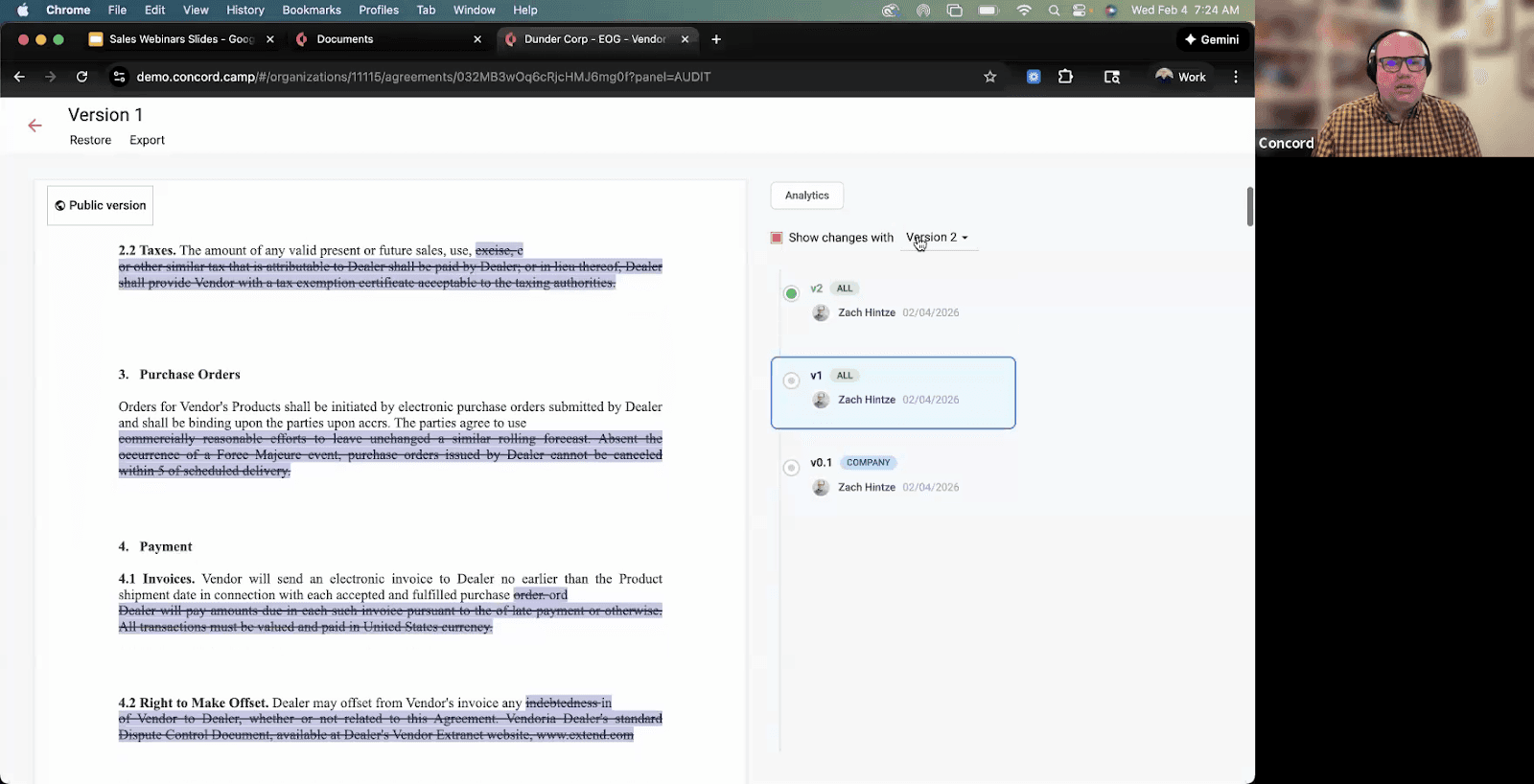
Version comparison
Exporting to Word or Google Docs
Some counterparties prefer working in Word. Concord supports this workflow:
Export your document with track changes and comments
Send the Word file to your counterparty
When they return the marked-up version, drag and drop it back into Concord
Concord automatically creates a new version and tracks the changes
You can also use the Word plugin to sync versions automatically between Concord and Word Online.
Completing the signature process
Once negotiations are complete and approvals are obtained:
Click Sign
Choose to type, draw or upload your signature
The document is sent to the next signer automatically (if auto-request is enabled)
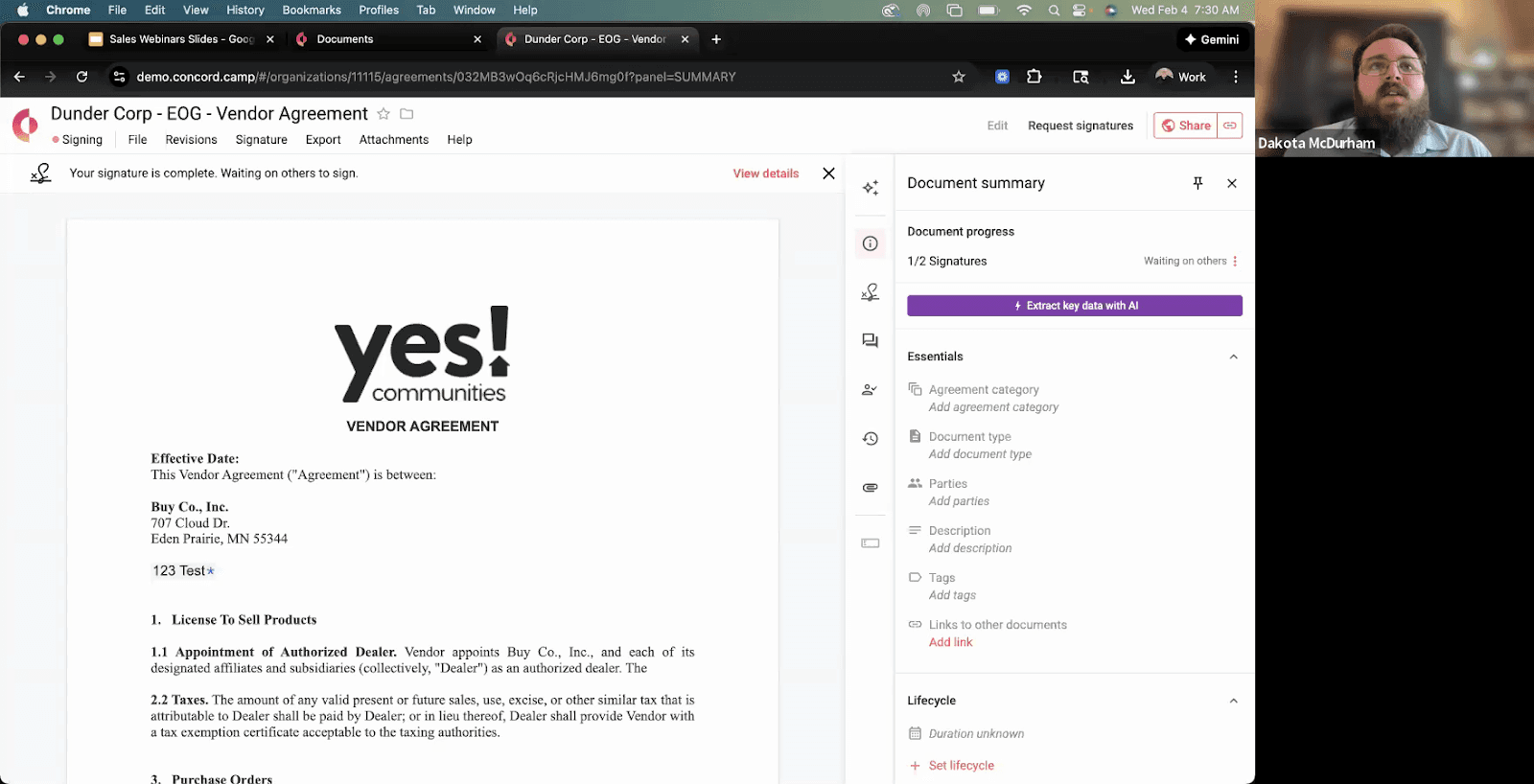
E-signature in Concord
After all parties sign, Concord’s AI automatically extracts key details like dates, values and terms. The system sets up lifecycle tracking and deadline reminders based on the contract end date.
Key takeaways
Set up approval workflows before creating templates to save time on every contract
Use smart fields for custom data that needs to be captured consistently
Enable track changes on templates so every draft is automatically tracked
Use internal comments and versions to collaborate privately with your team
Generate shareable links as a backup when sharing documents externally
Frequently asked questions
Do external reviewers need a Concord license?
No. External guests can review and edit documents without a Concord license. They only have access to the specific document, not the full Concord system.
Are edits tracked automatically?
Yes, if track changes is enabled on the template. Every insertion, deletion and comment is tracked with the user’s name and timestamp.
Can I control who signs the document?
Yes. You can set signing order, designate specific signers and use approval workflows to control who must approve before signing is enabled.
What about the clause library?
Enterprise plan users have access to a clause library where you can store preferred language. You can insert clauses directly while drafting and negotiating.
This article is based on the Concord webinar “Contract Creation, Approval, Negotiation and Signature”. Concord will be attending Legal Week in New York, March 9-12. Contact us for free passes.
Managing contracts from start to finish can feel overwhelming, especially when multiple teams need to review, approve and sign documents. In this guide, we walk through the complete contract lifecycle in Concord, from template creation to e-signature.
Setting up approval workflows
Before creating your first contract, set up your approval workflows. This saves time because you can apply the same workflow to any template or document.
In Concord Horizon, go to Settings > Approvals. In Classic, click the lightning bolt icon on the left sidebar.
Concord document dashboard
Concord offers flexible approval options:
Single-step approvals: Everyone receives the request at the same time
Multi-step approvals: The document moves to the next step only after the previous step is approved
Anyone vs Everyone: Choose whether one person from a group can approve, or if everyone must approve
For example, if your legal team has five members but only one needs to sign off, select “Anyone” for that step. This prevents bottlenecks while maintaining oversight.
Creating contract templates
Templates are the foundation of efficient contract management. To create a template in Concord:
Click New Document
Drag and drop your Word document into Concord
Convert it to a template
Template creation in Concord
Pro tip: Always upload Word documents rather than PDFs. Word files allow you to make edits and updates directly in Concord.
Adding fillable fields
Once your document is uploaded, insert fillable fields for signatures, dates and custom data.
Adding fields to a contract template
Concord offers three types of fields:
Signature fields: Name, initials, title, company, signature
Standard data fields: Date, text, numbers
Smart fields: Custom fields you create for specific data like contract value, jurisdiction or department
For each field, you can: - Mark it as required or optional - Specify who can fill it out (internal, external or specific people)
Configuring e-signature settings
Set up your signers before saving the template. For flexibility, use generic designations like “External Guest” and “Internal User” rather than specific names.
E-signature configuration
Key signature settings:
Signing order: Require the external party to sign before your team
Auto-request signature: Automatically notify the next signer when the previous one completes
Preset signature block: Adds a signature block at the bottom as a failsafe
Pro tip: Enable auto-request signature for executives who need to countersign. They will only receive a notification after the external party signs, keeping their inbox clean.
Sharing documents for review
Once your draft is ready, share it with external parties:
Click Share
Enter the recipient’s email address
Choose their edit rights:
Full editor: Can make redlines and changes
Limited: Can only fill in required fields
Viewer: Can only read the document
Sharing a contract with edit rights
Best practice: Generate a shareable link in addition to the email invitation. Some recipients have firewalls that block Concord emails. Include the link in your own email as a backup.
Negotiating with track changes
Enable track changes on your template so every draft automatically tracks edits. This creates a complete record of who changed what.
If you're new to contract markups, it helps to understand the difference between redline vs blackline before diving into negotiations.
Track changes and comments
Public vs internal comments
Concord distinguishes between:
Public comments: Visible to everyone on the document, including external parties
Internal comments: Only visible to your colleagues
This lets your team discuss strategy privately while maintaining transparent communication with the other party.
Using internal versions
For complex negotiations involving multiple internal stakeholders, create an internal version:
Turn the version internal
Let legal, finance, IT and executives add their markups
When ready, click Publish to push changes back to the external party
The external party will not see the internal back-and-forth, only the final consolidated version.
Version history and comparison
Concord maintains a complete version history. You can:
Compare any two versions side by side
See exactly what changed between versions
Restore a previous version if needed
Export any version to Word
Version comparison
Exporting to Word or Google Docs
Some counterparties prefer working in Word. Concord supports this workflow:
Export your document with track changes and comments
Send the Word file to your counterparty
When they return the marked-up version, drag and drop it back into Concord
Concord automatically creates a new version and tracks the changes
You can also use the Word plugin to sync versions automatically between Concord and Word Online.
Completing the signature process
Once negotiations are complete and approvals are obtained:
Click Sign
Choose to type, draw or upload your signature
The document is sent to the next signer automatically (if auto-request is enabled)
E-signature in Concord
After all parties sign, Concord’s AI automatically extracts key details like dates, values and terms. The system sets up lifecycle tracking and deadline reminders based on the contract end date.
Key takeaways
Set up approval workflows before creating templates to save time on every contract
Use smart fields for custom data that needs to be captured consistently
Enable track changes on templates so every draft is automatically tracked
Use internal comments and versions to collaborate privately with your team
Generate shareable links as a backup when sharing documents externally
Frequently asked questions
Do external reviewers need a Concord license?
No. External guests can review and edit documents without a Concord license. They only have access to the specific document, not the full Concord system.
Are edits tracked automatically?
Yes, if track changes is enabled on the template. Every insertion, deletion and comment is tracked with the user’s name and timestamp.
Can I control who signs the document?
Yes. You can set signing order, designate specific signers and use approval workflows to control who must approve before signing is enabled.
What about the clause library?
Enterprise plan users have access to a clause library where you can store preferred language. You can insert clauses directly while drafting and negotiating.
This article is based on the Concord webinar “Contract Creation, Approval, Negotiation and Signature”. Concord will be attending Legal Week in New York, March 9-12. Contact us for free passes.

Take the "management" out
of contract management.
Customer Support
Legal
Compare
Resources
Customer Support
Company
Legal
Compare
Resources
Customer Support
Company
Legal
Compare
© 2025 Concord. All rights reserved.