Advanced Negotiation Search: Filter by Party, Status, Amount
Advanced Negotiation Search: Filter by Party, Status, Amount
Advanced Negotiation Search: Filter by Party, Status, Amount
Advanced Negotiation Search: Filter by Party, Status, Amount
contract negotiation search

As your contract volume grows, finding the exact agreement you need becomes harder, not easier. A flat list or folder tree works when you have a few dozen contracts. It falls apart when you have thousands.
Contract negotiation search solves this by letting you narrow a full repository down to precisely the agreements that matter. With advanced filtering in Concord, legal and procurement teams filter by counterparty, workflow stage, and total agreement value, then combine those filters to answer real pipeline questions on demand.
This post walks through how party, status, and amount filters work individually, how they stack together, and how to save and export the results.
Key takeaways
Party, stage, and amount are the three filters that answer most real pipeline questions, because each one is stored as a structured field rather than inferred from a file name.
Stacking filters is where the value compounds. One counterparty plus a value threshold plus a stage filter takes you from thousands of documents to the handful that need attention today.
Clean party data is the prerequisite for accurate counterparty search. Merge duplicate records in the party library and mark your own organization as internal.
Any custom property your team creates becomes filterable, so you can build pipeline views around your own criteria instead of only the defaults.
Save a narrowed view as a report or export it to a spreadsheet so recurring work like quarterly vendor reviews and audit prep does not start from scratch.
What is contract negotiation search?
Contract negotiation search is the practice of narrowing a full contract repository to a precise subset using structured filters rather than browsing folders. In Concord you filter by counterparty, workflow stage, and total agreement value, then combine those filters to answer a specific pipeline question and save or export the result.
What advanced negotiation search does
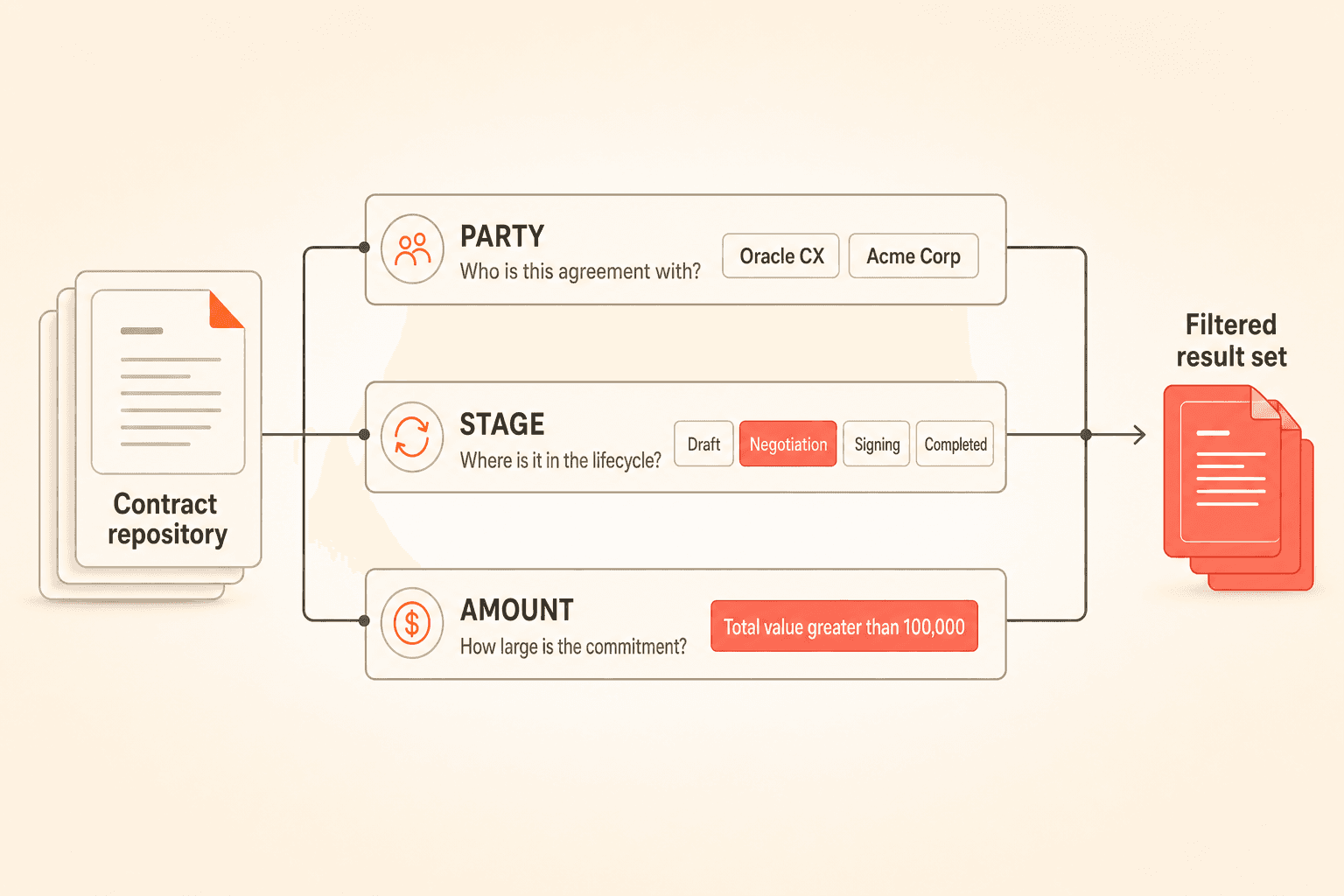
Party, stage, and amount are the three structured fields that answer most pipeline questions.
A contract system is only as useful as your ability to retrieve the right subset when you need it. Storage is the easy part. Retrieval is where the work happens.
Advanced filtering converts a large database into an answerable question. Instead of scrolling through folders or guessing at document titles, you apply structured filters and get an exact result set.
Each of these works because the underlying data is captured as structured metadata, not buried in file names or folder placement. That structure is what makes filtering reliable at scale.
Filter | What it answers | Underlying field | Typical use |
|---|---|---|---|
Party | What do we have with this company? | Parties, from the party library | Renewals, diligence, disputes |
Stage | Where is this agreement stuck? | Agreement stage | Unblocking the pipeline, handoff delays |
Amount | Which commitments need scrutiny? | Total agreement value | Approval routing, value-based triage |
Filter by party (counterparty-based views)
Selecting one or more counterparties narrows your whole repository to just the agreements with those companies.
One of the most frequent questions teams ask is simple: show me everything we have with this company. Whether you are preparing for a renewal, running diligence, or responding to a dispute, counterparty is a natural way to organize a pipeline.
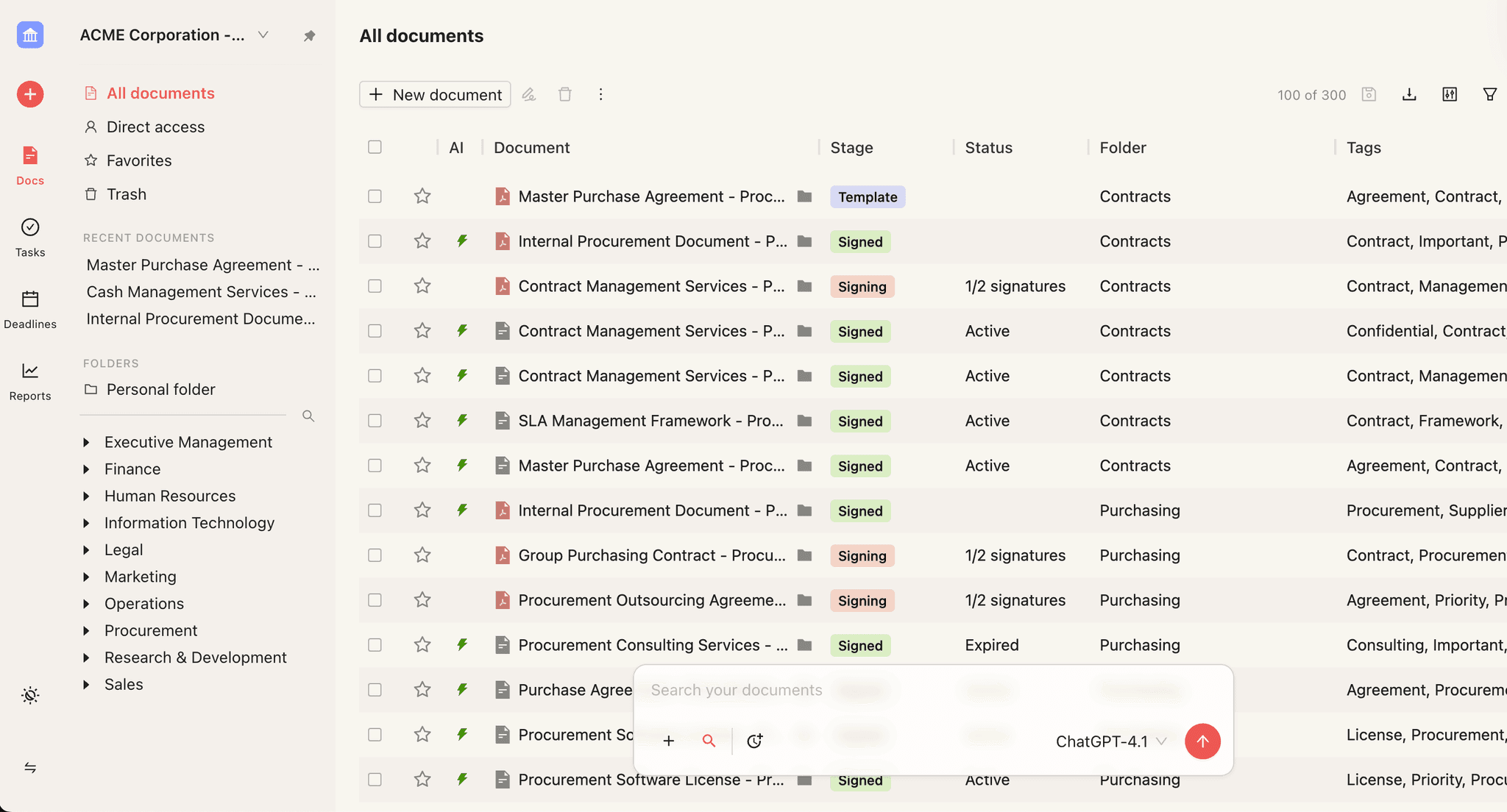
Concord’s documents filter by parties lets you select one or more counterparties and narrow the document set to only those agreements. Selected parties display readably, so you always know which view you are looking at. Counterparties also appear directly in document tables, so you can identify parties without opening each file.
Party-based filtering works because party data lives in a centralized library. When you extract and store party information as structured data, you can filter on it deterministically.
To keep this reliable, consolidate duplicate party records and mark internal parties clearly. Clean party data is the foundation of accurate counterparty search. You can read more about keeping those records clean in our party library overview.
Transcript: The next field we have is parties, and this is actually a pretty important field in the system, especially when it comes to AI and filtering and reporting. The AI will automatically go and figure out who the party on that contract is, and it’s going to fill that in for you. And one thing I want to talk about is the actual party library. You can come into your automations. If you’re in Horizon, that’s in the settings. If you’re in Classic, that’s here at the lightning bolt. And you’re able to see a list of all the parties that you have contracts with. My list is pretty clean because I update it quite often. But if you wanted to come in here, you can see maybe you’ve got some companies that are very close. Like right here, I’ve got Oracle CX and Oracle Procurement. Maybe I want to merge those together and just have them be the same company. So that’s what’s going to show up on all my documents. I can actually merge them together and then say I want everything under Oracle CX, and then I can go ahead and merge them. So it’s just a way to keep that list clean. That way, when you’re going to build reports or search or filter, you have all those documents under that same third party.
Filter by status or stage (pipeline visibility)
Agreements move through phases: draft, negotiation, signing, completed. In multi-department review, they often stall at handoffs, where legal, sales, and in regulated industries quality all need to weigh in.
Filtering by workflow stage turns “where are things stuck?” into a viewable list. Concord’s agreement stage filtering lets you view agreements by their current lifecycle phase, so you can quickly find everything sitting in negotiation, everything awaiting signature, or everything already completed.
This is a prerequisite for unblocking the pipeline. You cannot fix a bottleneck you cannot see. When you filter by stage, the delays become obvious, and you can act on them.
Teams managing high-volume review commonly describe stage visibility as the difference between reacting to missed deadlines and getting ahead of them. For more on how phases connect, see our seven stages of contract management breakdown.
Filter by amount (value-based triage)
A total agreement value filter isolates every contract above your threshold, so the largest commitments get the most scrutiny.
Bigger commitments demand more scrutiny. A common request is straightforward: show me every contract over a given dollar amount.
Filtering by total agreement value lets you surface high-value agreements that warrant closer review or a specific approval path. This maps directly to how teams think about prioritization. A five-figure vendor renewal and a seven-figure master agreement do not need the same level of attention.
Because total agreement value is captured as a discrete field, you can apply a value filter and isolate exactly the agreements above your threshold. From there, you can export the result or save it as a recurring report.
Value-based triage also supports approval routing. When you can see every agreement over a certain size, you can route those to the right reviewers before they slip through unnoticed.
Transcript: And then I’m also going to move over to my filter now. So we are looking at contracts over a certain amount. So I’m going to go to total value. And we’re going to say that’s going to be greater than 100,000. And then we’re also going to say that we want to see contracts created within a certain date range.
Stacking filters for precise pipeline views
Any single filter narrows the set. Stacking filters isolates it.
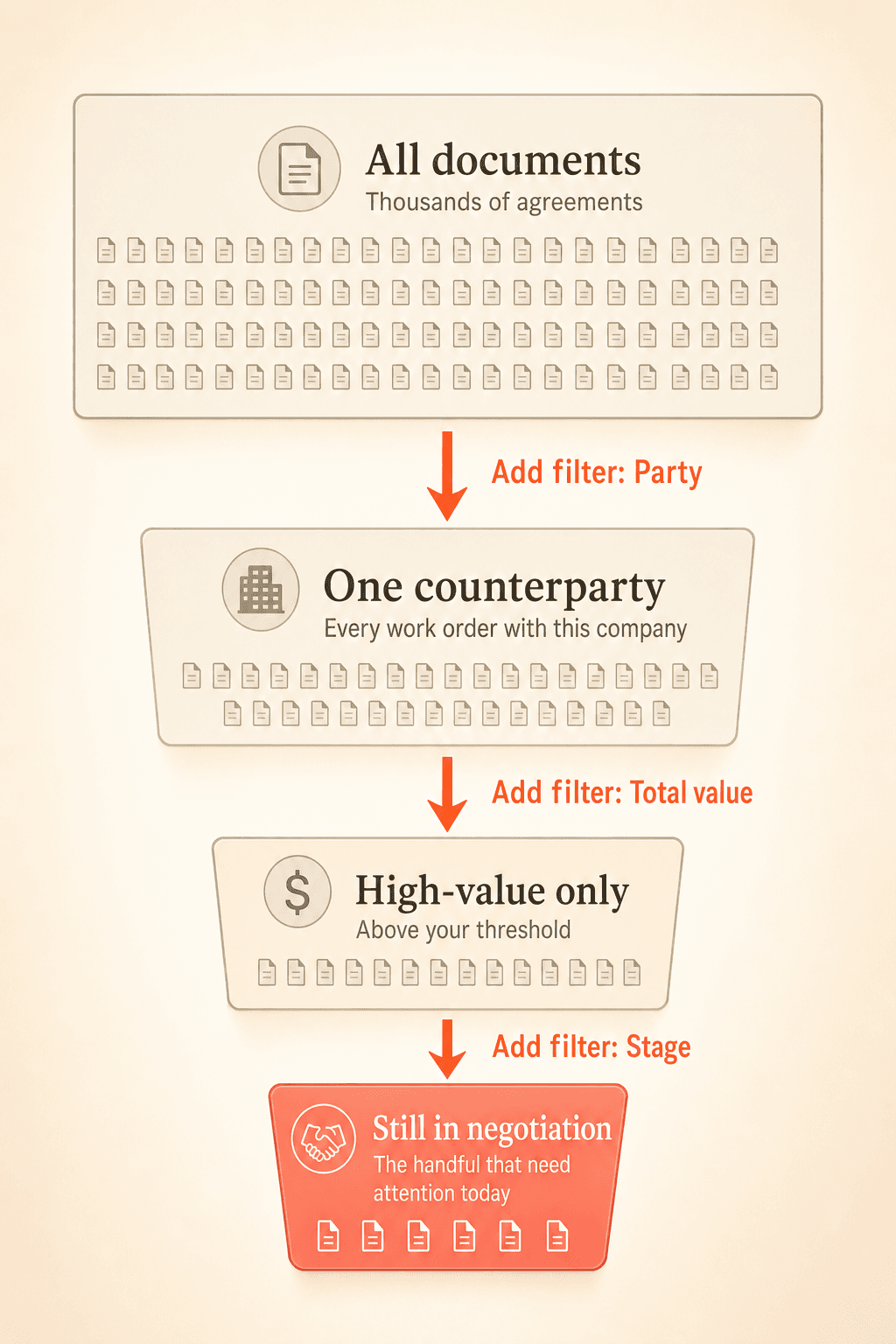
“All contracts with this counterparty” is useful. “All contracts with this counterparty, in the negotiation stage, over a given value” is a pipeline decision. Real questions are multi-dimensional, which is why teams with many contracts against a single party especially value the ability to add another layer to the filter.
Consider a practical example. You start by selecting a counterparty to see every work order tied to that company.
Then you add a value filter to focus on the larger commitments. Finally, you add a stage filter to see only the ones still in negotiation.
In three steps, you have gone from thousands of documents to the handful that need your attention today.
Filtering is not limited to standard fields. Any custom property your team creates, such as contract owner, funding entity, risk level, or diligence date, becomes filterable in your inbox views and reports. That means you can build pipeline views around your own criteria, not just Concord’s defaults.
A note on reliability: filtering works best when you organize around structured fields rather than folder location. Party, stage, value, and custom properties give you the most dependable path, because they do not depend on where a document happens to sit in a folder tree.
Transcript: The properties are great because they get added to the reporting, they get added in your inbox filters, your inbox views. You can do a lot with them in the system, but where you would actually apply those is into the document itself. So let’s say that I’ve got this contract here, I’m inside of my summary sheet data, and I can now come in down into my property section, and I can choose to add one of those different properties here. So for example, let’s say that we want to add a property for a risk level of this contract. Maybe it’s our compliance team, and they want to be able to put a risk level in based on their assessment. And so I can come in here and actually say what that’s going to look like. This is a low risk contract, great. I’m going to go ahead and insert that. So now I could actually build a report and say, hey, I want to see all my contracts that have a high risk level or a low risk level, and I can easily see those because I have that data in the system now.
Want to see stacked filters run against your own contract set? Request a demo and we will build a counterparty, value, and stage view with your data.
Saving and exporting filtered views
Once you narrow a set with filters, you rarely want to rebuild it from scratch next time. Concord lets you save a filtered view as a report and export it to a spreadsheet.
Agreement export supports date ranges, status filters, and property filters, so the file you produce matches exactly what you filtered for. This pairs well with recurring work: quarterly vendor reviews, audit preparation, and pipeline reporting all benefit from a saved view you can pull on demand.
Filtering and search complement each other. Filtering narrows a set by structured fields, while search across your agreements helps you discover relevant contracts organization-wide when you are not sure exactly where to start. For guidance on the discovery side, see our contract search software overview.
Why structured data makes this possible
You can only filter on what is captured as structured metadata. This is the quiet principle behind every feature above.
Because parties, stage, and total agreement value are stored as discrete fields, they can be filtered deterministically. Document titles and folder placement are inconsistent and do not scale, which is why they make poor filtering criteria.
The practical takeaway: the more disciplined your data entry and extraction, the more precise your filtered views become. Clean party records, consistent stage assignment, and populated value fields all pay off the moment you need to answer a pipeline question.

Bring your pipeline into focus
A large repository does not have to feel unmanageable. When you filter by party, status, and amount, and stack those filters together, you turn a sprawling database into a targeted view of exactly the agreements that need attention.
See how Concord’s advanced filtering can sharpen your contract pipeline. Request a demo today.
As your contract volume grows, finding the exact agreement you need becomes harder, not easier. A flat list or folder tree works when you have a few dozen contracts. It falls apart when you have thousands.
Contract negotiation search solves this by letting you narrow a full repository down to precisely the agreements that matter. With advanced filtering in Concord, legal and procurement teams filter by counterparty, workflow stage, and total agreement value, then combine those filters to answer real pipeline questions on demand.
This post walks through how party, status, and amount filters work individually, how they stack together, and how to save and export the results.
Key takeaways
Party, stage, and amount are the three filters that answer most real pipeline questions, because each one is stored as a structured field rather than inferred from a file name.
Stacking filters is where the value compounds. One counterparty plus a value threshold plus a stage filter takes you from thousands of documents to the handful that need attention today.
Clean party data is the prerequisite for accurate counterparty search. Merge duplicate records in the party library and mark your own organization as internal.
Any custom property your team creates becomes filterable, so you can build pipeline views around your own criteria instead of only the defaults.
Save a narrowed view as a report or export it to a spreadsheet so recurring work like quarterly vendor reviews and audit prep does not start from scratch.
What is contract negotiation search?
Contract negotiation search is the practice of narrowing a full contract repository to a precise subset using structured filters rather than browsing folders. In Concord you filter by counterparty, workflow stage, and total agreement value, then combine those filters to answer a specific pipeline question and save or export the result.
What advanced negotiation search does
Party, stage, and amount are the three structured fields that answer most pipeline questions.
A contract system is only as useful as your ability to retrieve the right subset when you need it. Storage is the easy part. Retrieval is where the work happens.
Advanced filtering converts a large database into an answerable question. Instead of scrolling through folders or guessing at document titles, you apply structured filters and get an exact result set.
Each of these works because the underlying data is captured as structured metadata, not buried in file names or folder placement. That structure is what makes filtering reliable at scale.
Filter | What it answers | Underlying field | Typical use |
|---|---|---|---|
Party | What do we have with this company? | Parties, from the party library | Renewals, diligence, disputes |
Stage | Where is this agreement stuck? | Agreement stage | Unblocking the pipeline, handoff delays |
Amount | Which commitments need scrutiny? | Total agreement value | Approval routing, value-based triage |
Filter by party (counterparty-based views)
Selecting one or more counterparties narrows your whole repository to just the agreements with those companies.
One of the most frequent questions teams ask is simple: show me everything we have with this company. Whether you are preparing for a renewal, running diligence, or responding to a dispute, counterparty is a natural way to organize a pipeline.
Concord’s documents filter by parties lets you select one or more counterparties and narrow the document set to only those agreements. Selected parties display readably, so you always know which view you are looking at. Counterparties also appear directly in document tables, so you can identify parties without opening each file.
Party-based filtering works because party data lives in a centralized library. When you extract and store party information as structured data, you can filter on it deterministically.
To keep this reliable, consolidate duplicate party records and mark internal parties clearly. Clean party data is the foundation of accurate counterparty search. You can read more about keeping those records clean in our party library overview.
Transcript: The next field we have is parties, and this is actually a pretty important field in the system, especially when it comes to AI and filtering and reporting. The AI will automatically go and figure out who the party on that contract is, and it’s going to fill that in for you. And one thing I want to talk about is the actual party library. You can come into your automations. If you’re in Horizon, that’s in the settings. If you’re in Classic, that’s here at the lightning bolt. And you’re able to see a list of all the parties that you have contracts with. My list is pretty clean because I update it quite often. But if you wanted to come in here, you can see maybe you’ve got some companies that are very close. Like right here, I’ve got Oracle CX and Oracle Procurement. Maybe I want to merge those together and just have them be the same company. So that’s what’s going to show up on all my documents. I can actually merge them together and then say I want everything under Oracle CX, and then I can go ahead and merge them. So it’s just a way to keep that list clean. That way, when you’re going to build reports or search or filter, you have all those documents under that same third party.
Filter by status or stage (pipeline visibility)
Agreements move through phases: draft, negotiation, signing, completed. In multi-department review, they often stall at handoffs, where legal, sales, and in regulated industries quality all need to weigh in.
Filtering by workflow stage turns “where are things stuck?” into a viewable list. Concord’s agreement stage filtering lets you view agreements by their current lifecycle phase, so you can quickly find everything sitting in negotiation, everything awaiting signature, or everything already completed.
This is a prerequisite for unblocking the pipeline. You cannot fix a bottleneck you cannot see. When you filter by stage, the delays become obvious, and you can act on them.
Teams managing high-volume review commonly describe stage visibility as the difference between reacting to missed deadlines and getting ahead of them. For more on how phases connect, see our seven stages of contract management breakdown.
Filter by amount (value-based triage)
A total agreement value filter isolates every contract above your threshold, so the largest commitments get the most scrutiny.
Bigger commitments demand more scrutiny. A common request is straightforward: show me every contract over a given dollar amount.
Filtering by total agreement value lets you surface high-value agreements that warrant closer review or a specific approval path. This maps directly to how teams think about prioritization. A five-figure vendor renewal and a seven-figure master agreement do not need the same level of attention.
Because total agreement value is captured as a discrete field, you can apply a value filter and isolate exactly the agreements above your threshold. From there, you can export the result or save it as a recurring report.
Value-based triage also supports approval routing. When you can see every agreement over a certain size, you can route those to the right reviewers before they slip through unnoticed.
Transcript: And then I’m also going to move over to my filter now. So we are looking at contracts over a certain amount. So I’m going to go to total value. And we’re going to say that’s going to be greater than 100,000. And then we’re also going to say that we want to see contracts created within a certain date range.
Stacking filters for precise pipeline views
Any single filter narrows the set. Stacking filters isolates it.
“All contracts with this counterparty” is useful. “All contracts with this counterparty, in the negotiation stage, over a given value” is a pipeline decision. Real questions are multi-dimensional, which is why teams with many contracts against a single party especially value the ability to add another layer to the filter.
Consider a practical example. You start by selecting a counterparty to see every work order tied to that company.
Then you add a value filter to focus on the larger commitments. Finally, you add a stage filter to see only the ones still in negotiation.
In three steps, you have gone from thousands of documents to the handful that need your attention today.
Filtering is not limited to standard fields. Any custom property your team creates, such as contract owner, funding entity, risk level, or diligence date, becomes filterable in your inbox views and reports. That means you can build pipeline views around your own criteria, not just Concord’s defaults.
A note on reliability: filtering works best when you organize around structured fields rather than folder location. Party, stage, value, and custom properties give you the most dependable path, because they do not depend on where a document happens to sit in a folder tree.
Transcript: The properties are great because they get added to the reporting, they get added in your inbox filters, your inbox views. You can do a lot with them in the system, but where you would actually apply those is into the document itself. So let’s say that I’ve got this contract here, I’m inside of my summary sheet data, and I can now come in down into my property section, and I can choose to add one of those different properties here. So for example, let’s say that we want to add a property for a risk level of this contract. Maybe it’s our compliance team, and they want to be able to put a risk level in based on their assessment. And so I can come in here and actually say what that’s going to look like. This is a low risk contract, great. I’m going to go ahead and insert that. So now I could actually build a report and say, hey, I want to see all my contracts that have a high risk level or a low risk level, and I can easily see those because I have that data in the system now.
Want to see stacked filters run against your own contract set? Request a demo and we will build a counterparty, value, and stage view with your data.
Saving and exporting filtered views
Once you narrow a set with filters, you rarely want to rebuild it from scratch next time. Concord lets you save a filtered view as a report and export it to a spreadsheet.
Agreement export supports date ranges, status filters, and property filters, so the file you produce matches exactly what you filtered for. This pairs well with recurring work: quarterly vendor reviews, audit preparation, and pipeline reporting all benefit from a saved view you can pull on demand.
Filtering and search complement each other. Filtering narrows a set by structured fields, while search across your agreements helps you discover relevant contracts organization-wide when you are not sure exactly where to start. For guidance on the discovery side, see our contract search software overview.
Why structured data makes this possible
You can only filter on what is captured as structured metadata. This is the quiet principle behind every feature above.
Because parties, stage, and total agreement value are stored as discrete fields, they can be filtered deterministically. Document titles and folder placement are inconsistent and do not scale, which is why they make poor filtering criteria.
The practical takeaway: the more disciplined your data entry and extraction, the more precise your filtered views become. Clean party records, consistent stage assignment, and populated value fields all pay off the moment you need to answer a pipeline question.
Bring your pipeline into focus
A large repository does not have to feel unmanageable. When you filter by party, status, and amount, and stack those filters together, you turn a sprawling database into a targeted view of exactly the agreements that need attention.
See how Concord’s advanced filtering can sharpen your contract pipeline. Request a demo today.
Need to know
Frequently Asked Questions

Take the "management" out
of contract management.
Customer Support
Legal
Compare
Resources
Customer Support
Company
Legal
Compare
Resources
Customer Support
Company
Legal
Compare
© 2025 Concord. All rights reserved.