- Set up reusable approval workflows in company-wide settings first, then apply them to any template or document with one click.
- Approval steps can be single-step or multi-step, and each step can require either anyone or everyone on it to approve.
- Use mandatory and conditional approval steps to route documents automatically based on smart-field values like contract value or jurisdiction.
- Configure templates fully (track changes, approval workflow, signature setup, fields, and metadata) because everything set on the template carries into every draft created from it.
- Share documents by both inviting people via email and generating a link, and use limited edit rights so external parties can fill fields without changing the contract language.
- Once all parties sign, Concord's AI automatically extracts key details, populates metadata, and sets up lifecycle deadline reminders.
Teams often manage contract creation, approval, negotiation, and signature across disconnected tools, which makes it hard to track who has edited a document, control who can approve or sign, and keep templates consistent. Customers regularly ask how to do more of this work directly inside Concord rather than treating it as a repository alone.
In this session, Zach walks through the full create-to-sign process in Concord: building approval workflows with single, multi-step, mandatory, and conditional rules; creating templates with fillable smart fields and signature setup; sharing documents internally and externally with controlled edit rights; negotiating with track changes, public versus internal comments, audit trails, and version history; and finishing with e-signature, AI extraction, and automatic lifecycle deadline reminders.
 Zach HintzeConcord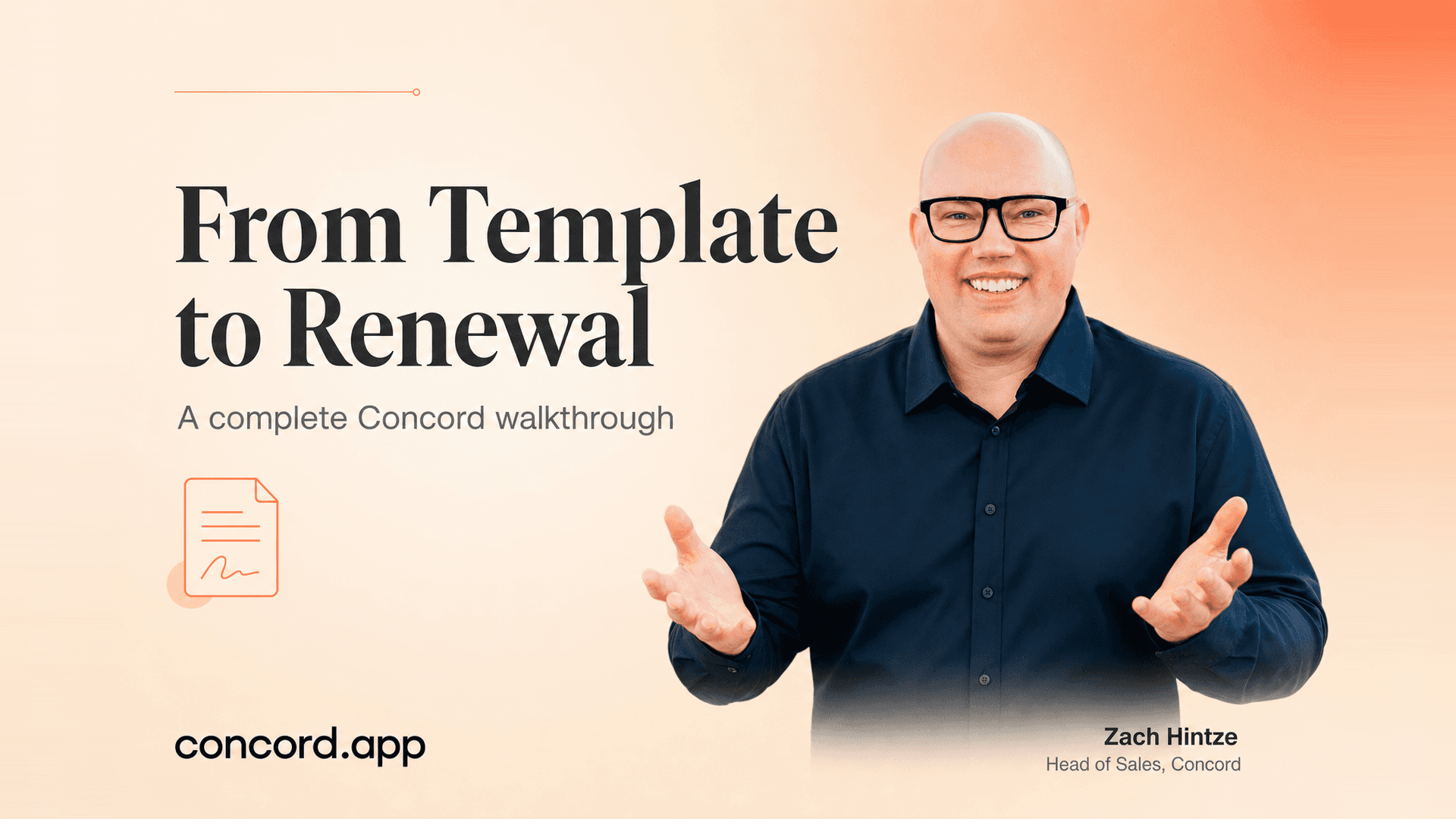
We're going to be diving into the contract creation, approval, negotiation, and signature process today. Something that I always hear from customers is that they'd like to do more on this side of the system inside of Concord, so I think we're happy to walk through that today. This is where I spend pretty much all my time as a salesperson here at Concord.
I do a lot of sending and getting signed and all those things, so happy to walk you through the process and talk more about it. There's only, there's not like a bunch of slides. There's just this one slide today, and then there's a lot of things, so the slides probably won't be too helpful, because there's just not much here.
But yeah, let's go ahead and get started. Just a quick way of introductions, I'll introduce myself. So I'm Zach Hintze, head of sales here at Concord. I've been with Concord for a little over 10 years now, based out of Salt Lake City, Utah. And yeah, happy to be helping today. Dakota, you want to introduce yourself? Yeah. Hi, everybody.
I'm Dakota McDurham. I'm a product manager here at Concord, and my current project is getting all of the feedback on Horizon. So if any of y'all are on Horizon-enabled plans, and you have questions, feedback, future requests, please send them my way. But today, I'm excited to talk about things that are available for both our Horizon and our Foundation customers.
Absolutely. I'm going to quickly talk about, so I don't forget, Concord is going to be attending Legal Week in New York, which is coming up here March 9th through 12th. We do have some free passes to this event. So if you're somebody who's interested, who's available to be in New York City for those days, we're happy to give you some free passes to the event, and you can come hang out with us at our booth.
So just letting you know that that is something that's coming up here. If you're interested in that, please reach out to myself or Vanessa or Dakota or Casey or our support team. Pretty much just get a hold of any one of us, and we can help you with that. So just letting you know that that's something that is available.
Let's go ahead and jump into the actual thing that we are looking to review today. I'm going to start out with talking through some approval workflow setup, and then we're going to go through the whole process starting from a template. We'll talk about template creation and then kind of move through everything here in the system.
We'll give you some tips and tricks along the way, some of the things that I found that are really useful and helpful when you're going through this process inside of Concord. So as many of you know, Concord is what we call full lifecycle CLM. The idea behind full lifecycle is you can manage the entire contract process in one place, everything from contract creation to negotiation, approvals, e-signature, and then post-signature management.
So a big chunk of that is what we're going to be covering today on the webinar, being able to just talk through kind of that first part of the process. One thing to mention is before we jump into that, we are going to be talking through approval workflows. And the easiest way to manage an approval workflow in Concord is to set that up in the actual company-wide approval workflow settings.
So in Horizon, you're going to go to settings. In Classic, you're going to go to that little lightning bolt on the left side, and you'll be able to get to the approvals section here. So what you're going to want to do is set up your approval workflows beforehand. That way, you can just simply apply them to any template or document in the system.
And now talking through the actual approval workflow itself, there's a couple things to point out here. We do have the ability to set up either single-step approvals where, like, everybody gets that request at the same time. You can also do multiple-step approvals where it goes to that first step. Once they approve it, then it moves on to the next step.
And the other option we have is to choose if anyone can approve that on that step or you need everyone on that step to approve. Where that really comes in handy is, let's say that you have the legal team as step one. There's five people on the legal team, but you don't need all five people to approve it. You just need one of those people to approve it, and then you can move on to the next step.
So that's why we have the anyone and everyone here. And our customers do use that quite often. I see that all the time. So it's a great way to kind of set those up. To set up a new approval workflow, it's really simple. You just go add approval, give it a title, description, and then you just start putting in the people here or the teams that should be able to approve that.
And we have the ability to set up a whole team there. So if you wanted to just route it to a bunch of people, whenever the first one gets to it, you know, that's great. You can do it that way. So that's our approval workflow set up. That will become important for what I'm about to walk you through. But just know that's how you set them up and how you manage them in the system.
Now let's go ahead and jump into a contract template. So template creation in Concord is very simple. You just go new document. You can turn it into a template. You can do the same thing in Concord Classic here. So it's very easy to actually kind of bring things into the system. There we go. So here I've got the template in the tool.
And to create a template, you literally just drag and drop that document in. Once you have the document in Concord, we always recommend doing a Word doc. You could upload a PDF. It does work with PDF. But a Word doc is going to be a lot better because you can make edits and changes and updates to it. So if possible, we always recommend uploading a Word doc as a template.
Once you have that document in the system, we then have the ability to insert these fillable fields into the document. So you can put in your signature fields, your standard data fields here, and then also our smart fields. So you can create these custom fields in the system where you kind of build out whatever you want.
And then you can drag and drop those directly into the document here in the tool. I've had a lot of questions over the past few weeks about smart fields as we've been doing some of these webinars. Smart fields are really just fields that are meant for this purpose. So if there's a field that you need in a document, name, address, contact, whatever, I mean, there could be a million different field types.
You'll create all those fields in the system just like this. And then you'll be able to drag and drop them into the document where they need to go. You can also choose if they're required or optional. And you can choose who can fill out that field. Is it someone internal or external? Or you can also choose specific people to do that as well.
Dakota, any thoughts so far? I think you're covering the fields very well. I would, I guess, like to point out the fields that we're all talking about right now are going to be the in-document fields, which are separate things from properties. So they are different from what AI may be extracting in the future. I've had some questions about where the overlap in those are.
And right now they are totally separate types of thing within Concord. So think about these as you're in the document and a property as in the summary panel. Yep, absolutely. All right, let's get down to kind of the next step here, which would be a couple other things to make sure we have set up. First of all, that approval workflow.
So this is where you can come in. You click on the little person with the checkmark. So I can come into here and I can choose who needs to actually approve the document. Now, these are all the approval workflows I had set up beforehand. So if I have them set up already, it's simple. I just choose the one I want to apply to this template.
And then I can go from there. In addition to that, we do have two other types of approval workflows. We have a mandatory step, which is where you can come into any document and just add, okay, this person, this person, and this person needs to approve it. So that's an option. And you also have a conditional step. So you can actually use those smart fields to be able to say, okay, based on what's entered into this field in the contract, like contract value, we can then choose who needs to approve it.
So, for example, if the contract value is over X, then we need the finance and the executive team to approve. If it's under that amount, maybe they don't need to approve it. So you can actually set conditions on your approval workflows as well. I've also seen it be like jurisdiction based on what that is filled out to be.
Then certain people approve it or, you know, location, things like that. So lots of options there. But you'll add your approval workflow to that specific template if you want to have an approval workflow. And then the last setup is for the e-signature. So a couple quick tips here on the e-signature. First of all, you'll want to add in who is going to sign the document.
I like to keep it more general because I don't always know who the signers are going to be. Internally, we probably know who the signer is. But definitely externally, I have no idea yet because it's a template I'm going to use a bunch of times. So I always set it up to internal user or, sorry, external user. Let me fix that.
So external user or external guest, internal guest or user. And then I could add as many signatures here as I would like. You don't have to just do two. I mean, if you need to do more. We also have a simple order form that only requires one signature from the outside party. So you can choose how many signers you want. You can also do signing order.
So if you want the other side to sign first before you sign, of course, you can set up that signing order. We do have auto request signature, which I always recommend having on. What that means, as soon as one person signs it, it'll automatically send the request to the next person who is set up as the signer. One place where that really comes in handy is you might have executives where they need to sign all your documents in the end, but you don't want them added to the document or like invited to the document until the other party signs it.
And so what you'll do is you'll put them in there as a signer. You won't invite them yet, and then you'll set up that auto request signature. So that way, as soon as the other person signs, then they'll get the request to come in and sign it. So it's a pretty nice feature to have. And then last of all, that preset signature block.
I always recommend turning this on because this is kind of like a fail safe. If for some reason you don't have your field set correctly or something happens in the document, you always have that signature block that will capture the information. And personally, I like to just have the signature block. I don't do the actual like signature fields in the document.
I just keep it at the bottom. But if you want to do both here, you could do that as well. And the signature fields that I'm referring to are fields that you can drag and drop into the document. So you can put in someone's name, initials, title, company, signature. That can all go in here. Or you could just leave that open for the signature block itself.
So now that we've set up our template, we're ready to kick this off into an individual draft. And we're now going to prepare and then share the document out for review and signature. So here I've got a draft. As you can see, the status change of the document. Or stage. And now I'm ready to fill out the fields. And once that's done, I can go ahead and share this out.
Another thing to mention for those people who are like admins or kind of managing the system, you can set the template up with limited edit rights for your external and internal parties. So if you don't want them to be able to come in and make edits or changes to the actual verbiage in the contract, the language, you can do that.
And make it to where they can only fill out those fields and not make any other changes in the document. So that is an option. So I've gone ahead and just filled this out. I'm going to go ahead and request my approval workflow permission now. So I'm going to click request. And now anybody who's on that first approval step is going to receive an email letting them know, hey, there's a new approval request that's just been sent.
And all they have to do is click on that link to bring them into the document. I'm actually going to show you what all these emails look like just so you can understand a little bit more what the process is. So I just sent this email out to them. There you go. So they just click open document and that will bring them into that document.
We've got a question about the signature block asking, do both signature fields always appear? And so, yes, in the signature block, if you're using that, your signatures or signers will appear down at the bottom of the document. If you are manually adding the signatures, you will need to drag them all over. They don't automatically appear in the document.
But if you're using the signature block, they will appear down at the bottom. Yep. Perfect. So going on from here so far, I've created that document. I've added in my colleagues to be able to come in and work on that document with me through the approval workflow. So that's where we're at at this point. Now I'm ready to share this out with somebody outside of my company.
So I'm going to click on share. I'm going to put in an email address here for the person I want to share this with. And I could add in as many people here as I want if I want to put in a few other colleagues, whatever I can. I can choose what edit rights I want to give them. So full editor means they can come to make red lines, edit changes, whatever.
Of course, everything they do will be tracked. Limited means they can just fill in required fields. And then viewer means they can just see the document. They can't make any changes. I'll put a personal message here. You can also have a template for that message. So if you want to have the same message going out every time, you can just create a template.
And then last of all, I'll go ahead and send that out through the tool. Now one thing that's super important when talking about the sharing is, and I'll come back to this in just a second, is we have that link that you can now generate and send out, which is super useful. So my best practice for getting people invited to Concord is two things.
Number one, I share it out just like I showed you. So I come in here, put in their email address, I share it through the system. The second thing that I do is I generate this link. The one thing you're going to want to be careful of is just make sure that whatever access they have already in the system, like limited editor, make sure that you have that set up for that link.
It just makes it a little bit smoother process. So I'm going to set that to limited editor. I'm going to copy the link. And so when I go to send an email to the person that I'm working with, I'm going to say, hey, just shared this document with you via Concord. You should see a separate email for that. You can access it through that email or you can access it through this link.
And I'll actually just put the link in the email itself. That way, if for any reason they have like a firewall or that thing didn't get to them, weird things happen with email sometimes, they should at least be able to have that link that you're sending to them so that they can access the document. So I've just found that it just makes it a lot easier to get people into that specific document inside of Concord.
So we have the links there, which are great. The other thing to talk about is the people that are already on the document here. You do have the ability to change their edit rights whenever you want. So a lot of our customers and ourselves will send out that document with limited edit rights to begin. And then if someone were to come back and say, hey, you know, I actually want to make some changes or edits to this.
Then you could always put them to a full editor. So that's just another thing that you could do if you want. And then you can also remove them from a document. So maybe you've added someone there that you accidentally added them or don't need them on the document anymore. You can always remove people from the document as well.
We've got another question. Would an external reviewer need a Concord license to review, edit a draft? Go for it. Oh, go ahead. No, you're good. That's a great question. External guests do not need a Concord license to review and edit the draft. What someone who is editing as an external guest, they're able to change things in the document.
Now, if someone on your team that does have access to the whole Concord backend is set as a viewer, they are not able to edit. So anybody who can edit a document as a guest, they don't have access to the Concord system, just to the doc view, and vice versa with viewers. Yep. We've got a few more questions coming in. Are the edits done with track changes so you know what they change?
Yeah, we're getting to all that. We'll go to all that in two seconds. There's one other question here. Several times I had a situation where a colleague receives an email with a request to sign, but they can't. The green envelope that appears after sending is not showing in those cases. What might be the issue? It's probably because they don't have permission to sign.
So the easiest way to know if someone can sign or not is if they see the sign button grayed out. If it's grayed out, then there's a reason they can't sign. Sometimes it means that they need to fill out fields. Sometimes it means an approval workflow needs to be done. Or it means that they don't have permission to sign in the tool.
The reason for that is if you've set them up as a viewer seat, a read-only user, they can't sign the document. So that probably is why it's happening. I don't really see any other reason other than if the fields weren't completed or the approval workflow wasn't completed. Those could also be options of why they can't sign.
There's one other edge case that I see sometimes where someone has that signing order set up, and they think that, oh, I can just still go in and sign it. You can't until the other person signs if you have the signing order turned on. So a couple things to think about there. But usually I always just look for that grayed-out sign button, and then I start evaluating from there.
And it'll tell you, like right now, it says complete approvals to enable signing. That's what I need to do before I can sign this. Cool, let's get moving because I know we're getting short on time already. We still have a lot to cover. So I've shared this out to my external party. I've also shared this to my colleagues through the approval workflow.
So Mike is my external party here. I'm going to make Mike a full editor because we're going to actually work on this negotiation together inside of Concord. So I've got that ready to go. Now let's say that we want to make some edits, comments, changes, whatever, to the document. I always recommend having track changes turned on on your template because if you have it turned on on the template, any document you create from that template will be the same.
And that's one tool tip here, one important thing to keep in mind, and I should have talked about this more with the template. Anything you set on the template will basically stay the same for the drafts that you create. So if you have track changes turned on, if you have an approval workflow set up, if you have your signature set up, if you have different fields in the document, if they're on the template that way, then all of that data is going to move into the actual document itself.
And actually, same thing goes for all the metadata. So if you have custom properties set on your template, if you have different data fields preset, all that's going to stay there when you turn that into a draft of that agreement. So the cool thing you can do is just really configure your template the way you want it, get all the data in there, get all the fields in there.
And then that way you don't have to recreate any of that information when you're creating drafts. But for right now, I'm just going to have track changes turned on. I clicked edit. And so now I'm going to be ready to come in and start, like, marking the document up. And this is where we're going to get a little bit into the weeds of how all of this works.
So I'm going to come in here and add in my markups, redline comments. Great. Oh, wow, I cannot type. It's early in the morning. One thing that's really important to mention here, we have public versus internal. This is a very popular feature for a reason. Public means that everyone that I have shared the document with will see this comment.
Internal means only my colleagues that have access to the document will see this comment. So we do have the difference between public and internal. I'm going to save my changes here. We also have a discussion panel. So right now I'm creating a markup. The other side will see that as soon as I'm done with that editing process.
If I wanted to write a message to the outside party, I can come in here and write a message. And then I can choose to post that publicly or internal once again. And this will actually send an email out with this message and a link back to the document. If I post it publicly, that goes to everyone. If I post it internal, it's just my colleagues that are on the document.
A few different options there. Now, as we're making those different changes, in any outside party that you gave access to the document that has full edit rights, they're going to be able to come in and make the edits and changes as well. So they click that link that was sent to them. They'll access the document, and they're able to make all their comments and changes in the tool.
They're going to also be able to ask questions in the discussion panel. So this is meant to be an online collaboration tool for everybody. Now, behind the scenes, we do have a full audit trail so we can see what's happening to the document at a high level. I really recommend using this, especially for me as a salesperson.
I love it because I'll send a document out, and then I'll come back and look a few hours later or the next morning, and I'll be able to see, okay, did they access the document? Did they share this with other people in their organization, which they do quite often? You know, did they create a new version? All those different things.
And, of course, if they actually took action on the document, I will get an email for that. The system will tell me a new version was created or whatever, but it's not going to email me if they're simply just looking at it or adding other people. So that's why I always like to check out that audit trail to see what's going on with the document.
Also, we have a breakdown of all the specific comments in the document, and this is a pretty new feature. We've added the ability to filter between public and internal, and we also have added the ability to see the comments if they're unresolved or resolved, so that's kind of nice, and also who created the comments as well.
And then on the track changes side, same thing. We've got who created the change and then also insertions or deletions or all types. So those are some new things we just added a few months ago to be able to get that a little bit more specific. And then one last thing to mention here is the actual version history. So you can come in and compare different versions to each other in Concord, and we can see the difference between them.
So I'm comparing two to one, and I can see the difference between those versions here in the tool. You can restore previous versions. I just used this a couple weeks ago because I messed up on a draft. I was like, oh, no, I need to go completely back to the last version I had. I did that, and it worked perfectly. So if you need to jump back, you can restore.
You can also export these out into Word. You know, like if I want to go back to a version and export it out, I could do that as well. So lots of different options there. That's just under revisions and then view version history. Dakota, thoughts, anything so far? I know we're getting short on time already, but anything?
We've got another kind of bit of feedback in the chat about confusion around the approval process, adding someone to sign, adding someone to a document. I'm going to take that back to the product team. So that's interesting feedback, and we'll see if there's anything we can do to help clarify that. Yep. Yeah, I see that.
Okay, anything else we need to cover? No, we're good there. Okay, we'll keep it moving. Cool. So I've got all of my ‑‑ I've got this shared out to the outside party. We've got some track changes in the document. Everything's going here. One other thing to mention as a tool tip is if you wanted to turn this document internal completely, you could.
The reason for this is maybe you're a company that requires a lot of different people to work on documents with you. You need someone from legal, IT, finance, executive team, and maybe all those people come in and add their own markups and red lines and changes. So you could actually turn the version internal to where now everybody can come in and work on the document.
We can create new, you know, markups, comments, whatever, without the outside party being notified that those changes are happening. And then once you're ready, once everyone has put all their changes onto the document, then I can click publish, and I can push this back out into a public version, which will then notify my outside party.
So that is a pretty popular feature, something we've had for quite some time. And, you know, it could be useful for you. Now, one other thing to note is, and I'm not going to, you know, this is an internal version that I'm marking up, so it's my own contract. But if you wanted to use our copilot to ask questions about a contract, you can.
So especially when you're working with, like, vendor paper, third-party paper, you upload that into Concord. You can add all of your stuff in there, and then you can use the copilot just to be able to assess the document. You know, if there's any risks in the document, if you want to summarize things, so you can create an executive summary.
I mean, there's all sorts of things you can do with this. But we do have that copilot built here into the system as well. And then another thing to mention is the ability to export and import between Word, Google Docs, and PDF. So if you ever needed to take this out into Microsoft Word or Google Docs, you could. You can choose what you want to do with those comments when you do an export, just like this.
So I'm going to do public only on my export. I'm just going to quickly – man, this time is going real quick. I'm going to quickly download that and then open that in Microsoft Word. And so now you'll see in Word it looks very similar to – I mean, all the track changes and the comments are going to be there from Concord.
So I could come in here and actually, like, send this out to my outside party. If they prefer to do changes in Word, they can mark it up, send it back to me. And then I'll just drag and drop that version back into Concord, and it'll automatically version up and track those changes in the system here. We do also have that Word plug-in where you can actually set that up on your Word Online account, and it'll automatically send versions back and forth between Concord.
So that's another nice option. And with Google Docs, you also have the ability to send things there, and then you can bring them back in as well. So just lots of different options here when it comes to that negotiation. Once we're done with the negotiation process, I'm just going to clean the version off here, make sure there's nothing else that needs to be done.
This one has an approval workflow on it, so I would normally go through that approval process. In this case, I'm just going to remove it for now. And then once everything is cleaned up, approved, then we're ready to get that signed and executed. Of course, I can go ahead and click Sign. This is what the e-signature modal looks like.
You can either type, you can draw, or upload the image of your signature, and then you can go ahead and just sign. So that is how we create, negotiate, and sign through Concord with a bunch of other deep tool tips that we just talked through. That is the process. I do contracts every single day inside of Concord, and it works quite well for me.
I like using Concord. It makes my life a little bit easier. Hopefully, these are things that you're using, and if you're not using them, we would love to help you start using these features of Concord. So feel free to reach out to your customer success manager, support team, myself, and we're happy to help you get this up and running.
Once that is fully signed by all parties, because the other side won't be able to come in and countersign, then our AI will automatically extract and fill out those key details that it does for every document, and then that's going to set up your life cycles. If it does have an end date on it, it will set up those deadline reminders.
You'll have all the metadata in the tool. So it should be a very simple process from create, negotiate, sign, AI extraction, and then life cycle sets up, and you track that through the deadline alert. So that's the idea behind the system, one place to manage all your contract processes. Dakota, any other questions or things you want to talk about?
Yeah, just note that if you're not currently using this, know that it is included in your plan. This has come up on a few calls recently where people thought they may only be paying for the repository, but that's not how Concord works. If you are paying for Concord, you get both sides. So if you need help getting started in setting this up or you have deeper questions from this, please reach out to Zach, Vanessa, myself.
Support at Concord is a great help to all of us. And it looks like we do have one other question here about the Clause Library. We don't currently have any sort of automations for the Clause Library, but that is a standing feature request, and so if anything changes there, we'll let you know. Yeah, the Clause Library we do have, because I didn't bring it up.
If you're on the Enterprise plan, you do have access to a Clause Library. This is something that you'll build. It comes empty, and then you put in whatever language you want. But this is where you can add the language that you prefer to the Clause Library, and then you can simply insert that while you're drafting or negotiating.
So we do have a Clause Library option currently in the tool. It's just for the Enterprise plan. So that's how it works today. Great. I know I've got to jump to another call. I'm sure everyone else does as well. So thank you all for your time. Have a good rest of the day, and we'll talk to you soon.

Take the "management" out
of contract management.
© 2025 Concord. All rights reserved.