How to Use Bulk Actions in Concord: Upload, Send, Sign, Move, and Export at Scale
How to Use Bulk Actions in Concord: Upload, Send, Sign, Move, and Export at Scale
How to Use Bulk Actions in Concord: Upload, Send, Sign, Move, and Export at Scale
How to Use Bulk Actions in Concord: Upload, Send, Sign, Move, and Export at Scale

Most teams only use a fraction of what Concord can do at scale. Whether you're backfilling hundreds of legacy contracts during implementation, sending the same renewal to your entire customer base, or cleaning up a folder structure you inherited from someone else, Concord's bulk actions turn what would be a week of clicking into a few minutes of work. This post walks through each of the five bulk actions available in Concord — what they do, when to use them, and how to set them up.
Bulk upload: bring an entire folder of contracts in at once
Bulk upload is the fastest way to move a large set of existing contracts into Concord. The use case most people think of is initial implementation — getting your historical contracts in on day one — but you can run a bulk upload at any time. If a department joins later, or a new acquisition brings in another archive of contracts, you can pull them all in the same way.
The process is simple: take the folder of contracts on your computer, turn it into a zip file, and upload that zip into Concord. You don't have to drag files in one at a time.
A few options worth knowing about during the upload:
Destination folder. You can send everything to a specific folder, or upload into a general "intake" folder and bulk-move things into your structure later.
Document stage. Choose whether the documents come in as drafts, signed documents, or templates.
Tags. You can apply tags during the upload itself instead of going back to add them after.
Bulk upload pairs especially well with Concord's AI data extraction. Once the documents are in the system, AI agents can pull the key data points — counterparty, term, renewal date, payment terms, and so on — out of every document automatically. So a bulk upload of a few hundred contracts becomes a fully searchable, structured library without anyone having to fill in metadata by hand.
Bulk send: send one template to hundreds of recipients
Bulk send is built for the cases where you need to push the same document out to a long list of people. The two most common scenarios are annual policy updates and renewals — for example, sending an updated employee handbook to every person on staff, or pushing a renewal contract to a few hundred customers at once. We've seen plenty of creative uses too: one church group uses bulk send to issue permission slips at the start of every school year.
Setting it up takes a few steps:
1. Open the template you want to send and go to File → Automate template. You'll see three options: Microsoft Excel, Salesforce, and HubSpot.
2. With Excel selected, your template becomes an automated template. Click Edit and insert your automated variables — fields like `name`, `address`, or anything else that changes per recipient.
3. Configure the rest of the template the way you would any Concord template — approval workflows, number of signers, e-signature settings.
4. Click Start draft, then download the blank Excel spreadsheet that Concord generates for that template. The spreadsheet has one column per variable plus the recipient configuration columns.
5. Fill the spreadsheet with one row per recipient. For each row you can choose edit rights (full, limited, or none) and decide whether to invite the person immediately or save the document to send later.
6. Re-upload the completed spreadsheet, optionally add a personal message, and click Create documents. Concord generates and sends every document at once.
The customers who use bulk send most heavily tend to keep the same spreadsheet and just update it each time they need to run a new batch — which means subsequent sends take only a couple of minutes.
One thing worth flagging: bulk send isn't included on every Concord plan. If you don't see the option in your template menu, reach out to your account contact to confirm whether it's available on your tier.
Bulk sign: clear your signature queue in one pass
If you have a stack of documents waiting on your signature, you don't have to open and sign them one at a time. From your inbox or your task list, select multiple documents, click **Sign**, choose your signature once, and Concord applies it to every document in the selection.
This is especially useful for executives or approvers who tend to accumulate a backlog of documents to sign. Instead of clicking into each one, they can clear the entire queue in a few seconds.
Bulk move: restructure folders without dragging files one by one
Folder structures don't always survive contact with reality. The person who set up your library might have left, your team might have grown, or you might just be ready for a cleaner organization. Bulk move lets you reorganize without moving files individually.
To use it, select the documents you want to move — for example, everything inside a single folder — and choose a destination folder. Concord will move the entire selection in one action.
One thing to keep in mind: in Concord, document access is governed by folder permissions. When you move a document into a different folder, the people who can see it may change, because they inherit the destination folder's access rules. Concord will warn you that some people may lose access before the move completes, but it's worth thinking through who has access to your destination folders before running a large reorganization.
Bulk move pairs well with bulk upload and AI extraction during implementation: upload everything into a general intake folder, let the AI agents identify document types and key data, and then bulk-move documents into the right destinations based on what the AI found.
Bulk download and bulk export
Two related actions cover the cases where you want to get data out of Concord rather than into it.
Bulk download lets you select any number of documents and download them as a single zip file. The documents come out in whatever format they were stored in — Word documents stay as Word, PDFs stay as PDF — so you get a clean offline copy of the whole set.
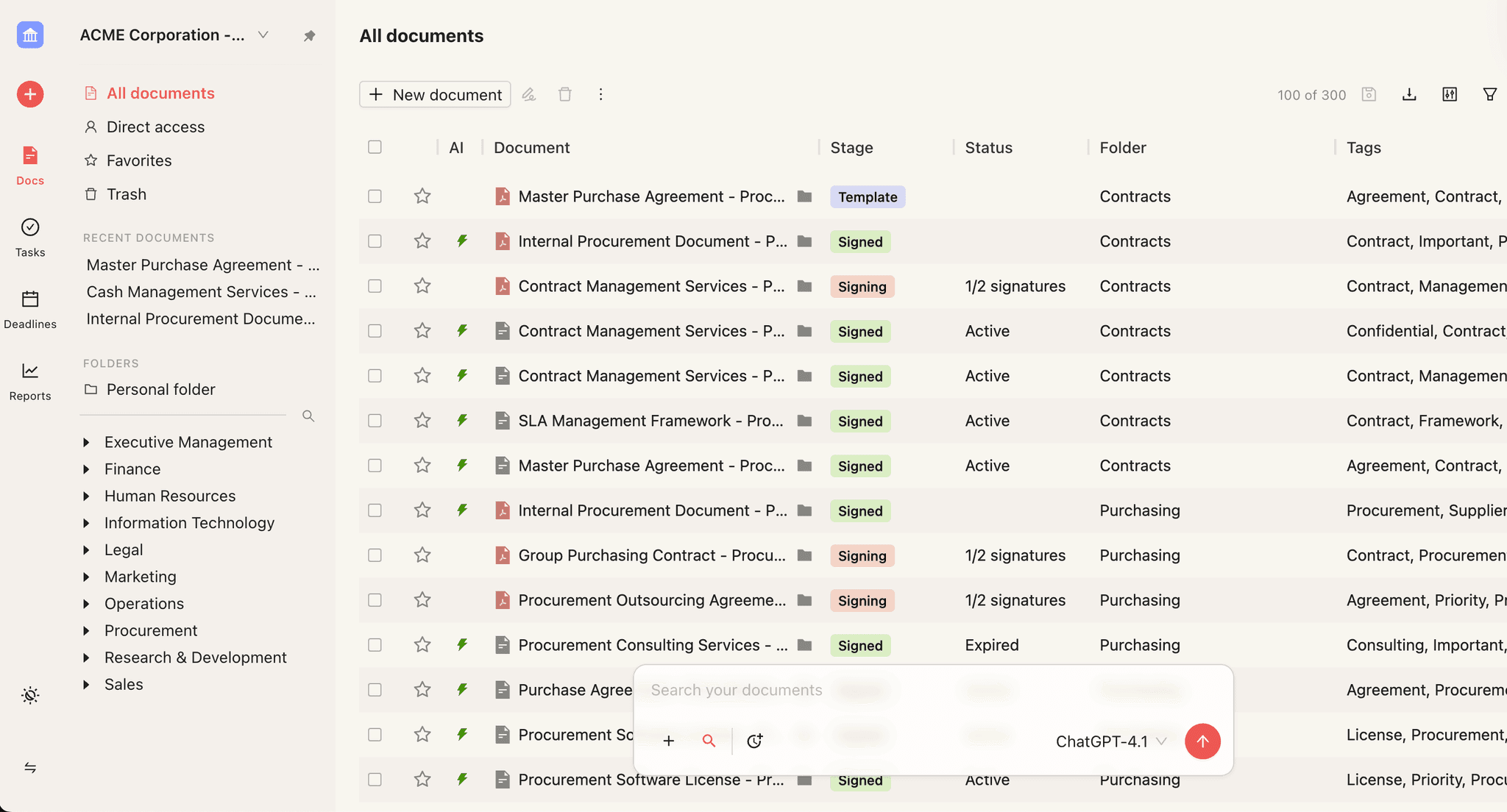
Bulk export does the same thing for metadata. From the Export menu in Horizon, you can pull a CSV or Excel file containing the metadata for every document in your inbox, or just the documents you've selected. In Horizon, the export only includes the fields you have selected in your view, which keeps the output focused. (In Classic, the export tends to include the full metadata set.)
Both actions are permission-controlled — you can decide which roles in your workspace are allowed to bulk-download files or export metadata, so you don't have to worry about anyone walking out the door with the entire library.
Typical Use Cases
Action | When customers reach for it | Volume that matters | Worth knowing |
|---|---|---|---|
Bulk upload | Initial implementation, acquisitions, departments joining late, digitizing a backlog | 25 to 1,000+ per batch | Pairs naturally with AI extraction; teams who stage into an intake folder first organize sharper after extraction |
Bulk send | Annual renewals, consent forms, contractor rosters, client documents at scale | 20+ recipients to start; many run hundreds at a time | Spreadsheet gets reused cycle-to-cycle; the second send is where the ROI lands, not the first |
Bulk sign | Executive signature queues; bottleneck approvers; sequenced approval chains | 5+ documents in queue | External counterparties can add additional signers without IT intervention — a frequent competitive flag |
Bulk move | Post-AI reorganization; archive cleanup; folder taxonomy migration | 100+ documents; some teams move 1,000+ in one action | Permissions cascade — destination folder rules apply to moved documents; plan the map before running |
Bulk download / export | Audit cycles; clause-search reporting; compliance pulls | Reporting cycle (any volume); some teams export 1,000+ at a time | Filenames are preserved as named in Concord — small detail, frequent relief vs. systems that export with arbitrary identifiers |
Frequently asked questions
Is bulk send available on every Concord plan?
No. Bulk send is included on some plans but not all. If you don't see the Automate template option in your File menu, contact your account team to confirm whether it's available on your tier.
Can I run a bulk upload after my initial implementation?
Yes. Bulk upload isn't only for first-time setup — you can use it any time you need to bring in a new batch of documents, whether that's an acquisition, a department migration, or a backlog you've been meaning to digitize.
What happens to permissions when I bulk-move documents?
Document access in Concord is inherited from the folder a document lives in. When you move documents to a new folder, anyone whose access depended on the original folder may lose access, and anyone with access to the destination folder may gain it. Concord shows a warning before completing the move so you can confirm.
Can I bulk export only the metadata I care about, instead of every field?
In Horizon, yes — the export honors the columns you have selected in your view, so if you've narrowed your view to a handful of fields, the export contains just those. In Classic, the export includes the full metadata set by default.
Most teams only use a fraction of what Concord can do at scale. Whether you're backfilling hundreds of legacy contracts during implementation, sending the same renewal to your entire customer base, or cleaning up a folder structure you inherited from someone else, Concord's bulk actions turn what would be a week of clicking into a few minutes of work. This post walks through each of the five bulk actions available in Concord — what they do, when to use them, and how to set them up.
Bulk upload: bring an entire folder of contracts in at once
Bulk upload is the fastest way to move a large set of existing contracts into Concord. The use case most people think of is initial implementation — getting your historical contracts in on day one — but you can run a bulk upload at any time. If a department joins later, or a new acquisition brings in another archive of contracts, you can pull them all in the same way.
The process is simple: take the folder of contracts on your computer, turn it into a zip file, and upload that zip into Concord. You don't have to drag files in one at a time.
A few options worth knowing about during the upload:
Destination folder. You can send everything to a specific folder, or upload into a general "intake" folder and bulk-move things into your structure later.
Document stage. Choose whether the documents come in as drafts, signed documents, or templates.
Tags. You can apply tags during the upload itself instead of going back to add them after.
Bulk upload pairs especially well with Concord's AI data extraction. Once the documents are in the system, AI agents can pull the key data points — counterparty, term, renewal date, payment terms, and so on — out of every document automatically. So a bulk upload of a few hundred contracts becomes a fully searchable, structured library without anyone having to fill in metadata by hand.
Bulk send: send one template to hundreds of recipients
Bulk send is built for the cases where you need to push the same document out to a long list of people. The two most common scenarios are annual policy updates and renewals — for example, sending an updated employee handbook to every person on staff, or pushing a renewal contract to a few hundred customers at once. We've seen plenty of creative uses too: one church group uses bulk send to issue permission slips at the start of every school year.
Setting it up takes a few steps:
1. Open the template you want to send and go to File → Automate template. You'll see three options: Microsoft Excel, Salesforce, and HubSpot.
2. With Excel selected, your template becomes an automated template. Click Edit and insert your automated variables — fields like `name`, `address`, or anything else that changes per recipient.
3. Configure the rest of the template the way you would any Concord template — approval workflows, number of signers, e-signature settings.
4. Click Start draft, then download the blank Excel spreadsheet that Concord generates for that template. The spreadsheet has one column per variable plus the recipient configuration columns.
5. Fill the spreadsheet with one row per recipient. For each row you can choose edit rights (full, limited, or none) and decide whether to invite the person immediately or save the document to send later.
6. Re-upload the completed spreadsheet, optionally add a personal message, and click Create documents. Concord generates and sends every document at once.
The customers who use bulk send most heavily tend to keep the same spreadsheet and just update it each time they need to run a new batch — which means subsequent sends take only a couple of minutes.
One thing worth flagging: bulk send isn't included on every Concord plan. If you don't see the option in your template menu, reach out to your account contact to confirm whether it's available on your tier.
Bulk sign: clear your signature queue in one pass
If you have a stack of documents waiting on your signature, you don't have to open and sign them one at a time. From your inbox or your task list, select multiple documents, click **Sign**, choose your signature once, and Concord applies it to every document in the selection.
This is especially useful for executives or approvers who tend to accumulate a backlog of documents to sign. Instead of clicking into each one, they can clear the entire queue in a few seconds.
Bulk move: restructure folders without dragging files one by one
Folder structures don't always survive contact with reality. The person who set up your library might have left, your team might have grown, or you might just be ready for a cleaner organization. Bulk move lets you reorganize without moving files individually.
To use it, select the documents you want to move — for example, everything inside a single folder — and choose a destination folder. Concord will move the entire selection in one action.
One thing to keep in mind: in Concord, document access is governed by folder permissions. When you move a document into a different folder, the people who can see it may change, because they inherit the destination folder's access rules. Concord will warn you that some people may lose access before the move completes, but it's worth thinking through who has access to your destination folders before running a large reorganization.
Bulk move pairs well with bulk upload and AI extraction during implementation: upload everything into a general intake folder, let the AI agents identify document types and key data, and then bulk-move documents into the right destinations based on what the AI found.
Bulk download and bulk export
Two related actions cover the cases where you want to get data out of Concord rather than into it.
Bulk download lets you select any number of documents and download them as a single zip file. The documents come out in whatever format they were stored in — Word documents stay as Word, PDFs stay as PDF — so you get a clean offline copy of the whole set.
Bulk export does the same thing for metadata. From the Export menu in Horizon, you can pull a CSV or Excel file containing the metadata for every document in your inbox, or just the documents you've selected. In Horizon, the export only includes the fields you have selected in your view, which keeps the output focused. (In Classic, the export tends to include the full metadata set.)
Both actions are permission-controlled — you can decide which roles in your workspace are allowed to bulk-download files or export metadata, so you don't have to worry about anyone walking out the door with the entire library.
Typical Use Cases
Action | When customers reach for it | Volume that matters | Worth knowing |
|---|---|---|---|
Bulk upload | Initial implementation, acquisitions, departments joining late, digitizing a backlog | 25 to 1,000+ per batch | Pairs naturally with AI extraction; teams who stage into an intake folder first organize sharper after extraction |
Bulk send | Annual renewals, consent forms, contractor rosters, client documents at scale | 20+ recipients to start; many run hundreds at a time | Spreadsheet gets reused cycle-to-cycle; the second send is where the ROI lands, not the first |
Bulk sign | Executive signature queues; bottleneck approvers; sequenced approval chains | 5+ documents in queue | External counterparties can add additional signers without IT intervention — a frequent competitive flag |
Bulk move | Post-AI reorganization; archive cleanup; folder taxonomy migration | 100+ documents; some teams move 1,000+ in one action | Permissions cascade — destination folder rules apply to moved documents; plan the map before running |
Bulk download / export | Audit cycles; clause-search reporting; compliance pulls | Reporting cycle (any volume); some teams export 1,000+ at a time | Filenames are preserved as named in Concord — small detail, frequent relief vs. systems that export with arbitrary identifiers |
Frequently asked questions
Is bulk send available on every Concord plan?
No. Bulk send is included on some plans but not all. If you don't see the Automate template option in your File menu, contact your account team to confirm whether it's available on your tier.
Can I run a bulk upload after my initial implementation?
Yes. Bulk upload isn't only for first-time setup — you can use it any time you need to bring in a new batch of documents, whether that's an acquisition, a department migration, or a backlog you've been meaning to digitize.
What happens to permissions when I bulk-move documents?
Document access in Concord is inherited from the folder a document lives in. When you move documents to a new folder, anyone whose access depended on the original folder may lose access, and anyone with access to the destination folder may gain it. Concord shows a warning before completing the move so you can confirm.
Can I bulk export only the metadata I care about, instead of every field?
In Horizon, yes — the export honors the columns you have selected in your view, so if you've narrowed your view to a handful of fields, the export contains just those. In Classic, the export includes the full metadata set by default.

Take the "management" out
of contract management.
Customer Support
Legal
Compare
Resources
Customer Support
Company
Legal
Compare
Resources
Customer Support
Company
Legal
Compare
© 2025 Concord. All rights reserved.