How to Sign a Word Document: 3 Methods (2026 Guide)
How to Sign a Word Document: 3 Methods (2026 Guide)
How to Sign a Word Document: 3 Methods (2026 Guide)
How to Sign a Word Document: 3 Methods (2026 Guide)

If you need to sign a Word document electronically, you have three solid options — and all of them work in under five minutes once you know where to click.
This guide walks through each method step-by-step, covers when to use which one, and shows you a faster alternative when Word's built-in tools aren't quite enough. Whether you're signing a single contract or routinely handling dozens, you'll find the right path here.
Microsoft Word has e-signing built in, so for occasional signing it's convenient — your document workflow stays in one place. Word's signing tools have limits, though, and we'll cover when it makes sense to step up to a tool built specifically for contracts. For background, see the difference between an electronic signature and a digital signature.
Steps to sign a word document electronically
Let’s walk through how to sign a Word document electronically, step-by-step.
Using Microsoft Word’s built-in features
Here’s how to add a signature in Word through two different built-in methods: inserting an image of your signature, or using the “Add a Digital Signature” feature.
First, you’ll need to add a signature line to your Word document:
Open your Word document: Double-click your Word document to open it or launch Microsoft Word and start a new document.
Go to the “Insert” tab in the upper-left corner of your Word window.
Select “Microsoft Office Signature Line”: In the menu bar, under the “Text” dropdown, you’ll find this option.
Enter your details: A dialogue box will appear asking for details like name, title, email, and phone number. Fill in the required information and click “OK.”
Note: The above steps don’t actually sign the document. They just create a special area of the document where you’ll be inserting your signature. Here are two methods for signing:
Method 1: Adding a handwritten signature in Word
Write your signature: On a blank, white piece of paper, sign your name as you normally would.
Capture your signature: Use a scanner or a smartphone camera to take a clear picture of your handwritten signature. Save this image in a format like .jpg or .png.
Open your Word document and navigate to the place where you’d like to insert your signature.
Go to the “Insert” tab in the upper-left corner of your Word window.
Insert your signature: Click on “Picture,” then choose the image file of your scanned signature. This will place the signature onto your document.
Adjust the signature: Using the picture formatting tools available in Word, resize or move the signature so it fits perfectly on the signature line.
This method creates a simple e-signature (SES), which is the least secure type of electronic signature. It’s considered insecure because there’s no way to prove you created the signature yourself – plus, anyone can easily copy and paste the image to forge your signature. That’s why the second method, below, is preferable.
Method 2: Using the “Add a Digital Signature” feature
Open your Word document and navigate to the location where you’d like to insert your signature.
Go to the “File” tab: This is located at the top-left corner of your Word window.
Select “Protect Document.” A dropdown menu will appear.
Choose “Add a Digital Signature” from the dropdown menu.
Follow the on-screen prompts: You might need to select or purchase a digital certificate. After acquiring one, choose it from the list and click “Sign.” You’ll see a digital signature added to your document.
This second method is more secure because it provides cryptographic proof of the signer’s identity and the document’s integrity. If someone modifies the document after it’s signed, the signature will become invalid.
Other methods of signing Word documents
In addition to the methods outlined above, you also have additional options when it comes to signing your Word docs. Here are two alternate ways to sign:
Using Concord
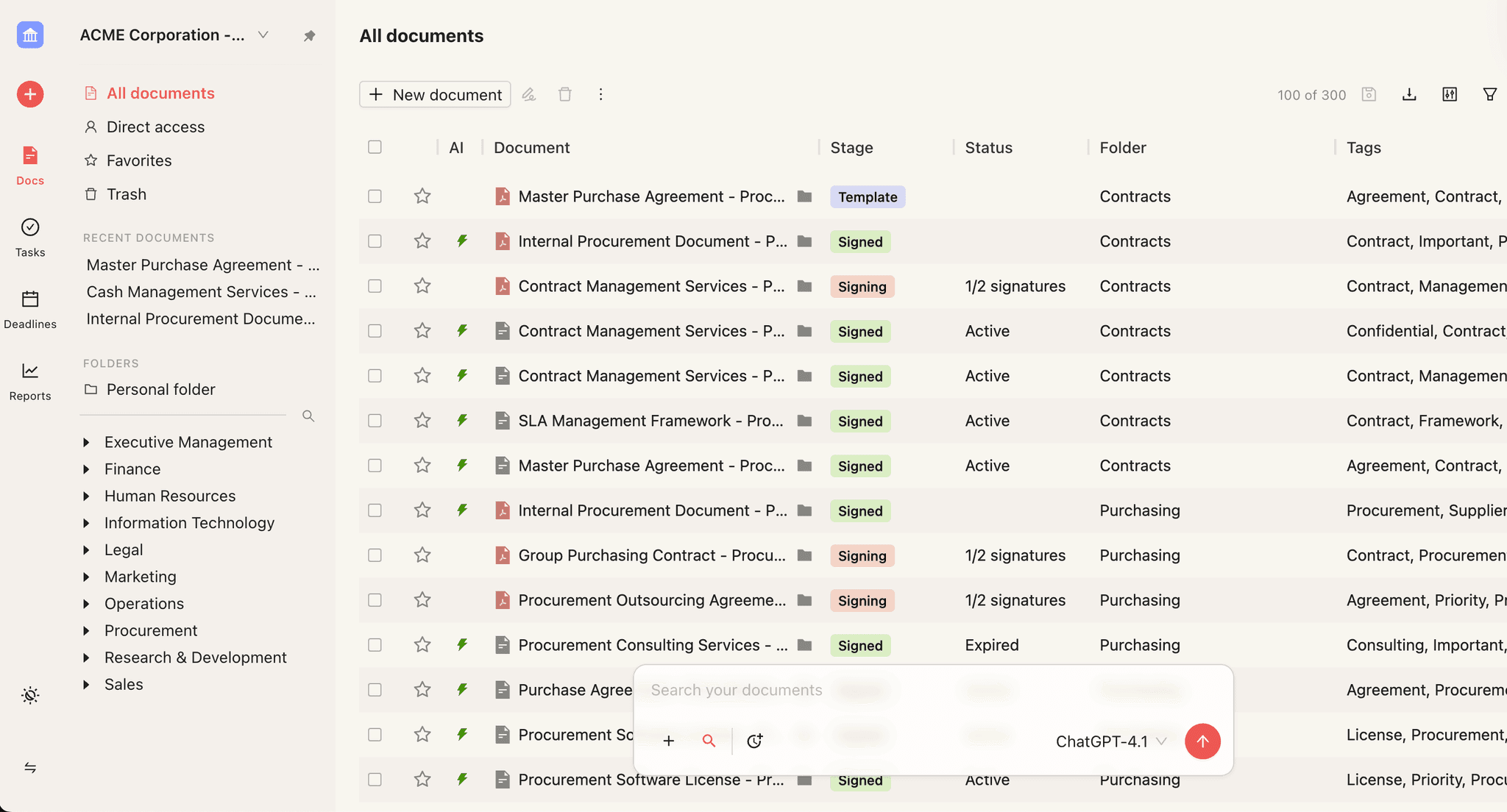
Concord provides advanced e-signature (AdES) capabilities, which automatically authenticate every signature to make sure it’s legally valid. Here’s how to create an electronic signature in Concord:
Import your Word document by uploading it into Concord.
Open the document in Concord and add a signature field – or click the signature field if you’ve been invited to sign the document by someone else.
Type or draw your signature in the dialog window that appears.
Click “Sign.” Your signature will appear on the contract.
Using Quick Parts in Word
Quick Parts is a feature in Word that allows you to save selections of text or other document elements like images and tables for quick insertion in future documents. Here’s how you can use Quick Parts to save your signature as a reusable block:
Write your signature: On a blank, white piece of paper, sign your name as you normally would.
Capture your signature: Use a scanner or a smartphone camera to take a clear picture of your handwritten signature.
Save the image: Save this picture on your computer in a common format such as .jpg or .png.
Open your Word document and navigate to the location where you want to insert your signature.
Go to the “Insert” tab in the upper-left corner of your Word window.
In the “Text” group, click on “Quick Parts.” A dropdown menu will appear.
Insert your signature image: Go back to the “Insert” tab, click on “Picture”, and choose the image file of your saved signature.
Select the image: Click on your inserted signature image to select it.
Save the selection: Return to “Quick Parts” in the “Insert” tab and select “Save Selection to Quick Part Gallery.”
. Name your signature block: In the dialog box that appears, give your signature block a name and choose where you want to save it in the Gallery. Click “OK.”
Tips and considerations
It’s important to be aware of the differences between a digital signature vs. an electronic signature. A digital signature is a special type of electronic signature, which includes some form of verification proving that the signer is who they claim to be, and that they intended to sign.
In other words, just because a signature is electronic doesn’t automatically mean it’s valid or secure. To be legally binding, an electronically signed document must contain an electronic signature clause, as well as an audit trail that verifies the authenticity of each signature.
For all these reasons, you’ll want to consult with a legal professional if you’re drafting an electronic document to be e-signed. And in many cases, you’ll find it’s easier to sign in other platforms than in Word, whose signing workflows are somewhat outdated. In fact, if you sign a lot of electronic documents – and/or collect a lot of signatures electronically – you may want to consider switching to a contract lifecycle management platform that can help automate this process for you.
Streamline your e-signing process today.
Concord CLM makes agreements effortless.
If you need to sign a Word document electronically, you have three solid options — and all of them work in under five minutes once you know where to click.
This guide walks through each method step-by-step, covers when to use which one, and shows you a faster alternative when Word's built-in tools aren't quite enough. Whether you're signing a single contract or routinely handling dozens, you'll find the right path here.
Microsoft Word has e-signing built in, so for occasional signing it's convenient — your document workflow stays in one place. Word's signing tools have limits, though, and we'll cover when it makes sense to step up to a tool built specifically for contracts. For background, see the difference between an electronic signature and a digital signature.
Steps to sign a word document electronically
Let’s walk through how to sign a Word document electronically, step-by-step.
Using Microsoft Word’s built-in features
Here’s how to add a signature in Word through two different built-in methods: inserting an image of your signature, or using the “Add a Digital Signature” feature.
First, you’ll need to add a signature line to your Word document:
Open your Word document: Double-click your Word document to open it or launch Microsoft Word and start a new document.
Go to the “Insert” tab in the upper-left corner of your Word window.
Select “Microsoft Office Signature Line”: In the menu bar, under the “Text” dropdown, you’ll find this option.
Enter your details: A dialogue box will appear asking for details like name, title, email, and phone number. Fill in the required information and click “OK.”
Note: The above steps don’t actually sign the document. They just create a special area of the document where you’ll be inserting your signature. Here are two methods for signing:
Method 1: Adding a handwritten signature in Word
Write your signature: On a blank, white piece of paper, sign your name as you normally would.
Capture your signature: Use a scanner or a smartphone camera to take a clear picture of your handwritten signature. Save this image in a format like .jpg or .png.
Open your Word document and navigate to the place where you’d like to insert your signature.
Go to the “Insert” tab in the upper-left corner of your Word window.
Insert your signature: Click on “Picture,” then choose the image file of your scanned signature. This will place the signature onto your document.
Adjust the signature: Using the picture formatting tools available in Word, resize or move the signature so it fits perfectly on the signature line.
This method creates a simple e-signature (SES), which is the least secure type of electronic signature. It’s considered insecure because there’s no way to prove you created the signature yourself – plus, anyone can easily copy and paste the image to forge your signature. That’s why the second method, below, is preferable.
Method 2: Using the “Add a Digital Signature” feature
Open your Word document and navigate to the location where you’d like to insert your signature.
Go to the “File” tab: This is located at the top-left corner of your Word window.
Select “Protect Document.” A dropdown menu will appear.
Choose “Add a Digital Signature” from the dropdown menu.
Follow the on-screen prompts: You might need to select or purchase a digital certificate. After acquiring one, choose it from the list and click “Sign.” You’ll see a digital signature added to your document.
This second method is more secure because it provides cryptographic proof of the signer’s identity and the document’s integrity. If someone modifies the document after it’s signed, the signature will become invalid.
Other methods of signing Word documents
In addition to the methods outlined above, you also have additional options when it comes to signing your Word docs. Here are two alternate ways to sign:
Using Concord
Concord provides advanced e-signature (AdES) capabilities, which automatically authenticate every signature to make sure it’s legally valid. Here’s how to create an electronic signature in Concord:
Import your Word document by uploading it into Concord.
Open the document in Concord and add a signature field – or click the signature field if you’ve been invited to sign the document by someone else.
Type or draw your signature in the dialog window that appears.
Click “Sign.” Your signature will appear on the contract.
Using Quick Parts in Word
Quick Parts is a feature in Word that allows you to save selections of text or other document elements like images and tables for quick insertion in future documents. Here’s how you can use Quick Parts to save your signature as a reusable block:
Write your signature: On a blank, white piece of paper, sign your name as you normally would.
Capture your signature: Use a scanner or a smartphone camera to take a clear picture of your handwritten signature.
Save the image: Save this picture on your computer in a common format such as .jpg or .png.
Open your Word document and navigate to the location where you want to insert your signature.
Go to the “Insert” tab in the upper-left corner of your Word window.
In the “Text” group, click on “Quick Parts.” A dropdown menu will appear.
Insert your signature image: Go back to the “Insert” tab, click on “Picture”, and choose the image file of your saved signature.
Select the image: Click on your inserted signature image to select it.
Save the selection: Return to “Quick Parts” in the “Insert” tab and select “Save Selection to Quick Part Gallery.”
. Name your signature block: In the dialog box that appears, give your signature block a name and choose where you want to save it in the Gallery. Click “OK.”
Tips and considerations
It’s important to be aware of the differences between a digital signature vs. an electronic signature. A digital signature is a special type of electronic signature, which includes some form of verification proving that the signer is who they claim to be, and that they intended to sign.
In other words, just because a signature is electronic doesn’t automatically mean it’s valid or secure. To be legally binding, an electronically signed document must contain an electronic signature clause, as well as an audit trail that verifies the authenticity of each signature.
For all these reasons, you’ll want to consult with a legal professional if you’re drafting an electronic document to be e-signed. And in many cases, you’ll find it’s easier to sign in other platforms than in Word, whose signing workflows are somewhat outdated. In fact, if you sign a lot of electronic documents – and/or collect a lot of signatures electronically – you may want to consider switching to a contract lifecycle management platform that can help automate this process for you.
Streamline your e-signing process today.
Concord CLM makes agreements effortless.

Take the "management" out
of contract management.
Customer Support
Legal
Compare
Resources
Customer Support
Company
Legal
Compare
Resources
Customer Support
Company
Legal
Compare
© 2025 Concord. All rights reserved.